> ## Documentation Index
> Fetch the complete documentation index at: https://docs.goframe.dev/llms.txt
> Use this file to discover all available pages before exploring further.
# Meet GoFrame Editor Agent
> What GoFrame Editor Agent does, where it lives, its chat modes and Plan toggle, status states, chats, message actions, and how prompts use credits
GoFrame Editor Agent is the AI editor built into every project. You describe the edit in plain language; the agent does the timeline work in your browser. Use this page to learn how the chat behaves before you write your first prompt.
 ## What the agent can do
* **Edit the timeline**: cut, trim, reorder and split clips, add text and shapes, transitions, animations and keyframes.
* **Edit by transcript**: remove filler words, pauses and repeated takes, pull highlights, tighten a talking-head recording.
* **Add captions**: build captions from the transcript and apply a preset.
* **Generate media**: images, video clips, voiceover, music, sound effects, motion graphics and avatar videos land in the Media pool and, when you ask, on the timeline.
* **Export**: render the current timeline and hand you the file.
## What the agent can do
* **Edit the timeline**: cut, trim, reorder and split clips, add text and shapes, transitions, animations and keyframes.
* **Edit by transcript**: remove filler words, pauses and repeated takes, pull highlights, tighten a talking-head recording.
* **Add captions**: build captions from the transcript and apply a preset.
* **Generate media**: images, video clips, voiceover, music, sound effects, motion graphics and avatar videos land in the Media pool and, when you ask, on the timeline.
* **Export**: render the current timeline and hand you the file.
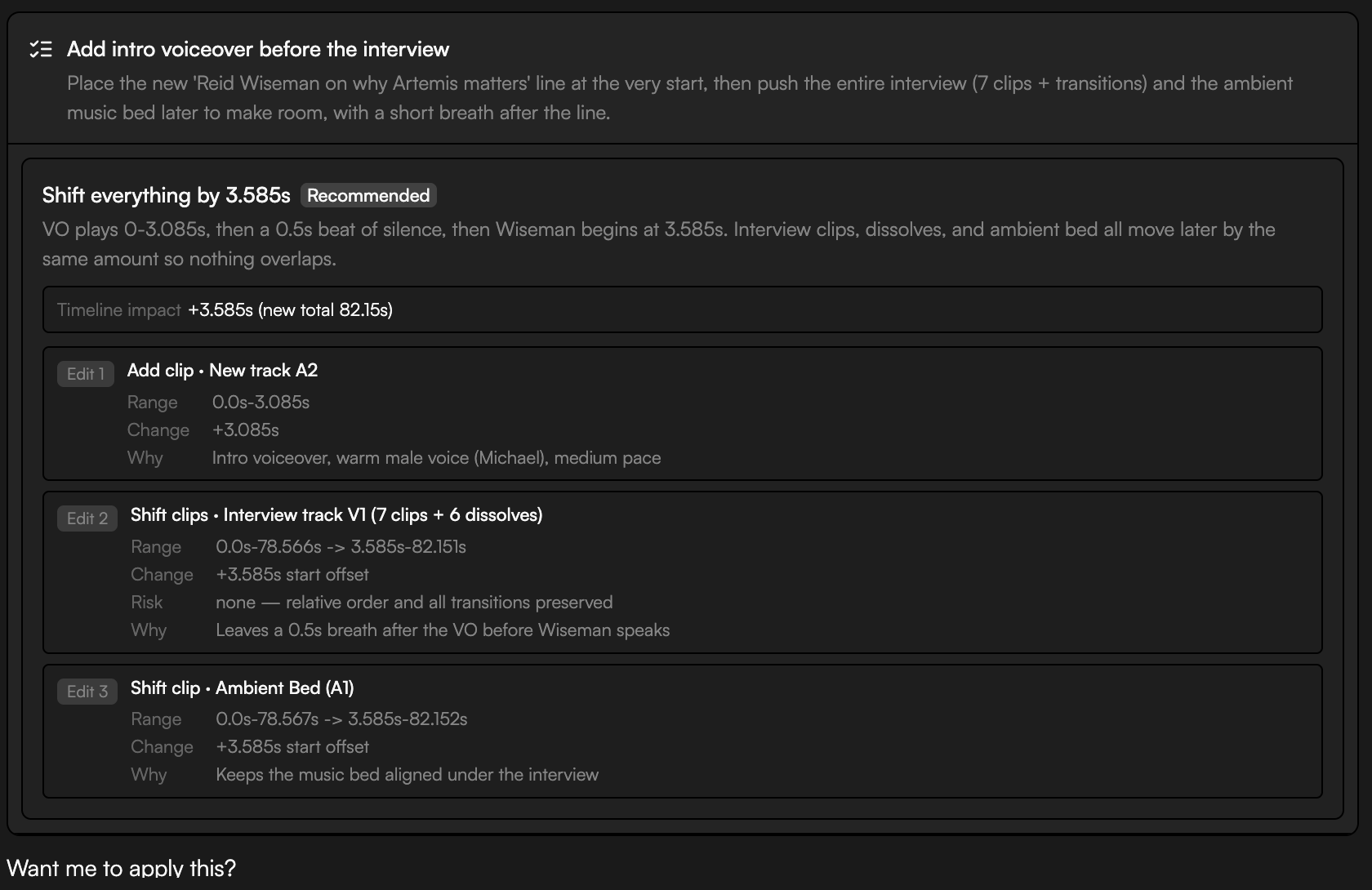
 Every paid step is announced before the agent spends credits, and large edits arrive as a proposal you approve first. See [Review proposals and approve actions](/editor/proposals-and-permissions).
## Where it lives
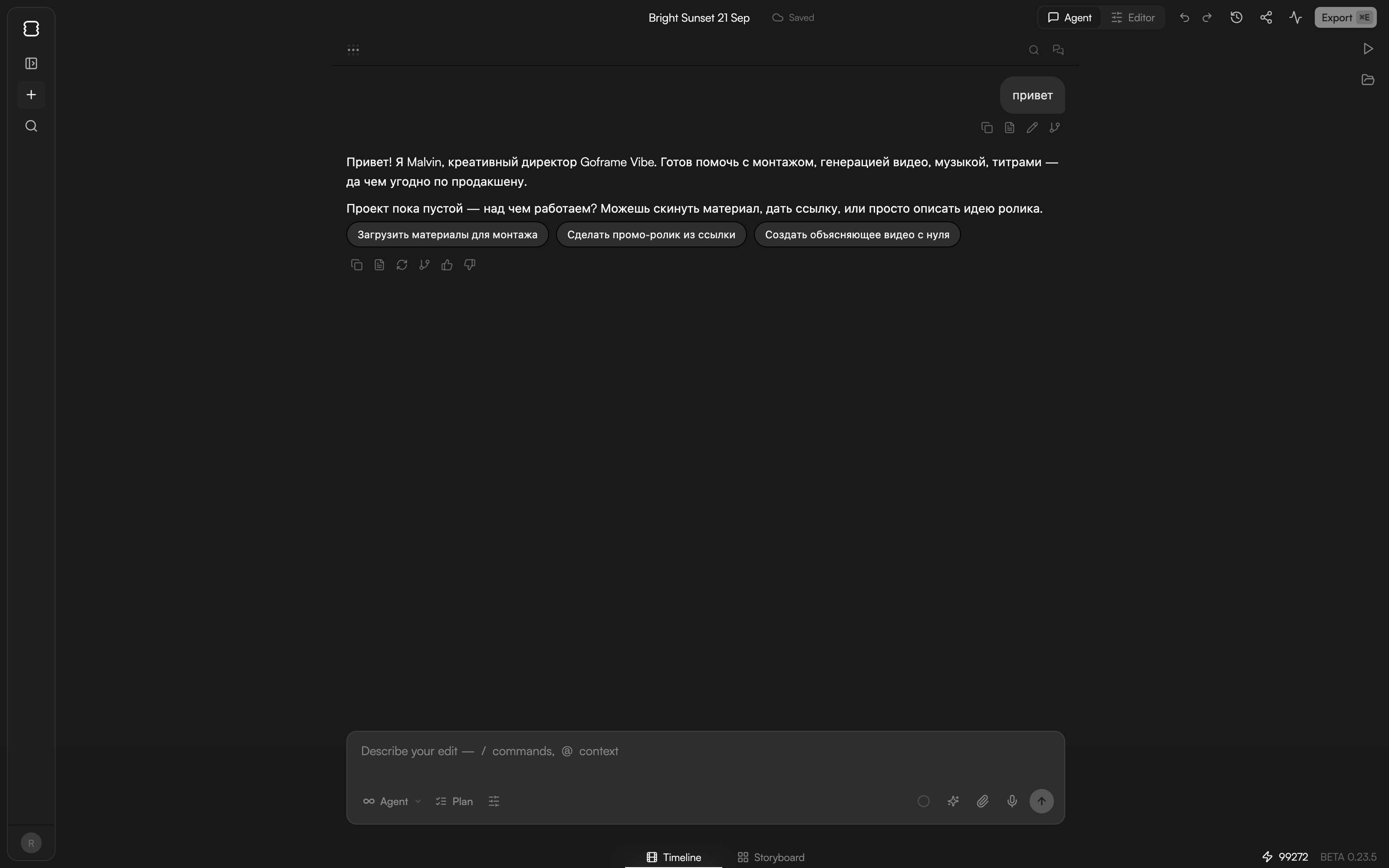
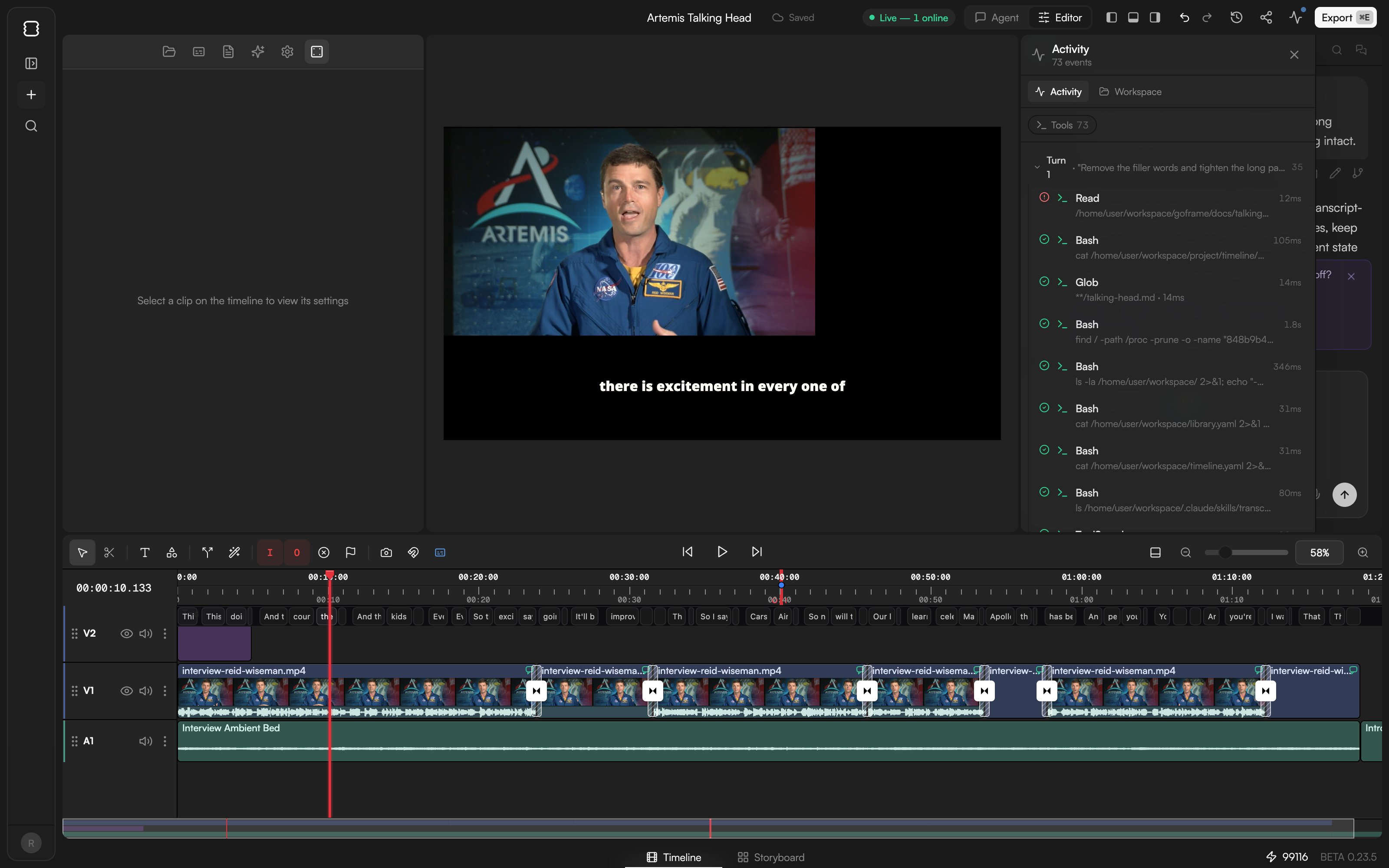
A new project opens in the **Agent** layout: a narrow rail on the left (panel toggle, **+**, search, your avatar), the chat in the center, and a right dock with **Preview** and **Media** tabs that appears as the agent produces results. Press `⌘.` (Ctrl on Windows) or use the **Agent** / **Editor** switcher in the top bar to open the **Editor** layout, where the chat moves to the right of the timeline. `⌘L` shows or hides the chat panel in either layout. See [Editor layout](/editor/editor-layout).
## Your first message
The first chat starts with a welcome message ("Hi! I'm goframe, your AI video editor…") and a row of suggestion chips. On an empty project they read **Create promo from URL**, **Generate motion graphics** and **Create explainer video**; once the project has media they change to **Auto-edit this video**, **Remove filler words**, **Extract highlights** and **Add captions**. Click a chip to send it as a prompt, or type your own in the composer ("Describe your edit — / commands, @ context").
Press `Enter` to send and `⇧Enter` for a new line. For prompt-writing tips, references and commands, see [Write prompts, references and commands](/editor/prompting).
## Chat modes
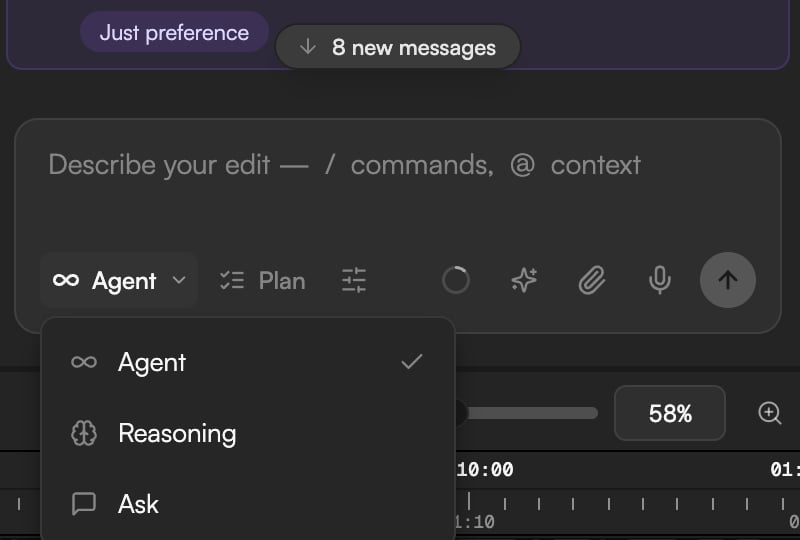
The mode dropdown (**Agent** by default) sits at the bottom-left of the composer, next to **Plan**.
| Mode | What happens |
| ------------- | ----------------------------------------------------------------------------------------------------------------------------------------------------------------------------------------- |
| **Agent** | The default. The agent reads your project, plans, and edits the timeline or generates media. |
| **Reasoning** | Agent mode with extended thinking. The agent works through the problem before acting and shows a **Thinking** block you can expand. Slower per turn; better for tricky, multi-step edits. |
| **Ask** | Read-only. The agent answers questions about your project, footage or approach without changing anything. |
Type `/reasoning` to toggle between **Agent** and **Reasoning**.
Every paid step is announced before the agent spends credits, and large edits arrive as a proposal you approve first. See [Review proposals and approve actions](/editor/proposals-and-permissions).
## Where it lives
A new project opens in the **Agent** layout: a narrow rail on the left (panel toggle, **+**, search, your avatar), the chat in the center, and a right dock with **Preview** and **Media** tabs that appears as the agent produces results. Press `⌘.` (Ctrl on Windows) or use the **Agent** / **Editor** switcher in the top bar to open the **Editor** layout, where the chat moves to the right of the timeline. `⌘L` shows or hides the chat panel in either layout. See [Editor layout](/editor/editor-layout).
## Your first message
The first chat starts with a welcome message ("Hi! I'm goframe, your AI video editor…") and a row of suggestion chips. On an empty project they read **Create promo from URL**, **Generate motion graphics** and **Create explainer video**; once the project has media they change to **Auto-edit this video**, **Remove filler words**, **Extract highlights** and **Add captions**. Click a chip to send it as a prompt, or type your own in the composer ("Describe your edit — / commands, @ context").
Press `Enter` to send and `⇧Enter` for a new line. For prompt-writing tips, references and commands, see [Write prompts, references and commands](/editor/prompting).
## Chat modes
The mode dropdown (**Agent** by default) sits at the bottom-left of the composer, next to **Plan**.
| Mode | What happens |
| ------------- | ----------------------------------------------------------------------------------------------------------------------------------------------------------------------------------------- |
| **Agent** | The default. The agent reads your project, plans, and edits the timeline or generates media. |
| **Reasoning** | Agent mode with extended thinking. The agent works through the problem before acting and shows a **Thinking** block you can expand. Slower per turn; better for tricky, multi-step edits. |
| **Ask** | Read-only. The agent answers questions about your project, footage or approach without changing anything. |
Type `/reasoning` to toggle between **Agent** and **Reasoning**.
 ## Plan first
Click **Plan** next to the mode dropdown (its tooltip begins "Plan first: the next message produces a…") or type `/plan` to arm plan mode for the next message. The agent then produces a **Proposed plan** card instead of editing directly. Review it and click **Approve & run** to execute, or **Request changes** to send it back with notes.
For prompts that look like multi-step tasks, the chat may suggest planning on its own ("This looks like a multi-step task — planning first usually gives a better result.") with a **Plan next message** action.
## Plan first
Click **Plan** next to the mode dropdown (its tooltip begins "Plan first: the next message produces a…") or type `/plan` to arm plan mode for the next message. The agent then produces a **Proposed plan** card instead of editing directly. Review it and click **Approve & run** to execute, or **Request changes** to send it back with notes.
For prompts that look like multi-step tasks, the chat may suggest planning on its own ("This looks like a multi-step task — planning first usually gives a better result.") with a **Plan next message** action.
 ## Status and progress
While a turn runs, the chat shows **Agent is working** with a changing status line ("Connecting the dots...", "Warming up...") and **esc to cancel**. Finished steps collapse into rows such as **N operations completed**, with each tool call and how long it took; longer tasks add a task list ("4 tasks completed") and a **Plan N/M** chip above the composer. The run ends with **Agent run finished**, often followed by follow-up chips such as **Add captions to this cleaned-up cut**. If you scroll up during a run, an **N new messages** pill brings you back down. Director runs show a stepper instead; see [Skills and workflows](/editor/skills).
If you send a message while the agent is busy, it is queued and sent when the turn ends. Press `Esc` to cancel a running turn. If the session drops, a **Disconnected — Reconnect** banner appears on the chat; click **Reconnect** to resume.
## Chats, search and context
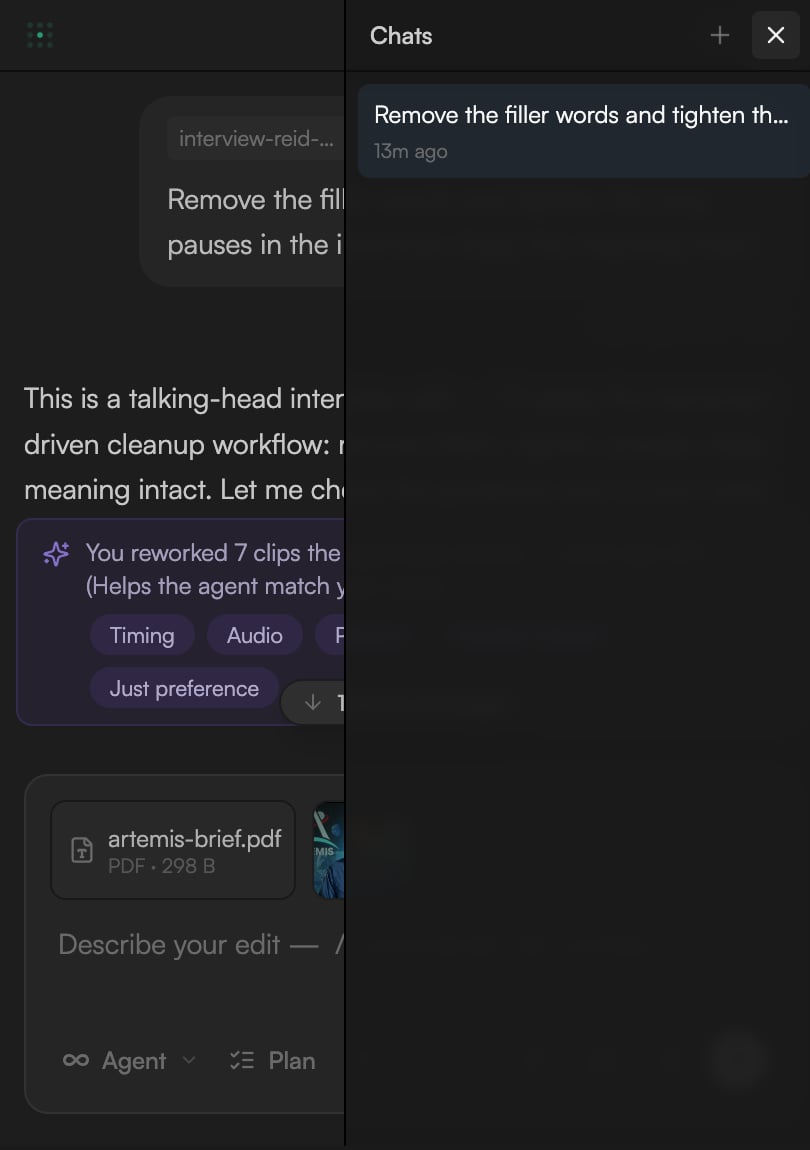
* **Chats**: open the **Chats** list in the chat header to switch between conversations or start a **New Chat**. Each chat keeps its own history; the project state is shared. Finish the current run before switching.
* **Search**: press `⌘F` (or click the search icon in the chat header) to find text in the current chat, including earlier messages that are not loaded yet.
* **Compact context**: long conversations fill the agent's working memory. Type `/compact` to summarize the session and free up space while keeping project state, memory and session notes. If a message is refused as too long, compact first.
* **Clear**: `/clear` starts a new chat and keeps the project as is.
## Status and progress
While a turn runs, the chat shows **Agent is working** with a changing status line ("Connecting the dots...", "Warming up...") and **esc to cancel**. Finished steps collapse into rows such as **N operations completed**, with each tool call and how long it took; longer tasks add a task list ("4 tasks completed") and a **Plan N/M** chip above the composer. The run ends with **Agent run finished**, often followed by follow-up chips such as **Add captions to this cleaned-up cut**. If you scroll up during a run, an **N new messages** pill brings you back down. Director runs show a stepper instead; see [Skills and workflows](/editor/skills).
If you send a message while the agent is busy, it is queued and sent when the turn ends. Press `Esc` to cancel a running turn. If the session drops, a **Disconnected — Reconnect** banner appears on the chat; click **Reconnect** to resume.
## Chats, search and context
* **Chats**: open the **Chats** list in the chat header to switch between conversations or start a **New Chat**. Each chat keeps its own history; the project state is shared. Finish the current run before switching.
* **Search**: press `⌘F` (or click the search icon in the chat header) to find text in the current chat, including earlier messages that are not loaded yet.
* **Compact context**: long conversations fill the agent's working memory. Type `/compact` to summarize the session and free up space while keeping project state, memory and session notes. If a message is refused as too long, compact first.
* **Clear**: `/clear` starts a new chat and keeps the project as is.
 ## Message actions
Hover a message to reveal its actions. On your own messages:
* **Copy plain text** / **Copy as markdown**.
* **Edit & resend** puts your message back in the composer; **Edit & branch** does the same and moves later messages to the archived branch.
On the agent's replies: copy (or press `C` on the last reply), retry (`R` on the last reply, re-sends the prompt that produced this answer), branch (archives everything after this message and starts fresh from that point), and thumbs up / down to send feedback.
`⌥↑` and `⌥↓` move through your previous messages in the composer.
## Credits and limits
Every prompt consumes credits based on the editing model and how much work the turn does; paid generations add their own cost, which the agent states before running. The project footer shows your balance next to a ⚡ icon; click it to open **Top up credits**. When you run out, the chat shows **Insufficient Credits** with a **Top Up Credits** button. See [Plans and credits](/editor/plans-and-credits).
* **Free plan**: 20 agent prompts per day and the Claude Haiku 4.5 editing model only. When the limit is hit you see **Daily Limit Reached** with the reset time; picking a paid model shows "available on paid plans". See [AI models](/editor/ai-models).
* **One run per project**: collaborators share the same chat, and only one turn can run at a time. A second prompt waits with "Agent busy" until the current one finishes.
* Idle agent sessions close after 30 minutes; the next prompt reconnects automatically.
## Continue
* [Write prompts, references and commands](/editor/prompting)
* [Review proposals and approve actions](/editor/proposals-and-permissions)
* [Skills and workflows](/editor/skills)
* [Agent rules, memory and voice](/editor/agent-settings)
## Message actions
Hover a message to reveal its actions. On your own messages:
* **Copy plain text** / **Copy as markdown**.
* **Edit & resend** puts your message back in the composer; **Edit & branch** does the same and moves later messages to the archived branch.
On the agent's replies: copy (or press `C` on the last reply), retry (`R` on the last reply, re-sends the prompt that produced this answer), branch (archives everything after this message and starts fresh from that point), and thumbs up / down to send feedback.
`⌥↑` and `⌥↓` move through your previous messages in the composer.
## Credits and limits
Every prompt consumes credits based on the editing model and how much work the turn does; paid generations add their own cost, which the agent states before running. The project footer shows your balance next to a ⚡ icon; click it to open **Top up credits**. When you run out, the chat shows **Insufficient Credits** with a **Top Up Credits** button. See [Plans and credits](/editor/plans-and-credits).
* **Free plan**: 20 agent prompts per day and the Claude Haiku 4.5 editing model only. When the limit is hit you see **Daily Limit Reached** with the reset time; picking a paid model shows "available on paid plans". See [AI models](/editor/ai-models).
* **One run per project**: collaborators share the same chat, and only one turn can run at a time. A second prompt waits with "Agent busy" until the current one finishes.
* Idle agent sessions close after 30 minutes; the next prompt reconnects automatically.
## Continue
* [Write prompts, references and commands](/editor/prompting)
* [Review proposals and approve actions](/editor/proposals-and-permissions)
* [Skills and workflows](/editor/skills)
* [Agent rules, memory and voice](/editor/agent-settings)