> ## Documentation Index
> Fetch the complete documentation index at: https://docs.goframe.dev/llms.txt
> Use this file to discover all available pages before exploring further.
# Export for Final Cut, Premiere and Resolve
> Hand your cut to a desktop editor as FCPXML, Premiere XML or OpenTimelineIO, with captions as SRT and a relink guide
Use **Project for editing (NLE)** when the rough cut is done in GoFrame Editor but the finish happens in Final Cut Pro, Premiere Pro or DaVinci Resolve. You get a project file that describes your cuts and tracks, a caption file, and a short guide for relinking the media.
 ## Before you start
* NLE export is available on Creator and Pro. On the Free plan the option is locked. See [Plans and credits](/editor/plans-and-credits).
* The project file references your source media; it does not embed it. Make sure the original files exist on the computer where you will open the project.
* Captions come from the transcript. If you want an SRT file, transcribe the speech first. See [Transcribe media](/editor/transcription).
## Export the project
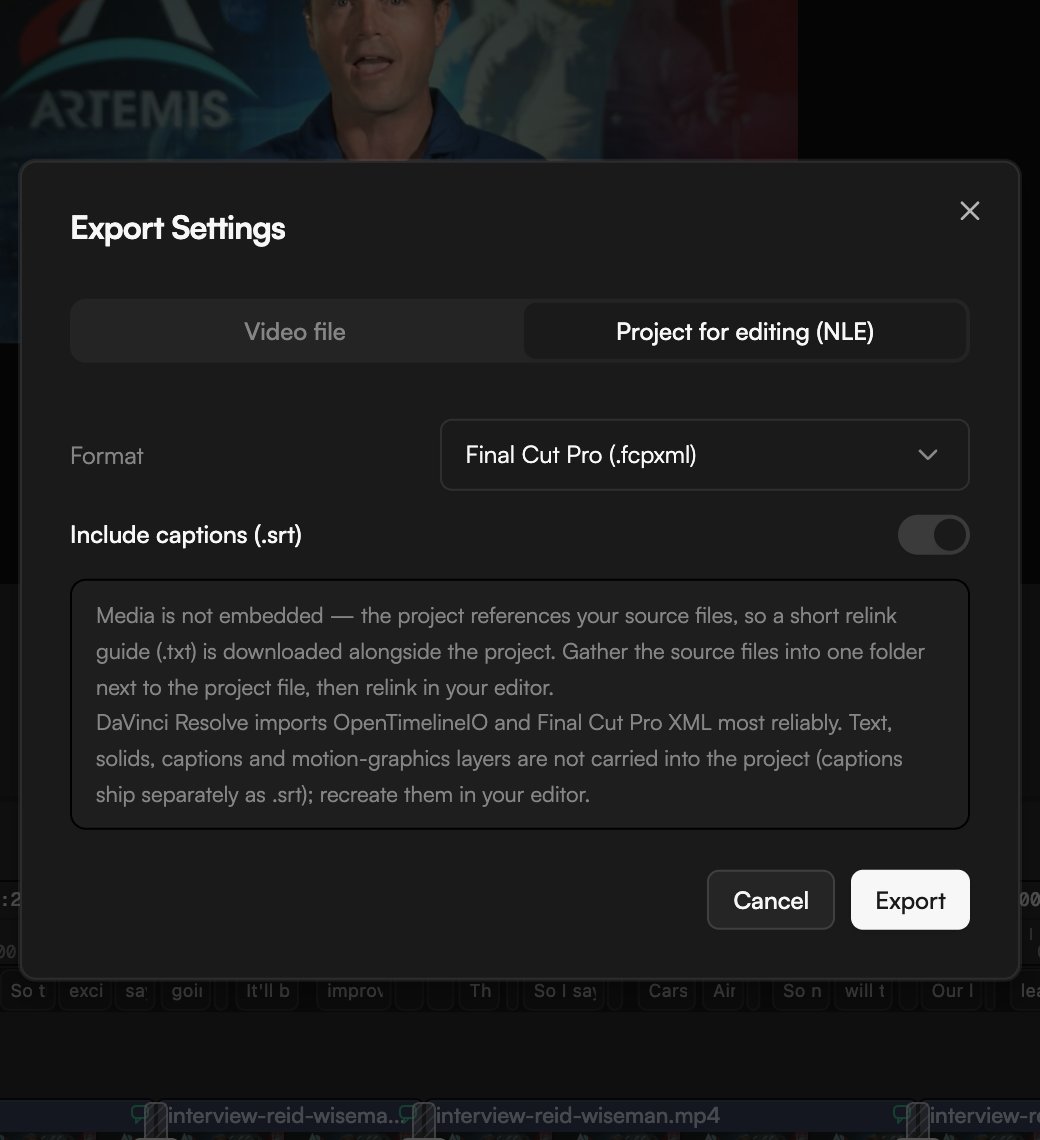
Click **Export** in the top bar or press `⌘E`. The **Export Settings** dialog opens.
Select the **Project for editing (NLE)** tab at the top of the dialog.
Choose the format for your editor from **Format**: **Final Cut Pro (.fcpxml)**, **Premiere Pro (.xml)** or **OpenTimelineIO (.otio)**.
Leave **Include captions (.srt)** on to get a sidecar subtitle file. If nothing on the timeline has a transcript, there are no captions to export.
Click **Export**. The project file, the `.srt` (if enabled) and a relink guide (`.txt`) are downloaded.
## Which format for which editor
| Editor | Recommended format | Notes |
| --------------- | --------------------------------------------------------- | -------------------------------------------------------------------------------------------------- |
| Final Cut Pro | **Final Cut Pro (.fcpxml)** | Import the file directly into a library. |
| Premiere Pro | **Premiere Pro (.xml)** | Import the XML as a sequence. |
| DaVinci Resolve | **OpenTimelineIO (.otio)** or **Final Cut Pro (.fcpxml)** | As the dialog notes, "DaVinci Resolve imports OpenTimelineIO and Final Cut Pro XML most reliably." |
## What is carried over
Included in the project file:
* Video and audio clips with their in and out points, positions on the timeline and track layout.
Not carried into the project. The dialog spells it out: "Text, solids, captions and motion-graphics layers are not carried into the project (captions ship separately as .srt); recreate them in your editor."
* Text and shape clips
* Solid colour clips
* Captions on the picture. They ship separately as `.srt` when **Include captions (.srt)** is on.
* Motion graphics
After importing, check the sequence for anything else GoFrame Editor applied as an effect, such as transitions, keyframes or masks, and rebuild whatever your editor did not pick up.
## Relink the media
Media is not embedded. The dialog puts it this way: "the project references your source files, so a short relink guide (.txt) is downloaded alongside the project. Gather the source files into one folder next to the project file, then relink in your editor."
Put every source file into one folder next to the exported project file. The relink guide lists what the project expects.
Files generated by the agent, recorded in the app or added by collaborators exist in your project, not on your disk. Right-click each one in the **Media pool** and choose **Download** first. See [Organize the Media pool](/editor/media-pool).
Open the project file in your editor, then use its relink or reconnect command and point it at the folder.
Keep the file names unchanged between GoFrame Editor and your editor. Renaming a file after export breaks the reference the project uses to find it.
## Export a transcript instead
If you only need the words, the download button in the **Transcript** panel header exports the transcript as a text or subtitle file (TXT, SRT or VTT) without going through the export dialog at all. See [Edit video by editing text](/editor/transcript-editing).
## Continue
* [Export video](/editor/export)
* [Captions](/editor/captions)
* [Organize the Media pool](/editor/media-pool)
* [Supported formats and limits](/editor/formats-and-limits)
## Before you start
* NLE export is available on Creator and Pro. On the Free plan the option is locked. See [Plans and credits](/editor/plans-and-credits).
* The project file references your source media; it does not embed it. Make sure the original files exist on the computer where you will open the project.
* Captions come from the transcript. If you want an SRT file, transcribe the speech first. See [Transcribe media](/editor/transcription).
## Export the project
Click **Export** in the top bar or press `⌘E`. The **Export Settings** dialog opens.
Select the **Project for editing (NLE)** tab at the top of the dialog.
Choose the format for your editor from **Format**: **Final Cut Pro (.fcpxml)**, **Premiere Pro (.xml)** or **OpenTimelineIO (.otio)**.
Leave **Include captions (.srt)** on to get a sidecar subtitle file. If nothing on the timeline has a transcript, there are no captions to export.
Click **Export**. The project file, the `.srt` (if enabled) and a relink guide (`.txt`) are downloaded.
## Which format for which editor
| Editor | Recommended format | Notes |
| --------------- | --------------------------------------------------------- | -------------------------------------------------------------------------------------------------- |
| Final Cut Pro | **Final Cut Pro (.fcpxml)** | Import the file directly into a library. |
| Premiere Pro | **Premiere Pro (.xml)** | Import the XML as a sequence. |
| DaVinci Resolve | **OpenTimelineIO (.otio)** or **Final Cut Pro (.fcpxml)** | As the dialog notes, "DaVinci Resolve imports OpenTimelineIO and Final Cut Pro XML most reliably." |
## What is carried over
Included in the project file:
* Video and audio clips with their in and out points, positions on the timeline and track layout.
Not carried into the project. The dialog spells it out: "Text, solids, captions and motion-graphics layers are not carried into the project (captions ship separately as .srt); recreate them in your editor."
* Text and shape clips
* Solid colour clips
* Captions on the picture. They ship separately as `.srt` when **Include captions (.srt)** is on.
* Motion graphics
After importing, check the sequence for anything else GoFrame Editor applied as an effect, such as transitions, keyframes or masks, and rebuild whatever your editor did not pick up.
## Relink the media
Media is not embedded. The dialog puts it this way: "the project references your source files, so a short relink guide (.txt) is downloaded alongside the project. Gather the source files into one folder next to the project file, then relink in your editor."
Put every source file into one folder next to the exported project file. The relink guide lists what the project expects.
Files generated by the agent, recorded in the app or added by collaborators exist in your project, not on your disk. Right-click each one in the **Media pool** and choose **Download** first. See [Organize the Media pool](/editor/media-pool).
Open the project file in your editor, then use its relink or reconnect command and point it at the folder.
Keep the file names unchanged between GoFrame Editor and your editor. Renaming a file after export breaks the reference the project uses to find it.
## Export a transcript instead
If you only need the words, the download button in the **Transcript** panel header exports the transcript as a text or subtitle file (TXT, SRT or VTT) without going through the export dialog at all. See [Edit video by editing text](/editor/transcript-editing).
## Continue
* [Export video](/editor/export)
* [Captions](/editor/captions)
* [Organize the Media pool](/editor/media-pool)
* [Supported formats and limits](/editor/formats-and-limits)