> ## Documentation Index
> Fetch the complete documentation index at: https://docs.goframe.dev/llms.txt
> Use this file to discover all available pages before exploring further.
# Export video
> Render your timeline to MP4, WebM or audio, pick quality, resolution and frame rate, export transparent video, or save a single frame
Export renders your timeline into a file you can upload, send or hand off. Everything renders in your browser: pick the settings in the **Export Settings** dialog, choose where to save, and keep the tab open until it finishes.
 ## Start an export
Click **Export** in the top bar or press `⌘E` (Ctrl on Windows). The **Export Settings** dialog opens.
Keep the **Video file** tab selected. **Project for editing (NLE)** exports a project file for Final Cut Pro, Premiere Pro or DaVinci Resolve instead; see [Export for Final Cut, Premiere and Resolve](/editor/export-for-nle).
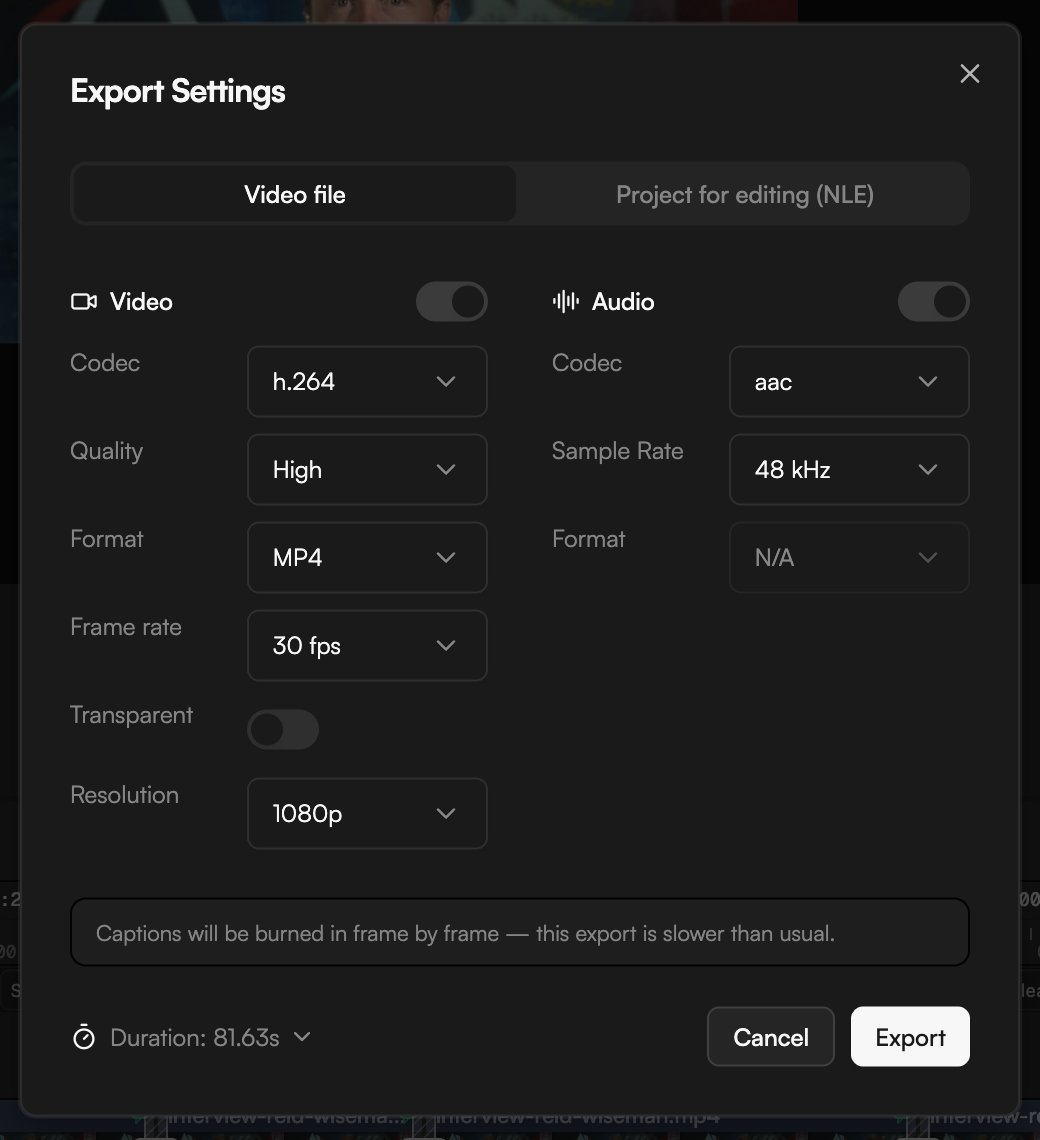
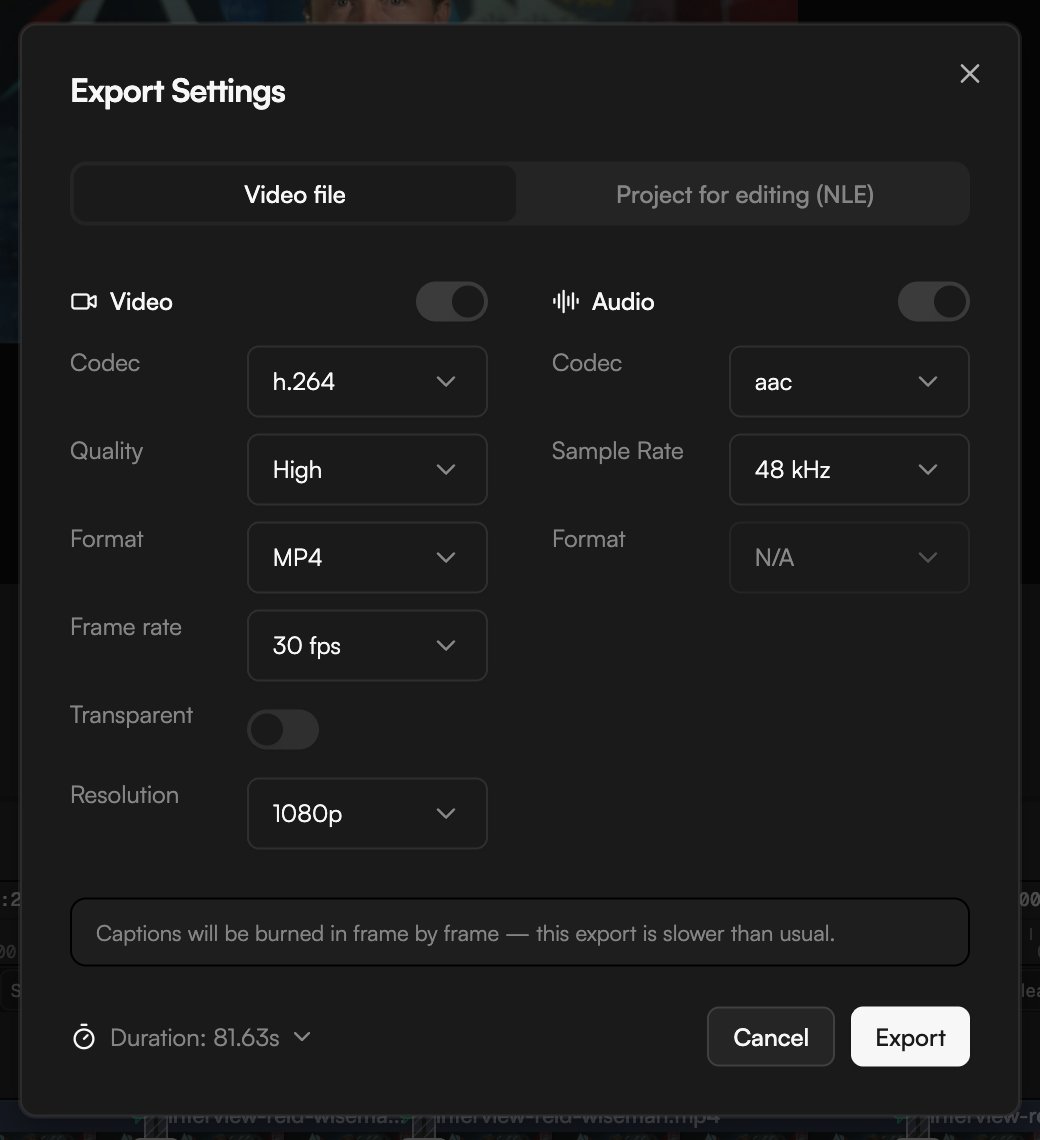
Adjust the **Video** and **Audio** sections. The defaults (**Codec** h.264, **Quality** High, **Format** MP4, **Frame rate** 30 fps, **Resolution** 1080p; audio **Codec** aac at a **Sample Rate** of 48 kHz) work for most uploads.
Check the **Duration** at the bottom, then click **Export**. In Chrome and Edge a save dialog asks where to put the file; other browsers download it. The dialog shows progress while it renders and tells you when the file is ready. **Cancel** stops the export.
Rendering runs in the tab you started it from. If you switch to another tab, the export keeps going, but browsers throttle hidden tabs, so it slows right down. Stay on the tab for the fastest result.
## Video settings
| Setting | Options | Notes |
| --------------- | ------------------------------------------------------------------------------------------------------------------- | -------------------------------------------------------------------------------- |
| **Codec** | Depends on the format (see below) | h.264 for MP4 by default. |
| **Quality** | **Very Low** (1 Mbps), **Low** (2.5 Mbps), **Medium** (5 Mbps), **High** (8 Mbps, default), **Very High** (15 Mbps) | Higher bitrates mean larger files and sharper detail in motion. |
| **Format** | MP4, WebM, OGG | MP4 is the safest choice for social platforms and messengers. OGG is audio only. |
| **Frame rate** | 24, 25, 29.97, 30, 50, 59.94, 60 fps | Projects run at 30 fps; export at the rate your platform expects. |
| **Transparent** | Switch | Renders with an alpha channel. Paid plans only. See below. |
| **Resolution** | 720p, 1080p, 1440p, 4K | Scaled from your project's aspect ratio. Tiers above your plan are locked. |
Resolution depends on your plan: Free exports up to 720p, Creator up to 1080p, and Pro up to 4K. See [Plans and credits](/editor/plans-and-credits).
## Formats and codecs
| Format | Video codecs | Audio codecs | Use it for |
| ----------------- | ----------------- | ------------ | ------------------------------------------------------------------------------ |
| MP4 | h.264, h.265, av1 | aac, opus | Uploads, sharing, most players |
| WebM | vp9, vp8, av1 | opus | Web embeds and transparent video |
| OGG | none (audio only) | opus | Audio-only exports |
| MOV (ProRes 4444) | ProRes 4444 | pcm | Transparent video for desktop editors; offered only when **Transparent** is on |
## Audio settings
* **Codec** follows the video format: aac or opus for MP4, opus for WebM and OGG.
* **Sample Rate**: 8, 12, 16, 24 or 48 kHz. Leave it at 48 kHz unless a platform asks for less.
* **Format** reads N/A for a video export, because the audio goes inside the video container.
If the exported file has no sound, check that every audio clip still has its source file (see the relink notes in [Import media](/editor/import-media)) and export again.
## Transparent export
Turn on **Transparent** to render the timeline with an alpha channel, for example a lower third or a motion graphic you will composite elsewhere. Enabling it switches the format to WebM with vp9, then offers two encoders:
* **WebM**: VP9 with alpha. Fast and browser-friendly.
* **ProRes**: ProRes 4444 in a `.mov` container. Clean 10-bit straight alpha for Premiere, Resolve or After Effects. Slower and larger.
## Start an export
Click **Export** in the top bar or press `⌘E` (Ctrl on Windows). The **Export Settings** dialog opens.
Keep the **Video file** tab selected. **Project for editing (NLE)** exports a project file for Final Cut Pro, Premiere Pro or DaVinci Resolve instead; see [Export for Final Cut, Premiere and Resolve](/editor/export-for-nle).
Adjust the **Video** and **Audio** sections. The defaults (**Codec** h.264, **Quality** High, **Format** MP4, **Frame rate** 30 fps, **Resolution** 1080p; audio **Codec** aac at a **Sample Rate** of 48 kHz) work for most uploads.
Check the **Duration** at the bottom, then click **Export**. In Chrome and Edge a save dialog asks where to put the file; other browsers download it. The dialog shows progress while it renders and tells you when the file is ready. **Cancel** stops the export.
Rendering runs in the tab you started it from. If you switch to another tab, the export keeps going, but browsers throttle hidden tabs, so it slows right down. Stay on the tab for the fastest result.
## Video settings
| Setting | Options | Notes |
| --------------- | ------------------------------------------------------------------------------------------------------------------- | -------------------------------------------------------------------------------- |
| **Codec** | Depends on the format (see below) | h.264 for MP4 by default. |
| **Quality** | **Very Low** (1 Mbps), **Low** (2.5 Mbps), **Medium** (5 Mbps), **High** (8 Mbps, default), **Very High** (15 Mbps) | Higher bitrates mean larger files and sharper detail in motion. |
| **Format** | MP4, WebM, OGG | MP4 is the safest choice for social platforms and messengers. OGG is audio only. |
| **Frame rate** | 24, 25, 29.97, 30, 50, 59.94, 60 fps | Projects run at 30 fps; export at the rate your platform expects. |
| **Transparent** | Switch | Renders with an alpha channel. Paid plans only. See below. |
| **Resolution** | 720p, 1080p, 1440p, 4K | Scaled from your project's aspect ratio. Tiers above your plan are locked. |
Resolution depends on your plan: Free exports up to 720p, Creator up to 1080p, and Pro up to 4K. See [Plans and credits](/editor/plans-and-credits).
## Formats and codecs
| Format | Video codecs | Audio codecs | Use it for |
| ----------------- | ----------------- | ------------ | ------------------------------------------------------------------------------ |
| MP4 | h.264, h.265, av1 | aac, opus | Uploads, sharing, most players |
| WebM | vp9, vp8, av1 | opus | Web embeds and transparent video |
| OGG | none (audio only) | opus | Audio-only exports |
| MOV (ProRes 4444) | ProRes 4444 | pcm | Transparent video for desktop editors; offered only when **Transparent** is on |
## Audio settings
* **Codec** follows the video format: aac or opus for MP4, opus for WebM and OGG.
* **Sample Rate**: 8, 12, 16, 24 or 48 kHz. Leave it at 48 kHz unless a platform asks for less.
* **Format** reads N/A for a video export, because the audio goes inside the video container.
If the exported file has no sound, check that every audio clip still has its source file (see the relink notes in [Import media](/editor/import-media)) and export again.
## Transparent export
Turn on **Transparent** to render the timeline with an alpha channel, for example a lower third or a motion graphic you will composite elsewhere. Enabling it switches the format to WebM with vp9, then offers two encoders:
* **WebM**: VP9 with alpha. Fast and browser-friendly.
* **ProRes**: ProRes 4444 in a `.mov` container. Clean 10-bit straight alpha for Premiere, Resolve or After Effects. Slower and larger.
 ProRes encodes entirely in memory, so very long ranges may not fit. If the dialog says the range is too long, export a shorter range, or lower the resolution or frame rate.
MP4 cannot carry an alpha channel. If you switch the format back to MP4 or OGG, **Transparent** turns off. Transparent export is available on Creator and Pro; on Free the switch is locked.
## Export part of the timeline
By default the whole timeline is exported. The **Duration** dropdown at the bottom of the dialog shows the current length (for example **Duration: 81.63s**) and lets you choose between the whole composition and stopping at one of your markers:
* Keep the whole composition to export the full length.
* Pick a marker to end the export at that marker's time. Add markers from the timeline toolbar or with `M` first.
## Captions and motion graphics
Captions and motion graphics are burned into the picture frame by frame. When the project has them, the dialog notes "Captions will be burned in frame by frame — this export is slower than usual." Motion graphics are prepared before the render starts; turning on **MG optimization** in the Media pool does that work in the background ahead of time. See [Motion graphics](/editor/motion-graphics) and [Captions](/editor/captions).
## Collaborators during an export
While an export runs, changes from the agent and your collaborators are held back until it finishes; your own edits still apply. Their edits arrive after the file is written.
## Watermark on the Free plan
On the Free plan the dialog shows "Free plan: exports include a small watermark." and every render carries a "Made with Goframe" mark. Click **Upgrade to remove**, or open [Plans and credits](/editor/plans-and-credits).
## Export a single frame
To save the current frame as a PNG, place the playhead and click the **Export frame** camera button in the timeline toolbar. Useful for thumbnails and stills.
## Ask the agent to export
You can also type the request in chat: "Export this as a 1080p MP4" or run `/export-video`. The agent renders the timeline and posts a download link in the conversation. Agent exports have a 15-minute limit; for long or 4K projects, use the dialog.
## Troubleshooting
* The timeline is empty: drop at least one clip on the timeline before exporting.
* Transparent export needs WebM (VP9) or MOV (ProRes 4444): pick WebM or switch to ProRes.
* Export was cancelled or failed: check that no clips show **Error** badges, keep the tab in the foreground, and try a lower resolution. More in [Troubleshooting](/editor/troubleshooting).
## Continue
* [Export for Final Cut, Premiere and Resolve](/editor/export-for-nle)
* [Captions](/editor/captions)
* [Project settings](/editor/project-settings)
* [Plans and credits](/editor/plans-and-credits)
ProRes encodes entirely in memory, so very long ranges may not fit. If the dialog says the range is too long, export a shorter range, or lower the resolution or frame rate.
MP4 cannot carry an alpha channel. If you switch the format back to MP4 or OGG, **Transparent** turns off. Transparent export is available on Creator and Pro; on Free the switch is locked.
## Export part of the timeline
By default the whole timeline is exported. The **Duration** dropdown at the bottom of the dialog shows the current length (for example **Duration: 81.63s**) and lets you choose between the whole composition and stopping at one of your markers:
* Keep the whole composition to export the full length.
* Pick a marker to end the export at that marker's time. Add markers from the timeline toolbar or with `M` first.
## Captions and motion graphics
Captions and motion graphics are burned into the picture frame by frame. When the project has them, the dialog notes "Captions will be burned in frame by frame — this export is slower than usual." Motion graphics are prepared before the render starts; turning on **MG optimization** in the Media pool does that work in the background ahead of time. See [Motion graphics](/editor/motion-graphics) and [Captions](/editor/captions).
## Collaborators during an export
While an export runs, changes from the agent and your collaborators are held back until it finishes; your own edits still apply. Their edits arrive after the file is written.
## Watermark on the Free plan
On the Free plan the dialog shows "Free plan: exports include a small watermark." and every render carries a "Made with Goframe" mark. Click **Upgrade to remove**, or open [Plans and credits](/editor/plans-and-credits).
## Export a single frame
To save the current frame as a PNG, place the playhead and click the **Export frame** camera button in the timeline toolbar. Useful for thumbnails and stills.
## Ask the agent to export
You can also type the request in chat: "Export this as a 1080p MP4" or run `/export-video`. The agent renders the timeline and posts a download link in the conversation. Agent exports have a 15-minute limit; for long or 4K projects, use the dialog.
## Troubleshooting
* The timeline is empty: drop at least one clip on the timeline before exporting.
* Transparent export needs WebM (VP9) or MOV (ProRes 4444): pick WebM or switch to ProRes.
* Export was cancelled or failed: check that no clips show **Error** badges, keep the tab in the foreground, and try a lower resolution. More in [Troubleshooting](/editor/troubleshooting).
## Continue
* [Export for Final Cut, Premiere and Resolve](/editor/export-for-nle)
* [Captions](/editor/captions)
* [Project settings](/editor/project-settings)
* [Plans and credits](/editor/plans-and-credits)