> ## Documentation Index
> Fetch the complete documentation index at: https://docs.goframe.dev/llms.txt
> Use this file to discover all available pages before exploring further.
# Generate video
> Generate clips from text, images, reference images or existing footage with Veo, Kling and Seedance models, then use them on the timeline
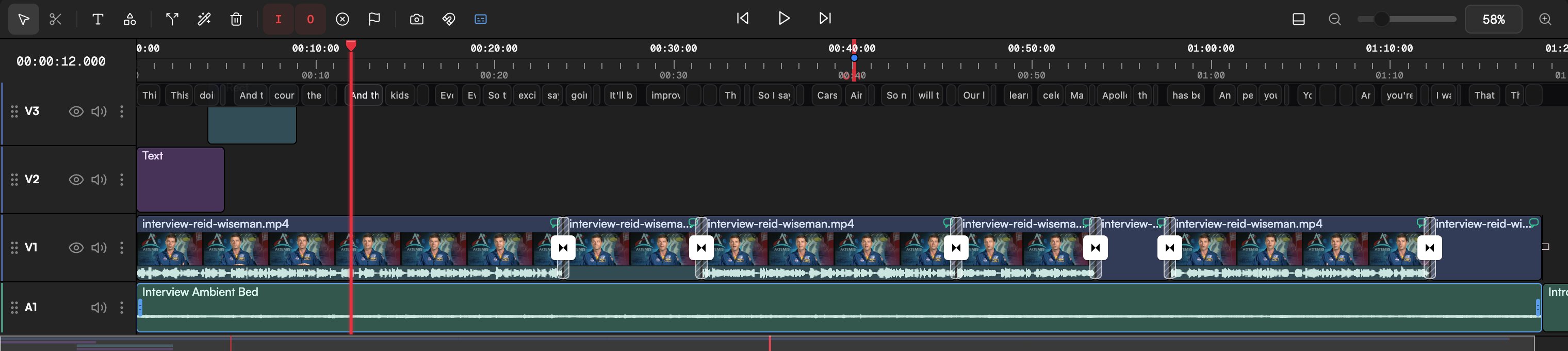
Ask GoFrame Editor Agent for a shot and it generates the clip, saves it to the Media pool and places it on the timeline. You can start from a text description, animate a still, keep a character consistent with reference images, or restyle footage you already have.
## Before you start
* **Credits.** Video is billed per second of output and is the most expensive thing you can generate. A 5-second clip costs between 115 and 375 credits depending on the model (see [Options](#options)). The agent shows the cost and waits for your approval before a paid run, unless you've set that skill to auto-approve in **Settings → Agent → Permissions**.
* **A plan that includes the model.** Veo 3 Fast, the default, carries the **pro** badge and needs a paid plan. Models with a **pro** badge in the model picker are not available on Free.
* **Concurrency.** Free runs 1 generation at a time, Creator 2, Pro 4. Extra requests wait in line.
* **Inputs (optional).** A start image, an end image, reference images, or a source video from the Media pool. Mention them with `@` in the chat.
## Ask the agent
Type what you want or start with `/video-gen`. Describe the subject and its action first, then the camera, then the look. Say the duration and aspect ratio if the defaults in the generation settings aren't right.
```text theme={null}
/video-gen slow dolly-in on a mountain cabin at dawn, volumetric light, 8 seconds, 16:9
```
```text theme={null}
Animate @product-hero.png: the camera orbits the bottle slowly, soft studio light, 5 seconds, no sound.
```
```text theme={null}
Make a 10-second clip with Kling O3 Pro: the character from @character-sheet.png walks through a rainy night market, handheld.
```
```text theme={null}
Start on @frame-a.png and end on @frame-b.png with a smooth push-in between them. Veo 3 Fast.
```
```text theme={null}
Restyle @office-walkthrough.mp4 as a watercolor animation. Keep the motion.
```
The generation settings (the sliders icon in the composer) set the defaults for every request: an aspect chip (Wide 16:9, Vertical 9:16, Square 1:1, Classic 4:3, Tall 3:4, Social 4:5, Cinematic 21:9), **Duration** (Auto, 5 or 10 s; Veo 3 Fast uses 4, 6 or 8 s) and **Sound on** / **Sound off**. Pick the model with the ✦ button in the composer or `/model`.
## Options
| Model | Duration | Aspect ratios | Sound | Inputs | Credits per second |
| ----------------------------- | ------------------ | ------------------------------------- | ----------------------- | -------------------------------------------------------------------------------------------------------- | ------------------ |
| **Veo 3 Fast** (default, pro) | 4, 6 or 8 s | 16:9, 9:16 | Native audio | Text, start image, first + last frame, reference images; 720p or 1080p | 23 |
| **Kling 3.0 Pro** | 5 or 10 s | 16:9, 9:16, 1:1 | Optional | Text, start image | 75 |
| **Kling O3 Pro** | 5 or 10 s | 16:9, 9:16, 1:1 | Optional | Text, start image, reference images, video-to-video editing and restyling | 75 |
| **Kling 2.5 Turbo** | 5 or 10 s | 16:9, 9:16, 1:1 | Silent | Text, start image | 23 |
| **Seedance 1.0 Lite** | 5 or 10 s | 16:9, 9:16, 1:1 | Native audio | Text, start image, 1 reference image | 23 |
| **Seedance 2.0** | 4 to 15 s, or Auto | 1:1, 3:4, 4:3, 9:16, 16:9, 21:9, Auto | Native audio, always on | Text, start image, up to 9 reference images + 3 reference videos + 3 reference audio files; 480p or 720p | 38 |
| **Seedance 2.0 Fast** | 4 to 15 s, or Auto | Same as Seedance 2.0 | Native audio, always on | Same as Seedance 2.0; faster and cheaper | 30 |
Which one to pick:
* **Veo 3 Fast** for the default balance of quality, speed and sound, and for first-and-last-frame transitions.
* **Kling O3 Pro** to edit or restyle existing footage, or to keep a character consistent from reference images.
* **Kling 3.0 Pro** for cinematic motion and precise camera control.
* **Seedance 2.0** for the longest clips (15 s), multi-shot narratives and rich references. Use **Seedance 2.0 Fast** while iterating and the standard tier for the final render.
* **Kling 2.5 Turbo** and **Seedance 1.0 Lite** for cheap drafts.
Durations are hard limits. Ask for 6 seconds on a Kling model and the agent rounds to 5 or 10. Square (1:1) is not available on Veo 3 Fast; 21:9, 3:4 and 4:3 exist only on Seedance 2.0.
If a model is temporarily unavailable on the provider's side, the run fails and the agent offers alternatives: try another model, or wait and retry the same one later.
## Where the result lands and what to do next
* The clip is saved to the **Media pool** with the **Created by AI agent** badge, and its prompt, model and variant are recorded under **AI-generated** in the info panel.
* By default it's placed on a video track and reported in a **Timeline changes** card. Say "at the playhead", "after the intro" or "just to the library" to change that.
* A **Video generation** job card in the chat shows progress; when it finishes you get a preview with **Reveal in library** and **Regenerate**. **Regenerate** re-runs it with the same parameters, which is the quickest way to get a second take.
* Starting from an image you just generated? Click the **Animate it into a video clip** suggestion chip under the agent's reply.
* Silent clip? Ask for sound from picture: see [Music and sound effects](/editor/music-and-sfx). Too soft for a big export? See [Upscale](/editor/upscale). Need a sequence rather than one shot? Run `/director` and let the agent plan, generate and assemble the whole thing.
 ## Do it from the Storyboard
The chat is the primary path, but the **Storyboard** tab works for visual exploration: switch the prompt bar to video with the type icons, choose an aspect from the aspect menu, describe the shot, and finished clips appear as nodes on the board that you can compare and bring to the timeline. See [Storyboard](/editor/storyboard).
## Prompt tips
* One clip, one main action. Describe the subject's movement first, then the camera move ("slow push-in", "orbit", "handheld follow").
* Use time brackets for pacing: "\[0–3 s] wide shot of the harbor, \[3–6 s] cut to a close-up of the rope". Models follow this better than "first… then…".
* For dialogue, give the exact line in quotes and the tone. Keep lines under 15 words; English renders most reliably.
* Say what to avoid: "no text, no subtitles, no watermark, no extra limbs".
* For a recurring character, reuse the same reference image and the same full description in every prompt. Each generation starts from scratch.
* Run `/visual-identity` once and every clip in the project shares the same palette and camera language.
## Related
* [Generate images](/editor/generate-images)
* [Music and sound effects](/editor/music-and-sfx)
* [Upscale images and video](/editor/upscale)
* [Storyboard](/editor/storyboard)
## Do it from the Storyboard
The chat is the primary path, but the **Storyboard** tab works for visual exploration: switch the prompt bar to video with the type icons, choose an aspect from the aspect menu, describe the shot, and finished clips appear as nodes on the board that you can compare and bring to the timeline. See [Storyboard](/editor/storyboard).
## Prompt tips
* One clip, one main action. Describe the subject's movement first, then the camera move ("slow push-in", "orbit", "handheld follow").
* Use time brackets for pacing: "\[0–3 s] wide shot of the harbor, \[3–6 s] cut to a close-up of the rope". Models follow this better than "first… then…".
* For dialogue, give the exact line in quotes and the tone. Keep lines under 15 words; English renders most reliably.
* Say what to avoid: "no text, no subtitles, no watermark, no extra limbs".
* For a recurring character, reuse the same reference image and the same full description in every prompt. Each generation starts from scratch.
* Run `/visual-identity` once and every clip in the project shares the same palette and camera language.
## Related
* [Generate images](/editor/generate-images)
* [Music and sound effects](/editor/music-and-sfx)
* [Upscale images and video](/editor/upscale)
* [Storyboard](/editor/storyboard)