> ## Documentation Index
> Fetch the complete documentation index at: https://docs.goframe.dev/llms.txt
> Use this file to discover all available pages before exploring further.
# Keyboard shortcuts
> Every GoFrame Editor shortcut for playback, editing, tools, markers, view, the app and chat, plus the Premiere, Resolve and Final Cut presets
Shortcuts cover the timeline, the app shell and the agent chat. The timeline set follows the **goframe (Default)** preset; if you come from another editor, switch to the **Premiere Pro**, **DaVinci Resolve** or **Final Cut Pro** preset in **Settings → Shortcuts**, or rebind single actions.
`⌘` is Ctrl on Windows and `⌥` is Alt. Press `?` over the timeline for the shortcuts sheet, and `?` in the chat for the chat help overlay.
## Playback
| Action | Shortcut |
| --------------------------- | --------- |
| Play / Pause | `Space` |
| Previous / next frame | `←` / `→` |
| Back / forward 1 second | `↓` / `↑` |
| Skimmer (preview at cursor) | Hold `⌥` |
## Editing
| Action | Shortcut |
| ------------------------- | ---------------------- |
| Undo / Redo | `⌘Z` / `⌘⇧Z` |
| Delete selection | `⌫` or `Delete` |
| Ripple delete (close gap) | `⇧⌫` |
| Ripple trim | `⇧` + drag a clip edge |
| Split at playhead | `⇧B` |
| Duplicate selection | `⌘D` |
| Copy selection | `⌘C` |
| Paste at playhead | `⌘V` |
| Add text at playhead | `T` |
| Rename clip inline | Double-click the clip |
The right-click menu on a clip lists the current keys next to **Split at Playhead**, **Duplicate**, **Copy**, **Paste**, **Delete** and **Ripple Delete**, so it doubles as a cheat sheet for whichever preset you use.
## Tools
| Action | Shortcut |
| ------------------- | -------- |
| Select tool | `V` |
| Blade tool (toggle) | `B` |
| Toggle snapping | `N` |
## Markers & zone
| Action | Shortcut |
| ----------------- | -------- |
| Add marker | `M` |
| Next marker | `⇧M` |
| Previous marker | `⌘M` |
| Set In point | `I` |
| Set Out point | `O` |
| Clear In/Out zone | `⇧X` |
## View
| Action | Shortcut |
| ----------------- | -------------------------------------- |
| Zoom in / out | `Ctrl` + wheel, or pinch on a trackpad |
| Horizontal scroll | `⇧` + wheel |
| Vertical scroll | Wheel |
| Command palette | `⌘P` or `⌘⇧P` |
| Shortcuts sheet | `?` |
## App
| Action | Shortcut |
| ---------------------------- | --------------------------------- |
| Export | `⌘E` |
| Switch Agent / Editor layout | `⌘.` |
| Toggle left panel | `⌘J` |
| Toggle chat | `⌘L` |
| Search projects | `⌘O` (also `⌘K` on the Home page) |
## Chat
Composer and messages:
| Action | Shortcut |
| ----------------------------------------------------------------------- | ----------------------------------------------------------------------- |
| Send message | `Enter` |
| New line | `⇧Enter` |
| Commands and skills palette | `/` at the start of a word |
| Reference assets, clips and transcripts | `@` |
| Toggle voice input | `⌘⇧M` |
| Cancel a voice recording, cancel the active run, or clear the selection | `Esc` |
| Select previous / next message | `⌥↑` / `⌥↓` |
| Copy the selected message | `C` |
| Regenerate the selected answer | `R` |
| Search in chat | `⌘F`, then `Enter` / `⇧Enter` for next / previous match, `Esc` to close |
Edit proposals and palettes:
| Action | Shortcut |
| --------------------------- | ---------------------------------------------- |
| Apply plan 1–9 | `1` … `9` |
| Switch the focused plan | `↑` / `↓` |
| Apply the focused plan | `Enter` |
| Toggle a per-edit checkbox | `Space` |
| Move in the command palette | `↑` / `↓`, `Enter` to select, `Esc` to dismiss |
See [Write prompts, references and commands](/editor/prompting) and [Review proposals and approve actions](/editor/proposals-and-permissions).
## Presets
Presets change only the timeline keys that differ from the default; everything else keeps the goframe binding ("Industry layouts remap timeline keys; unchanged actions keep the goframe defaults."). Duplicate, copy and paste are the same in every preset.
| Action | goframe (Default) | Premiere Pro | DaVinci Resolve | Final Cut Pro |
| ----------------- | ----------------- | ------------ | --------------- | ------------- |
| Split at playhead | `⇧B` | `⌘K` | `⌘B` | `⌘B` |
| Blade tool | `B` | `C` | `B` | `B` |
| Select tool | `V` | `V` | `A` | `A` |
| Toggle snapping | `N` | `S` | `N` | `N` |
| Clear In/Out zone | `⇧X` | `⌥X` | `⇧X` | `⇧X` |
## Customize shortcuts
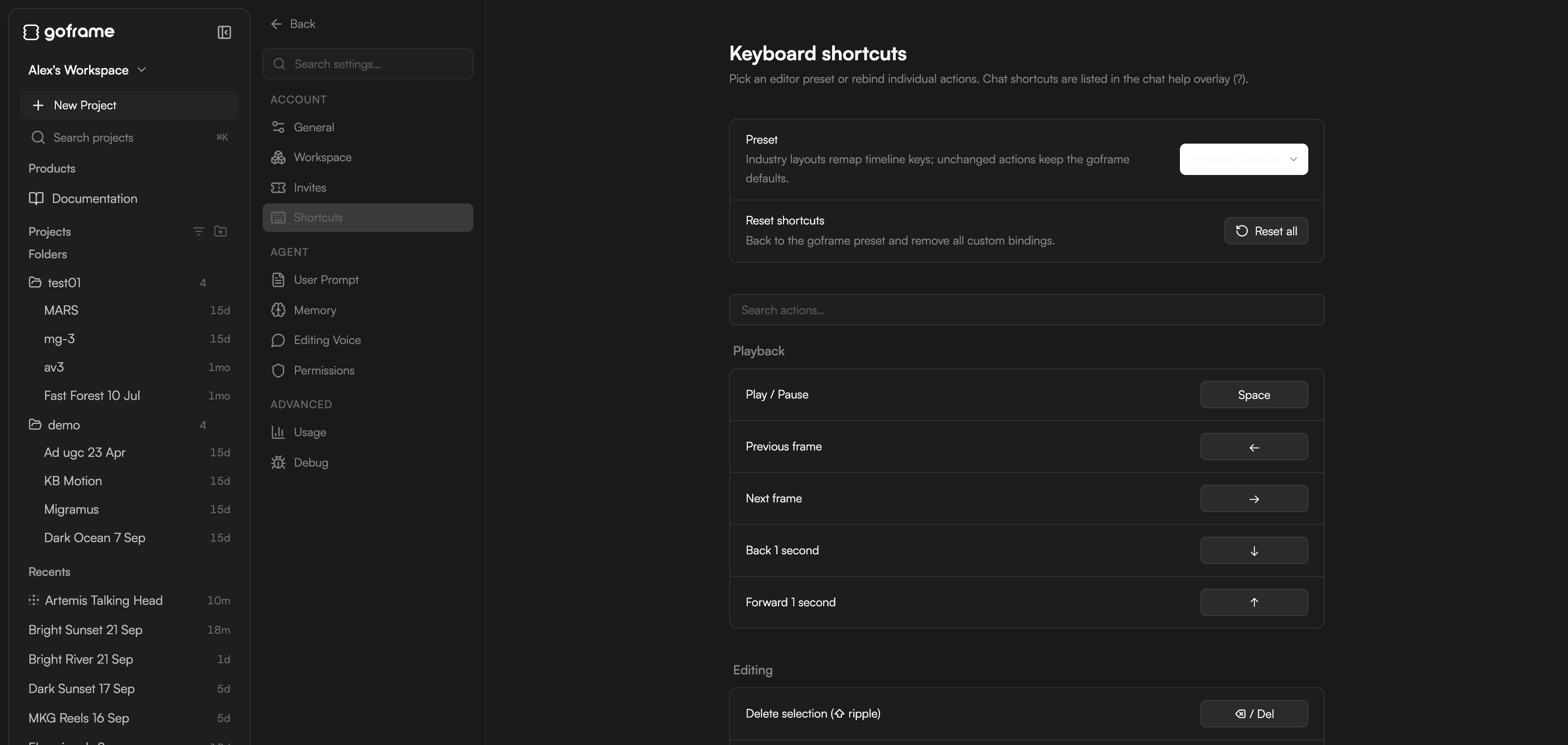 The page reads "Pick an editor preset or rebind individual actions. Chat shortcuts are listed in the chat help overlay (?)."
Choose one under **Preset**: **goframe (Default)**, **Premiere Pro**, **DaVinci Resolve** or **Final Cut Pro**. Actions are grouped into **Playback**, **Editing**, **Tools**, **Markers & zone** and **App**.
Find the action in its group, click its binding and press the new keys. A single action can be put back to the preset later.
If two actions end up sharing keys, change one of them so both keep working.
**Reset shortcuts** at the bottom of the page ("Back to the goframe preset and remove all custom bindings.") has a **Reset all** button.
## If a shortcut does not work
* Click the timeline first. Letter keys go to the text field when you are typing in the chat, a text clip or a rename box.
* Timeline keys need the timeline to be visible: switch to the Editor layout with `⌘.`.
* Switch to a Latin keyboard layout and try again.
* Check the preset in **Settings → Shortcuts**: `⌘K` and `C` mean different things in the Premiere Pro preset.
## Continue
* [Timeline basics](/editor/timeline-basics)
* [Edit clips](/editor/edit-clips)
* [Editor layout](/editor/editor-layout)
* [Settings](/editor/settings)
The page reads "Pick an editor preset or rebind individual actions. Chat shortcuts are listed in the chat help overlay (?)."
Choose one under **Preset**: **goframe (Default)**, **Premiere Pro**, **DaVinci Resolve** or **Final Cut Pro**. Actions are grouped into **Playback**, **Editing**, **Tools**, **Markers & zone** and **App**.
Find the action in its group, click its binding and press the new keys. A single action can be put back to the preset later.
If two actions end up sharing keys, change one of them so both keep working.
**Reset shortcuts** at the bottom of the page ("Back to the goframe preset and remove all custom bindings.") has a **Reset all** button.
## If a shortcut does not work
* Click the timeline first. Letter keys go to the text field when you are typing in the chat, a text clip or a rename box.
* Timeline keys need the timeline to be visible: switch to the Editor layout with `⌘.`.
* Switch to a Latin keyboard layout and try again.
* Check the preset in **Settings → Shortcuts**: `⌘K` and `C` mean different things in the Premiere Pro preset.
## Continue
* [Timeline basics](/editor/timeline-basics)
* [Edit clips](/editor/edit-clips)
* [Editor layout](/editor/editor-layout)
* [Settings](/editor/settings)