> ## Documentation Index
> Fetch the complete documentation index at: https://docs.goframe.dev/llms.txt
> Use this file to discover all available pages before exploring further.
# Write prompts, references and commands
> How to describe edits, reference clips and transcript passages with @, run / commands, attach files, use voice input and set generation options
The composer is where you direct the edit. Plain language works for most requests; `@` references, `/` commands, attachments and generation settings make your prompts precise. Read this after [Meet GoFrame Editor Agent](/editor/agent).
## Describe the edit
Say what you want and where. Name the clip, track or moment when it matters, and state the outcome rather than the steps.
| Prompt | What the agent does |
| ------------------------------------------------------------------------------ | ----------------------------------------------------------------------------------- |
| "Remove filler words and pauses longer than a second from the interview." | Edits the timeline through the transcript, then shows a **Timeline changes** card. |
| "Cut this into three vertical shorts, 30 seconds each, with karaoke captions." | Finds highlights, builds three clips and applies a Karaoke caption preset. |
| "Add a lower third with the speaker's name at 0:05, our brand blue." | Generates a motion graphic and places it at that time. |
| "Generate a 6-second aerial shot of a coastline at sunrise for the intro." | Announces the cost, runs a video generation, and puts the result in the Media pool. |
| "Why does the second scene feel slow?" (in **Ask** mode) | Answers without changing anything. |
Give constraints up front: target length, aspect ratio, tone, and what must not change. The agent reads your rules and memory too; see [Agent rules, memory and voice](/editor/agent-settings).
Under the text field sit the chat mode dropdown, **Plan**, **Generation settings**, **Select AI models** (✦), **Attach files**, **Voice input** and **Send message**. The rest of this page covers each of them.
## Reference clips, assets and transcript with @
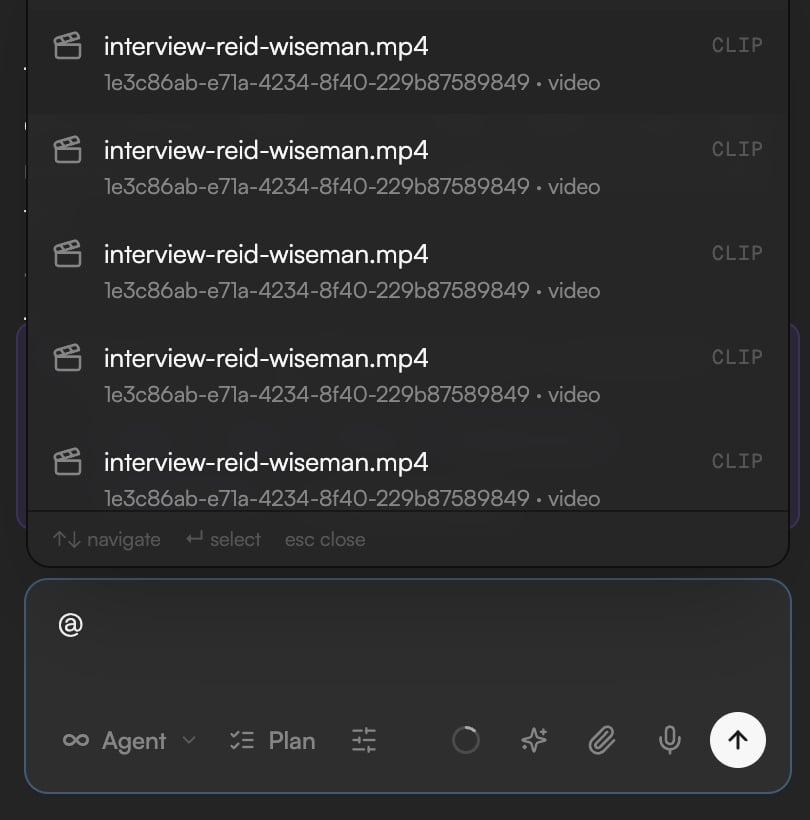
Type `@` to open the **Assets & Clips** palette. It lists the **Clips** on the timeline and the assets in the Media pool. Pick an entry and it is inserted into your message as a reference the agent can resolve exactly. Selecting a clip on the timeline also adds a context chip with its asset name above the composer, so the agent knows what you are looking at.
* `@` a clip when you mean one specific item on the timeline ("trim @intro-take-2 to 8 seconds").
* `@` an asset to use a file that is not on the timeline yet ("put @logo.png in the corner for the whole video").
* To point the agent at spoken content, use **Add to chat** in the Transcript panel (below).
 ### Add a passage from the Transcript panel
In the **Transcript** panel, select a passage and click **Add to chat**. The text arrives in the composer with its timing, so you can say "make this the opening line" or "cut everything between these two sentences". See [Edit video by editing text](/editor/transcript-editing).
## Run commands and skills with /
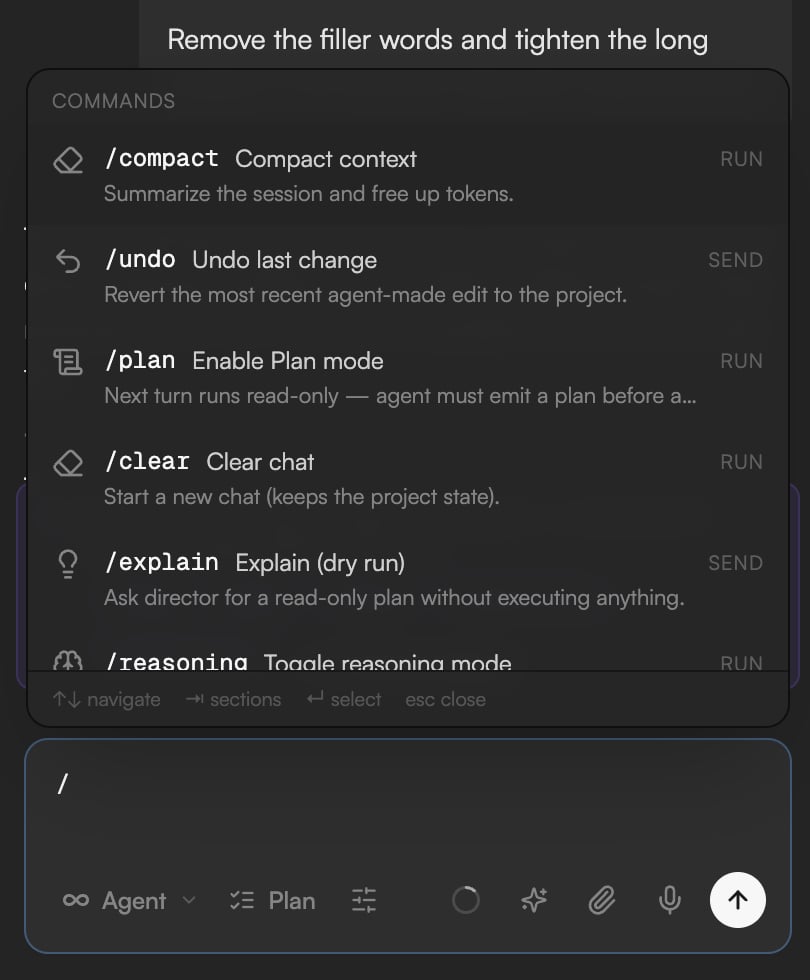
Type `/` to open the command palette. It has two sections: **Commands**, each tagged **RUN** or **SEND**, and **Skills**, each tagged with what it does (**GENERATE**, **EDIT** and so on) and a hint for the argument it takes. Skills are the agent's specialized abilities (see [Skills and workflows](/editor/skills)).
| Command | What it does |
| ------------- | ----------------------------------------------------------------------------------------- |
| `/compact` | **Compact context**: summarize the session and free up space. |
| `/undo` | **Undo last change**: revert the most recent agent-made edit to the project. |
| `/plan` | **Enable Plan mode**: the next turn runs read-only and produces a plan before any change. |
| `/clear` | **Clear chat**: start a new chat and keep the project state. |
| `/explain` | **Explain (dry run)**: get a read-only plan for the next step without executing anything. |
| `/reasoning` | **Toggle reasoning mode**: switch between Agent and Reasoning. |
| `/model` | **Change model**: open the model picker. See [AI models](/editor/ai-models). |
| `/director` | **Run director skill**: start the full 6-stage creative pipeline. |
| `/storyboard` | **Run storyboard-preview**: generate a single-page storyboard of the current project. |
| `/polish` | **Run polish skill**: final cleanup pass on audio, cuts and fades. |
Any skill can be called the same way, for example `/image-gen a neon-lit rainy street at night`.
### Add a passage from the Transcript panel
In the **Transcript** panel, select a passage and click **Add to chat**. The text arrives in the composer with its timing, so you can say "make this the opening line" or "cut everything between these two sentences". See [Edit video by editing text](/editor/transcript-editing).
## Run commands and skills with /
Type `/` to open the command palette. It has two sections: **Commands**, each tagged **RUN** or **SEND**, and **Skills**, each tagged with what it does (**GENERATE**, **EDIT** and so on) and a hint for the argument it takes. Skills are the agent's specialized abilities (see [Skills and workflows](/editor/skills)).
| Command | What it does |
| ------------- | ----------------------------------------------------------------------------------------- |
| `/compact` | **Compact context**: summarize the session and free up space. |
| `/undo` | **Undo last change**: revert the most recent agent-made edit to the project. |
| `/plan` | **Enable Plan mode**: the next turn runs read-only and produces a plan before any change. |
| `/clear` | **Clear chat**: start a new chat and keep the project state. |
| `/explain` | **Explain (dry run)**: get a read-only plan for the next step without executing anything. |
| `/reasoning` | **Toggle reasoning mode**: switch between Agent and Reasoning. |
| `/model` | **Change model**: open the model picker. See [AI models](/editor/ai-models). |
| `/director` | **Run director skill**: start the full 6-stage creative pipeline. |
| `/storyboard` | **Run storyboard-preview**: generate a single-page storyboard of the current project. |
| `/polish` | **Run polish skill**: final cleanup pass on audio, cuts and fades. |
Any skill can be called the same way, for example `/image-gen a neon-lit rainy street at night`.
 ## Attach files
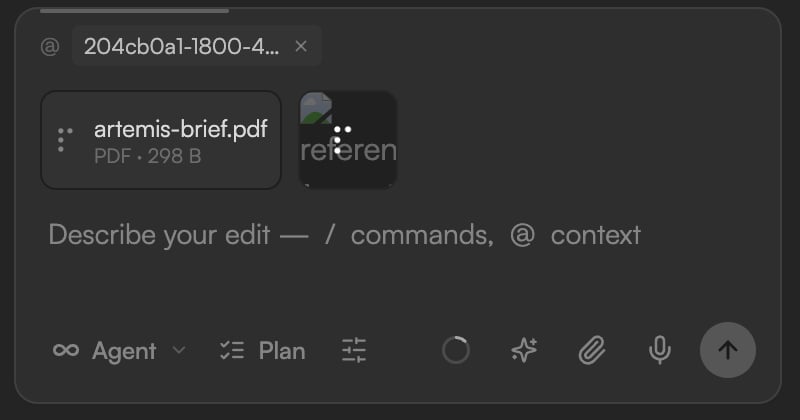
Drag files onto the chat or click **Attach files** in the composer to add context: a script, a brief, a brand PDF, a shot list. Attached files appear as chips above the text (for example **artemis-brief.pdf · PDF · 298 B**, or a thumbnail for an image).
* Up to **10 files** per message, **25 MB** each.
* Supported: images, PDF, text (`.md`, `.txt`, `.csv`, `.json`) and Office documents (`.docx`, `.xlsx`, `.pptx`). Older Office formats are rejected; convert them first.
* Video and audio are not chat attachments. Add them through the Media pool, then reference them with `@`. See [Import media](/editor/import-media).
## Attach files
Drag files onto the chat or click **Attach files** in the composer to add context: a script, a brief, a brand PDF, a shot list. Attached files appear as chips above the text (for example **artemis-brief.pdf · PDF · 298 B**, or a thumbnail for an image).
* Up to **10 files** per message, **25 MB** each.
* Supported: images, PDF, text (`.md`, `.txt`, `.csv`, `.json`) and Office documents (`.docx`, `.xlsx`, `.pptx`). Older Office formats are rejected; convert them first.
* Video and audio are not chat attachments. Add them through the Media pool, then reference them with `@`. See [Import media](/editor/import-media).
 ## Use voice input
Click **Voice input** in the composer or press `⌘⇧M` (Ctrl on Windows) to dictate a prompt. Speech recognition runs locally in your browser; the first time you use it, a small model downloads ("Loading model… N%"). Pick the language from the button's menu (**Auto-detect**, **English** or **Russian**), speak, then click **Stop and transcribe**. The text lands in the composer for you to edit before sending.
## Set generation options
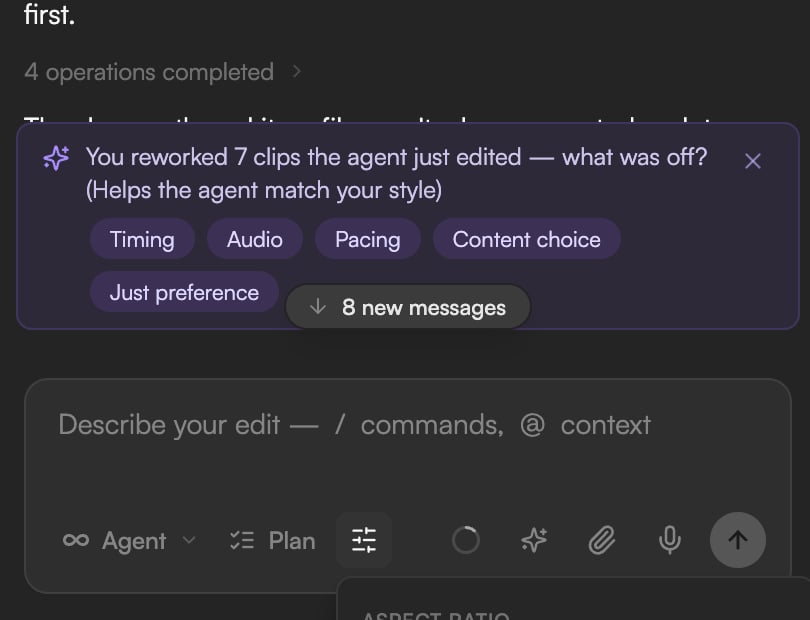
The **Generation settings** button (sliders) in the composer opens the options for image and video prompts:
* **Aspect ratio**: **Auto**, **16:9**, **9:16**, **1:1**, **4:3**, **3:4**, **4:5** or **21:9**.
* **Duration**: **Auto** or a clip length. The choices follow the selected video model (**4s**, **6s** or **8s** with the default model).
* **Audio**: **Auto**, **On** or **Off**.
Model-specific limits are listed in [AI models](/editor/ai-models).
## Use voice input
Click **Voice input** in the composer or press `⌘⇧M` (Ctrl on Windows) to dictate a prompt. Speech recognition runs locally in your browser; the first time you use it, a small model downloads ("Loading model… N%"). Pick the language from the button's menu (**Auto-detect**, **English** or **Russian**), speak, then click **Stop and transcribe**. The text lands in the composer for you to edit before sending.
## Set generation options
The **Generation settings** button (sliders) in the composer opens the options for image and video prompts:
* **Aspect ratio**: **Auto**, **16:9**, **9:16**, **1:1**, **4:3**, **3:4**, **4:5** or **21:9**.
* **Duration**: **Auto** or a clip length. The choices follow the selected video model (**4s**, **6s** or **8s** with the default model).
* **Audio**: **Auto**, **On** or **Off**.
Model-specific limits are listed in [AI models](/editor/ai-models).
 ## Start from a scenario template
On the Home page, the template cards start a project with a ready-made scenario: **Talking head**, **Product promo**, **Explainer**, **Shorts cutdown**, **Photo slideshow** and **Captions & cleanup**. Attach starter files (a script, brief or media) on the same screen. See [Home and projects](/editor/home-and-projects).
## Continue
* [Meet GoFrame Editor Agent](/editor/agent)
* [Skills and workflows](/editor/skills)
* [AI models](/editor/ai-models)
* [Review proposals and approve actions](/editor/proposals-and-permissions)
## Start from a scenario template
On the Home page, the template cards start a project with a ready-made scenario: **Talking head**, **Product promo**, **Explainer**, **Shorts cutdown**, **Photo slideshow** and **Captions & cleanup**. Attach starter files (a script, brief or media) on the same screen. See [Home and projects](/editor/home-and-projects).
## Continue
* [Meet GoFrame Editor Agent](/editor/agent)
* [Skills and workflows](/editor/skills)
* [AI models](/editor/ai-models)
* [Review proposals and approve actions](/editor/proposals-and-permissions)