> ## Documentation Index
> Fetch the complete documentation index at: https://docs.goframe.dev/llms.txt
> Use this file to discover all available pages before exploring further.
# Review proposals and approve actions
> Edit proposal cards, Timeline changes diffs, permission requests for paid skills, spending controls, generation job cards, and how to undo agent edits
The agent asks before it makes a big change or spends credits. This page explains each card you will see in the chat, what the buttons do, and where to set spending rules so you are asked less often.
## When the agent asks first
The agent edits small things directly and reports them. It stops for your approval when:
* an edit touches more than 3 clips or more than 20% of the timeline;
* a paid generation (video, image, voice, music, upscale, avatar) has not been approved yet;
* you armed **Plan** or used `/plan`, so the next turn produces a plan instead of edits.
While it waits, nothing runs until you answer.
## Edit proposal cards
An edit proposal describes a timeline change before it happens. It opens with a **Timeline impact** headline, for example **+3.585s (new total 82.15s)**, then lists the edits as steps: **Edit 1 … Add clip · New track A2**, **Edit 2 … Shift clips · Interview track V1 (7 clips + 6 dissolves)** and so on. When the agent has alternatives, they appear as lettered plans (**Plan A**, **Plan B**).
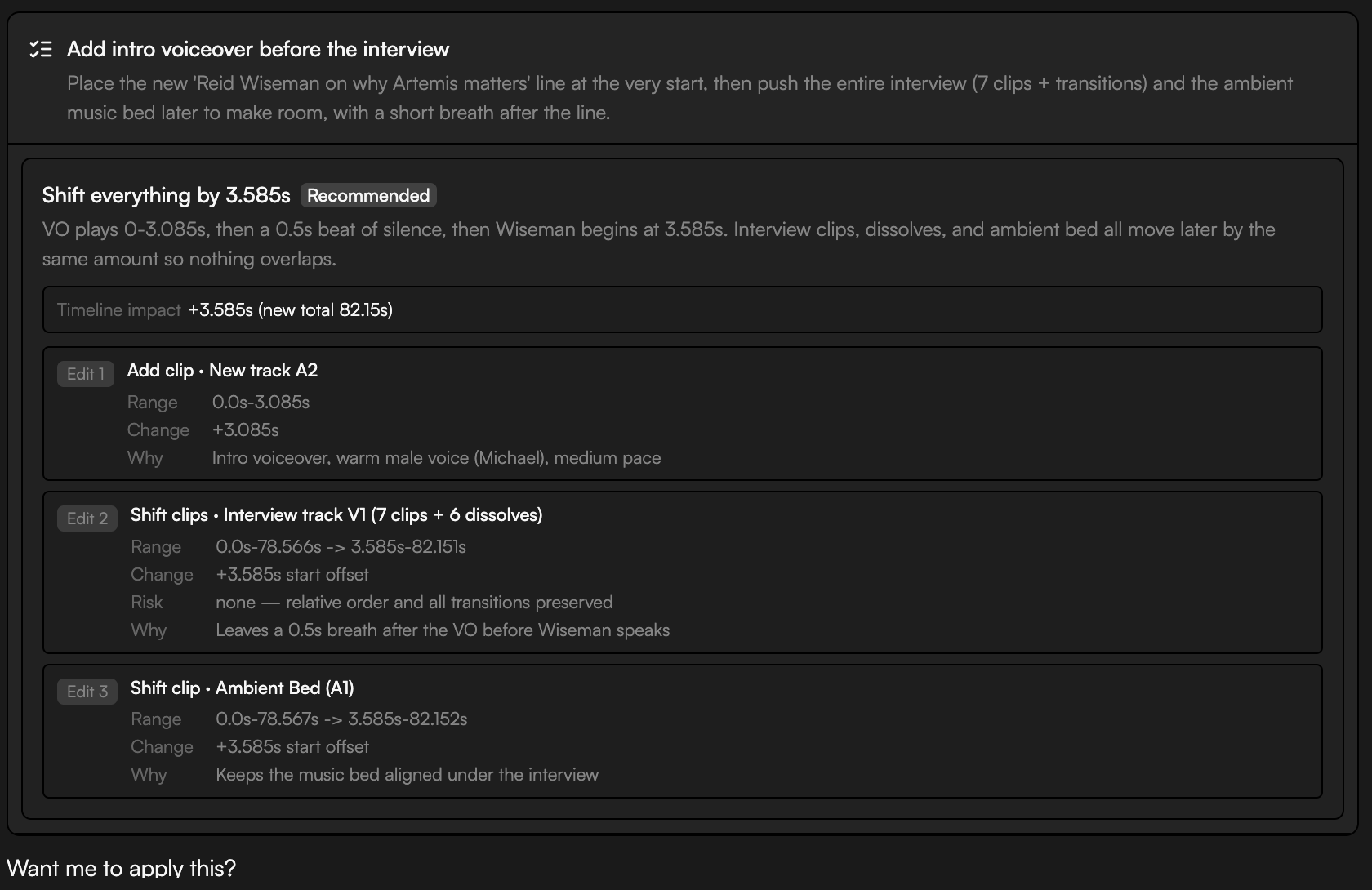 Each step shows:
* **Range**: the part of the timeline it affects.
* **Change**: what happens to the clips.
* **Risk**: what could go wrong or need a second look (only when there is one).
* **Why**: the reasoning behind the edit.
The card ends with "Want me to apply this?" and two buttons:
* **Apply plan** runs it. Press `Enter` to apply from the keyboard ("Press Enter to apply").
* **Revise** sends the proposal back with your notes.
Steps that would spend credits are announced with their price before they run; see [Permission requests](#permission-requests) below.
If you or a collaborator edited the timeline after the proposal was made, the card shows "Timeline changed since this plan was made." Click **Re-propose** to get a fresh plan against the current timeline, or **Apply anyway** (press it twice) to force the old one.
## Timeline changes and Revert
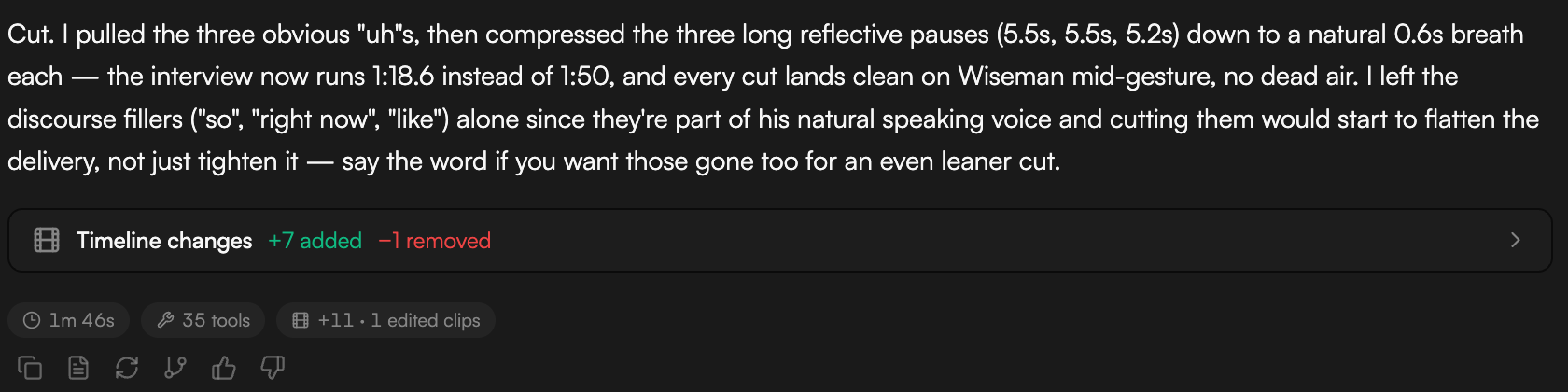
After an edit is applied, a **Timeline changes** row summarizes the diff (**+N added**, **−N removed**, **N moved**, **N trimmed**) and expands to list every change. A stats line such as **59s · 6 tools · +1 clip** shows how long the turn took and what it did. Click **Revert** to roll that edit back in one step.
Each step shows:
* **Range**: the part of the timeline it affects.
* **Change**: what happens to the clips.
* **Risk**: what could go wrong or need a second look (only when there is one).
* **Why**: the reasoning behind the edit.
The card ends with "Want me to apply this?" and two buttons:
* **Apply plan** runs it. Press `Enter` to apply from the keyboard ("Press Enter to apply").
* **Revise** sends the proposal back with your notes.
Steps that would spend credits are announced with their price before they run; see [Permission requests](#permission-requests) below.
If you or a collaborator edited the timeline after the proposal was made, the card shows "Timeline changed since this plan was made." Click **Re-propose** to get a fresh plan against the current timeline, or **Apply anyway** (press it twice) to force the old one.
## Timeline changes and Revert
After an edit is applied, a **Timeline changes** row summarizes the diff (**+N added**, **−N removed**, **N moved**, **N trimmed**) and expands to list every change. A stats line such as **59s · 6 tools · +1 clip** shows how long the turn took and what it did. Click **Revert** to roll that edit back in one step.
 ## Permission requests
The agent announces a cost before it spends credits. When a step needs your go-ahead it either asks a question with choice buttons, for example **Go ahead with Nano Banana 2** or **Use Gemini 3 Pro instead (my default)** before using a model that is not your default, or raises a permission request for the skill or tool. That card reads **Run skill: video-gen** (or **Allow tool: …**) and shows the price in dollars, the **Model** and, where relevant, the duration and resolution.
* **Deny** stops that step. The agent continues with what it can do without it.
* **Approve once** runs it this time only.
* **Always** runs it now and saves the approval for that skill in this workspace, so future requests of the same kind skip the prompt.
Credits are the currency: 1 credit = $0.01, so a request shown as $0.40 costs 40 credits. See [Plans and credits](/editor/plans-and-credits).
## Spending controls
Go to **Settings → Agent → Permissions** ("Cost-aware auto-approval rules for the agent. Applies to every project in this workspace.").
## Permission requests
The agent announces a cost before it spends credits. When a step needs your go-ahead it either asks a question with choice buttons, for example **Go ahead with Nano Banana 2** or **Use Gemini 3 Pro instead (my default)** before using a model that is not your default, or raises a permission request for the skill or tool. That card reads **Run skill: video-gen** (or **Allow tool: …**) and shows the price in dollars, the **Model** and, where relevant, the duration and resolution.
* **Deny** stops that step. The agent continues with what it can do without it.
* **Approve once** runs it this time only.
* **Always** runs it now and saves the approval for that skill in this workspace, so future requests of the same kind skip the prompt.
Credits are the currency: 1 credit = $0.01, so a request shown as $0.40 costs 40 credits. See [Plans and credits](/editor/plans-and-credits).
## Spending controls
Go to **Settings → Agent → Permissions** ("Cost-aware auto-approval rules for the agent. Applies to every project in this workspace.").
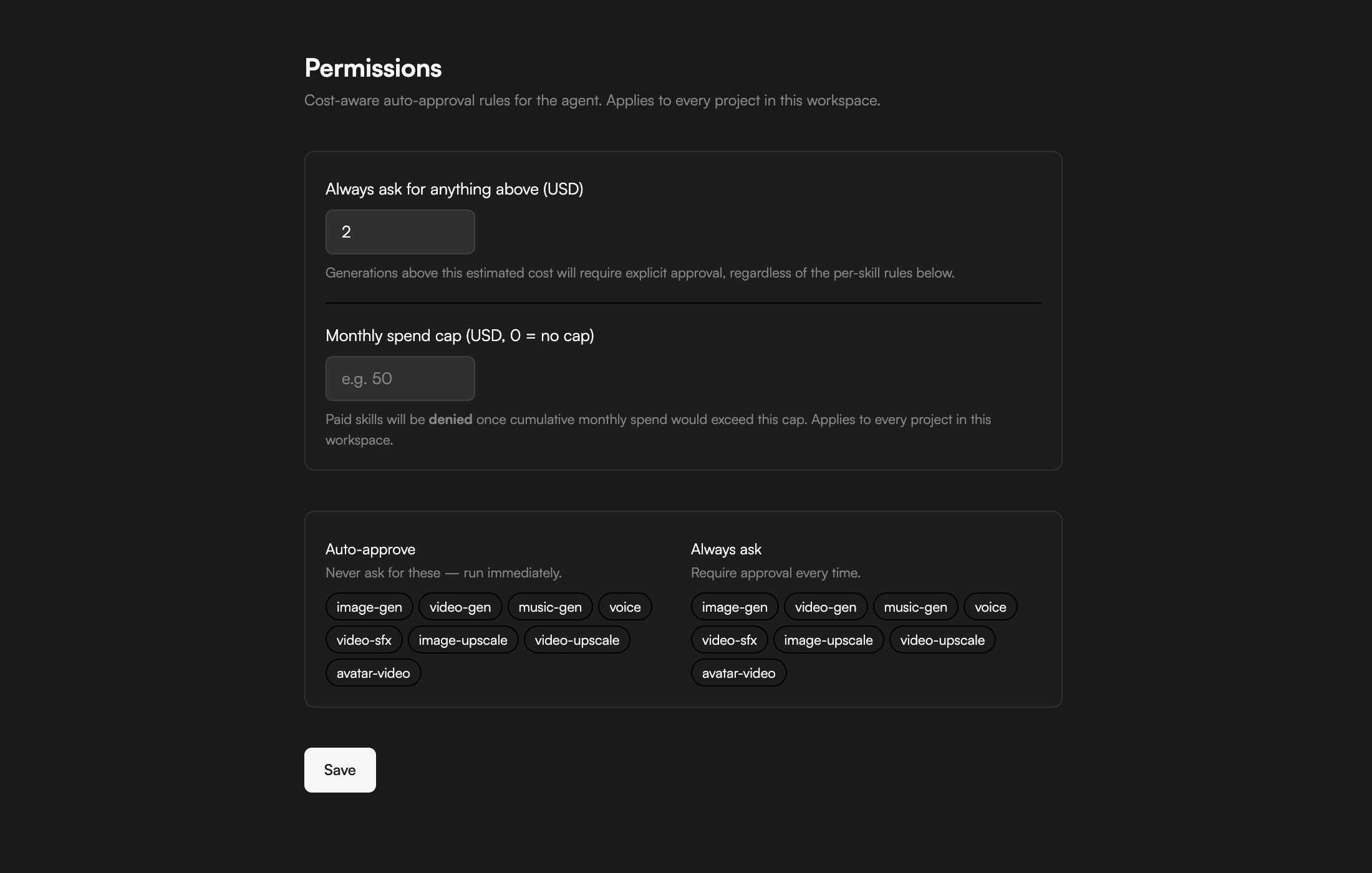 * **Always ask for anything above (USD)**: generations at or below this amount run without a prompt; anything above it asks. The default is 2.
* **Monthly spend cap (USD, 0 = no cap)**: paid skills are denied once cumulative monthly spend would exceed the cap.
* **Auto-approve** ("Never ask for these — run immediately."): pick skills that never ask.
* **Always ask** ("Require approval every time."): pick skills that require approval every time, regardless of the threshold.
The skill chips you can place in either list are `image-gen`, `video-gen`, `music-gen`, `voice`, `video-sfx`, `image-upscale`, `video-upscale` and `avatar-video`. Click **Save** to apply.
## Job cards for generations
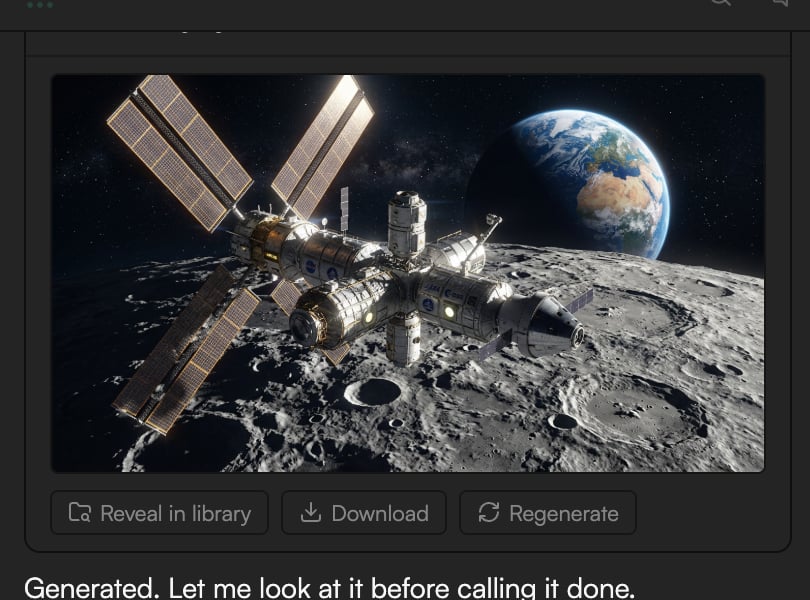
Each generation runs as a job card in the chat: **Image generation**, **Video generation**, **Voice generation**, **Music generation**, **Video sound FX**, **Image upscale**, **Video upscale**, **Motion graphics** or **Avatar video**. The card header names the job type, the model, the title of the result and how long it took (for example **Image generation · … · 38.1s**). When it finishes, a preview appears with the note **Generation finished — the result was registered in the library**, and the result lands in the Media pool tagged **Created by AI agent**.
* **Reveal in library** jumps to the asset in the Media pool; **Download** saves it.
* **Regenerate** re-runs the job with the same parameters (new credits apply).
* Press `Esc` while the run is active to cancel it; that stops the whole agent run, not just this job.
After a run, suggestion chips offer next steps, such as **Animate it into a video clip**, **Generate a couple more angles** or **Add this to the storyboard/canvas**.
* **Always ask for anything above (USD)**: generations at or below this amount run without a prompt; anything above it asks. The default is 2.
* **Monthly spend cap (USD, 0 = no cap)**: paid skills are denied once cumulative monthly spend would exceed the cap.
* **Auto-approve** ("Never ask for these — run immediately."): pick skills that never ask.
* **Always ask** ("Require approval every time."): pick skills that require approval every time, regardless of the threshold.
The skill chips you can place in either list are `image-gen`, `video-gen`, `music-gen`, `voice`, `video-sfx`, `image-upscale`, `video-upscale` and `avatar-video`. Click **Save** to apply.
## Job cards for generations
Each generation runs as a job card in the chat: **Image generation**, **Video generation**, **Voice generation**, **Music generation**, **Video sound FX**, **Image upscale**, **Video upscale**, **Motion graphics** or **Avatar video**. The card header names the job type, the model, the title of the result and how long it took (for example **Image generation · … · 38.1s**). When it finishes, a preview appears with the note **Generation finished — the result was registered in the library**, and the result lands in the Media pool tagged **Created by AI agent**.
* **Reveal in library** jumps to the asset in the Media pool; **Download** saves it.
* **Regenerate** re-runs the job with the same parameters (new credits apply).
* Press `Esc` while the run is active to cancel it; that stops the whole agent run, not just this job.
After a run, suggestion chips offer next steps, such as **Animate it into a video clip**, **Generate a couple more angles** or **Add this to the storyboard/canvas**.
 ## Undo and Version history
* Type `/undo` to revert the most recent agent-made edit. The agent shows what was rolled back.
* Every agent edit also leaves AI checkpoints in **Version history**. Open it from the clock icon in the top bar and restore any version; restoring never deletes anything. See [Version history and autosave](/editor/version-history).
* `⌘Z` in the timeline undoes your own manual edits (50 steps).
## Help the agent learn
If you rework clips the agent just edited, a card asks **You reworked N clips the agent just edited — what was off?** ("Helps the agent match your style") with the chips **Timing**, **Audio**, **Pacing**, **Content choice** and **Just preference**. Pick one or answer in a sentence; the agent stores it as feedback memory and matches your style next time. See [Agent rules, memory and voice](/editor/agent-settings).
## Continue
* [Meet GoFrame Editor Agent](/editor/agent)
* [Agent rules, memory and voice](/editor/agent-settings)
* [Version history and autosave](/editor/version-history)
* [Plans and credits](/editor/plans-and-credits)
## Undo and Version history
* Type `/undo` to revert the most recent agent-made edit. The agent shows what was rolled back.
* Every agent edit also leaves AI checkpoints in **Version history**. Open it from the clock icon in the top bar and restore any version; restoring never deletes anything. See [Version history and autosave](/editor/version-history).
* `⌘Z` in the timeline undoes your own manual edits (50 steps).
## Help the agent learn
If you rework clips the agent just edited, a card asks **You reworked N clips the agent just edited — what was off?** ("Helps the agent match your style") with the chips **Timing**, **Audio**, **Pacing**, **Content choice** and **Just preference**. Pick one or answer in a sentence; the agent stores it as feedback memory and matches your style next time. See [Agent rules, memory and voice](/editor/agent-settings).
## Continue
* [Meet GoFrame Editor Agent](/editor/agent)
* [Agent rules, memory and voice](/editor/agent-settings)
* [Version history and autosave](/editor/version-history)
* [Plans and credits](/editor/plans-and-credits)