> ## Documentation Index
> Fetch the complete documentation index at: https://docs.goframe.dev/llms.txt
> Use this file to discover all available pages before exploring further.
# Share and collaborate
> Invite editors and viewers with a link, manage who has access, work on the same timeline live, and share one agent chat per project
Share a project to edit it together in real time. Everyone works on the same timeline, sees who else is online, and talks to the same GoFrame Editor Agent. Access is per project and per role: **Editor** or **Viewer**.
 ## Invite someone
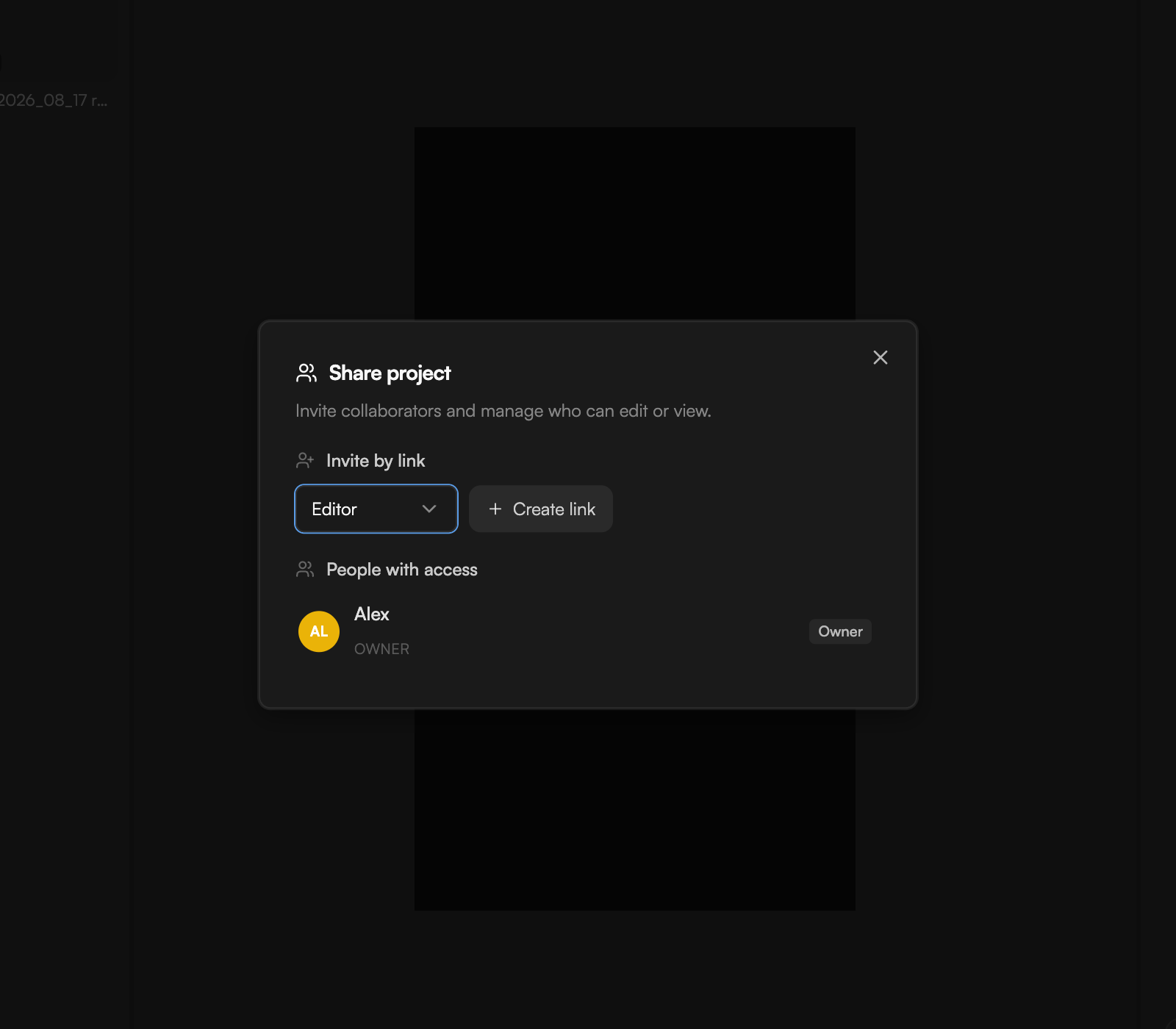
Click **Share** in the top bar. The **Share project** dialog opens: "Invite collaborators and manage who can edit or view."
Under **Invite by link**, pick **Editor** (can change the timeline and prompt the agent) or **Viewer** (can watch and play, nothing more).
Click **Create link** and copy the link that appears.
Paste the link into a message. The recipient signs in with their GoFrame account and lands in the project with the role you chose.
People who joined by link keep their access until you remove them from **People with access**.
Invite links are for people with a GoFrame account. If a link no longer works, ask the project owner for a fresh one.
## Manage access
The **People with access** list shows everyone on the project with their role: **Owner**, **Editor** or **Viewer**. Remove a member here to take them off the project; they lose access immediately.
Collaborator seats depend on your plan: none on Free, 3 on Creator, unlimited on Pro. See [Plans and credits](/editor/plans-and-credits).
## Work together live
When more than one person has the project open, the top bar shows a **Live — N online** pill with their avatars. Edits appear for everyone within moments, and autosave handles the merging.
## Invite someone
Click **Share** in the top bar. The **Share project** dialog opens: "Invite collaborators and manage who can edit or view."
Under **Invite by link**, pick **Editor** (can change the timeline and prompt the agent) or **Viewer** (can watch and play, nothing more).
Click **Create link** and copy the link that appears.
Paste the link into a message. The recipient signs in with their GoFrame account and lands in the project with the role you chose.
People who joined by link keep their access until you remove them from **People with access**.
Invite links are for people with a GoFrame account. If a link no longer works, ask the project owner for a fresh one.
## Manage access
The **People with access** list shows everyone on the project with their role: **Owner**, **Editor** or **Viewer**. Remove a member here to take them off the project; they lose access immediately.
Collaborator seats depend on your plan: none on Free, 3 on Creator, unlimited on Pro. See [Plans and credits](/editor/plans-and-credits).
## Work together live
When more than one person has the project open, the top bar shows a **Live — N online** pill with their avatars. Edits appear for everyone within moments, and autosave handles the merging.
 What to expect when editing at the same time:
* Every version created by you or a collaborator appears in **Version history** with its author, so you can always see who changed what and go back. If someone restores a version, everyone's timeline switches to it. See [Version history and autosave](/editor/version-history).
* Undo covers your own edits. If a collaborator has already deleted the clip you are undoing, undo cannot bring it back; use Version history.
* During an export, changes from the agent and your collaborators are held back until the export finishes; your own edits still apply.
* If the connection drops, the save status switches to **Offline — changes stored locally**; the editor keeps your changes and syncs them when it is back.
## One agent chat per project
The project has a single agent conversation that everyone shares. Editors can send prompts, review proposals and approve actions from any seat. Only one agent run can be active at a time: if a collaborator's prompt is in progress, wait for it to finish before sending yours. See [Meet GoFrame Editor Agent](/editor/agent).
Viewers open the project in **View only** mode. They can play the timeline and read the chat, but cannot edit, prompt the agent, or restore versions.
## Workspaces and roles
Projects belong to a workspace, and workspace members can see its projects without a separate invite. Workspace roles are **Owner**, **Admin**, **Member** and **Viewer**; **Settings → Workspace** shows the workspace's name, ID and **Your role**. Use project invites for outside collaborators who should see one project, and workspace membership for a team that works on everything together. See [Settings](/editor/settings).
## Continue
* [Version history and autosave](/editor/version-history)
* [Meet GoFrame Editor Agent](/editor/agent)
* [Settings](/editor/settings)
* [Plans and credits](/editor/plans-and-credits)
What to expect when editing at the same time:
* Every version created by you or a collaborator appears in **Version history** with its author, so you can always see who changed what and go back. If someone restores a version, everyone's timeline switches to it. See [Version history and autosave](/editor/version-history).
* Undo covers your own edits. If a collaborator has already deleted the clip you are undoing, undo cannot bring it back; use Version history.
* During an export, changes from the agent and your collaborators are held back until the export finishes; your own edits still apply.
* If the connection drops, the save status switches to **Offline — changes stored locally**; the editor keeps your changes and syncs them when it is back.
## One agent chat per project
The project has a single agent conversation that everyone shares. Editors can send prompts, review proposals and approve actions from any seat. Only one agent run can be active at a time: if a collaborator's prompt is in progress, wait for it to finish before sending yours. See [Meet GoFrame Editor Agent](/editor/agent).
Viewers open the project in **View only** mode. They can play the timeline and read the chat, but cannot edit, prompt the agent, or restore versions.
## Workspaces and roles
Projects belong to a workspace, and workspace members can see its projects without a separate invite. Workspace roles are **Owner**, **Admin**, **Member** and **Viewer**; **Settings → Workspace** shows the workspace's name, ID and **Your role**. Use project invites for outside collaborators who should see one project, and workspace membership for a team that works on everything together. See [Settings](/editor/settings).
## Continue
* [Version history and autosave](/editor/version-history)
* [Meet GoFrame Editor Agent](/editor/agent)
* [Settings](/editor/settings)
* [Plans and credits](/editor/plans-and-credits)