> ## Documentation Index
> Fetch the complete documentation index at: https://docs.goframe.dev/llms.txt
> Use this file to discover all available pages before exploring further.
# Sign in and beta access
> Sign in to GoFrame Editor with Google, Yandex or an email code, activate a beta invite or join the waitlist, invite friends for credits, and log out
GoFrame Editor lives at [app.goframe.dev](https://app.goframe.dev) and runs in your browser, so there is nothing to install. This page covers how to sign in, what the closed-beta wall means, how invites and referral credits work, and where to log out.
## Sign in
Open app.goframe.dev. If you aren't signed in, you land on the sign-in page: "Enter your email — we'll send you a 6-digit sign-in code."
 ### With Google or Yandex
Click **Continue with Google** and pick your Google account. If you are in Russia or Belarus the button reads **Continue with Yandex** instead.
### With an email code
Type your address in the **Email** field and click **Send code**. The page confirms "Code sent. Check your inbox."
Copy the 6-digit code from the email into the **Enter your code** field and click **Sign in**. If nothing arrives, click **Resend** once the short countdown ends; "A new code has been sent." confirms it.
There is no separate registration form. As the page says, "No account yet? We'll create one for you." Signing in with a new address creates your account and a personal workspace.
If you see "Invalid code. Please check and try again.", the code was mistyped or has been replaced by a newer one. Request a fresh code with **Resend** and use the most recent email.
## Beta access
GoFrame Editor is in closed beta. After you sign in for the first time you may see a page titled **goframe is in closed beta**: "Access is invite-only while we scale. Enter an invite code to start creating — or join the waitlist."
### Activate an invite code
Invite codes look like `GF-XXXX-XXXX`. Under **Have an invite code?**, paste the code and click **Activate**. On success the page shows **You're in!** with the welcome credits added to your account (an invite from a friend starts you with +100 bonus credits), and you continue to Home.
If a friend sent you an invite link rather than a bare code, opening it shows **You're invited to goframe** with an **Accept invite** button. Sign in or create an account and the code is applied automatically.
A code can be refused for a few reasons, each with its own message:
| Message | What it means |
| ----------------------------------------------------- | ------------------------------------------------ |
| "That code doesn't exist. Double-check the spelling." | A typo, or a code that was never issued. |
| "This invite has expired." | Invites carry an expiry date; ask for a new one. |
| "This invite has already been used." | Each invite works once. |
| "This invite is no longer active." | The sender revoked it. |
| "Too many attempts — please try again in an hour." | Wait an hour before trying again. |
| "Your account is already activated." | You're already in; go to Home. |
### Join the waitlist
No code yet? Under **No invite yet?** click **Join the waitlist**. You see **You're on the list** with your position, and the note "We invite new members regularly, and early sign-ups go first." You can enter a code from a friend at any time while you wait. The wall also shows which account you are signed in as, with a **Log out** link if you'd like to switch accounts.
## Invite friends
Once you're in, you get a monthly quota of invites to share. Open **Settings → Invites**, or choose **Invite friends** from the account menu.
### With Google or Yandex
Click **Continue with Google** and pick your Google account. If you are in Russia or Belarus the button reads **Continue with Yandex** instead.
### With an email code
Type your address in the **Email** field and click **Send code**. The page confirms "Code sent. Check your inbox."
Copy the 6-digit code from the email into the **Enter your code** field and click **Sign in**. If nothing arrives, click **Resend** once the short countdown ends; "A new code has been sent." confirms it.
There is no separate registration form. As the page says, "No account yet? We'll create one for you." Signing in with a new address creates your account and a personal workspace.
If you see "Invalid code. Please check and try again.", the code was mistyped or has been replaced by a newer one. Request a fresh code with **Resend** and use the most recent email.
## Beta access
GoFrame Editor is in closed beta. After you sign in for the first time you may see a page titled **goframe is in closed beta**: "Access is invite-only while we scale. Enter an invite code to start creating — or join the waitlist."
### Activate an invite code
Invite codes look like `GF-XXXX-XXXX`. Under **Have an invite code?**, paste the code and click **Activate**. On success the page shows **You're in!** with the welcome credits added to your account (an invite from a friend starts you with +100 bonus credits), and you continue to Home.
If a friend sent you an invite link rather than a bare code, opening it shows **You're invited to goframe** with an **Accept invite** button. Sign in or create an account and the code is applied automatically.
A code can be refused for a few reasons, each with its own message:
| Message | What it means |
| ----------------------------------------------------- | ------------------------------------------------ |
| "That code doesn't exist. Double-check the spelling." | A typo, or a code that was never issued. |
| "This invite has expired." | Invites carry an expiry date; ask for a new one. |
| "This invite has already been used." | Each invite works once. |
| "This invite is no longer active." | The sender revoked it. |
| "Too many attempts — please try again in an hour." | Wait an hour before trying again. |
| "Your account is already activated." | You're already in; go to Home. |
### Join the waitlist
No code yet? Under **No invite yet?** click **Join the waitlist**. You see **You're on the list** with your position, and the note "We invite new members regularly, and early sign-ups go first." You can enter a code from a friend at any time while you wait. The wall also shows which account you are signed in as, with a **Log out** link if you'd like to switch accounts.
## Invite friends
Once you're in, you get a monthly quota of invites to share. Open **Settings → Invites**, or choose **Invite friends** from the account menu.
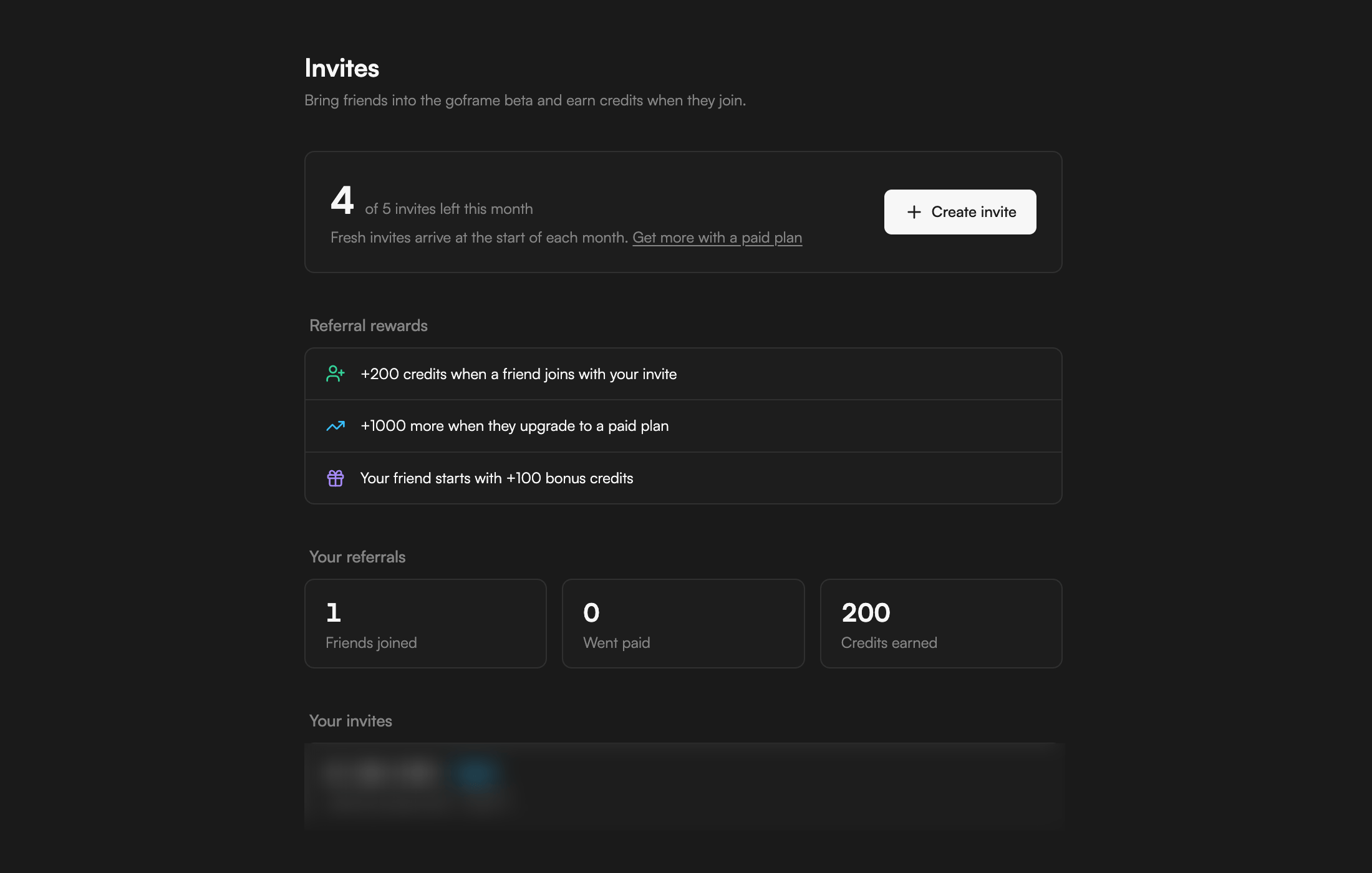 * The header shows how many invites you have left this month (for example "4 of 5 invites left this month"). The quota depends on your plan: 2 on Free, 5 on Creator, 10 on Pro. "Fresh invites arrive at the start of each month", and **Get more with a paid plan** points you to the plans.
* Click **Create invite** to add a new code to the list.
* **Your invites** lists every invite with its code and status (for example **Used**), with **Copy invite link** to share it.
### Referral rewards
Invites earn credits for both sides:
* **+200 credits** for you when a friend joins with your invite.
* **+1,000 more** when that friend upgrades to a paid plan.
* **+100 bonus credits** for your friend when they start.
**Your referrals** keeps the tally: **Friends joined**, **Went paid** and **Credits earned**. Referral credits expire 365 days after they are granted.
## Project invites from collaborators
A project owner can also invite you to one project rather than to the beta. Opening their link while signed in joins the project as an Editor or Viewer, shows "You joined … as …", then opens the project. If the link has expired, been revoked or reached its limit, you see **This invite is no longer valid**; ask the owner for a fresh one. See [Share and collaborate](/editor/share-and-collaborate).
## Log out and Copy User Id
On Home, open the account menu from your avatar and email at the bottom-left of the sidebar (the row also shows your plan); inside a project, your avatar sits in the rail on the left. Choose **Log out**. The same menu holds **Settings**, **Invite friends**, **Language**, **Theme**, **Documentation** and **Copy User Id**.
**Copy User Id** copies your account identifier to the clipboard. Include it when you write to support so your account can be found quickly.
## Continue
* [Home and projects](/editor/home-and-projects) for what you see after signing in.
* [Settings](/editor/settings) for language, theme and the Invites section.
* [Plans and credits](/editor/plans-and-credits) for what welcome and referral credits buy.
* [Troubleshooting](/editor/troubleshooting) if the code never arrives.
* The header shows how many invites you have left this month (for example "4 of 5 invites left this month"). The quota depends on your plan: 2 on Free, 5 on Creator, 10 on Pro. "Fresh invites arrive at the start of each month", and **Get more with a paid plan** points you to the plans.
* Click **Create invite** to add a new code to the list.
* **Your invites** lists every invite with its code and status (for example **Used**), with **Copy invite link** to share it.
### Referral rewards
Invites earn credits for both sides:
* **+200 credits** for you when a friend joins with your invite.
* **+1,000 more** when that friend upgrades to a paid plan.
* **+100 bonus credits** for your friend when they start.
**Your referrals** keeps the tally: **Friends joined**, **Went paid** and **Credits earned**. Referral credits expire 365 days after they are granted.
## Project invites from collaborators
A project owner can also invite you to one project rather than to the beta. Opening their link while signed in joins the project as an Editor or Viewer, shows "You joined … as …", then opens the project. If the link has expired, been revoked or reached its limit, you see **This invite is no longer valid**; ask the owner for a fresh one. See [Share and collaborate](/editor/share-and-collaborate).
## Log out and Copy User Id
On Home, open the account menu from your avatar and email at the bottom-left of the sidebar (the row also shows your plan); inside a project, your avatar sits in the rail on the left. Choose **Log out**. The same menu holds **Settings**, **Invite friends**, **Language**, **Theme**, **Documentation** and **Copy User Id**.
**Copy User Id** copies your account identifier to the clipboard. Include it when you write to support so your account can be found quickly.
## Continue
* [Home and projects](/editor/home-and-projects) for what you see after signing in.
* [Settings](/editor/settings) for language, theme and the Invites section.
* [Plans and credits](/editor/plans-and-credits) for what welcome and referral credits buy.
* [Troubleshooting](/editor/troubleshooting) if the code never arrives.