> ## Documentation Index
> Fetch the complete documentation index at: https://docs.goframe.dev/llms.txt
> Use this file to discover all available pages before exploring further.
# Edit video by editing text
> Cut, trim and clean up footage from the Transcript panel: delete words, remove pauses and fillers, reorder segments, rename speakers and export
The **Transcript** panel shows the words of every transcribed clip on the Timeline. Select text and delete it, and the matching piece of video is cut. It is the fastest way to tighten a talking-head recording, an interview or a podcast.
You need a transcript first; see [Transcribe media](/editor/transcription). Open the panel from the left sidebar in the **Editor** layout.
 ## Panel tour
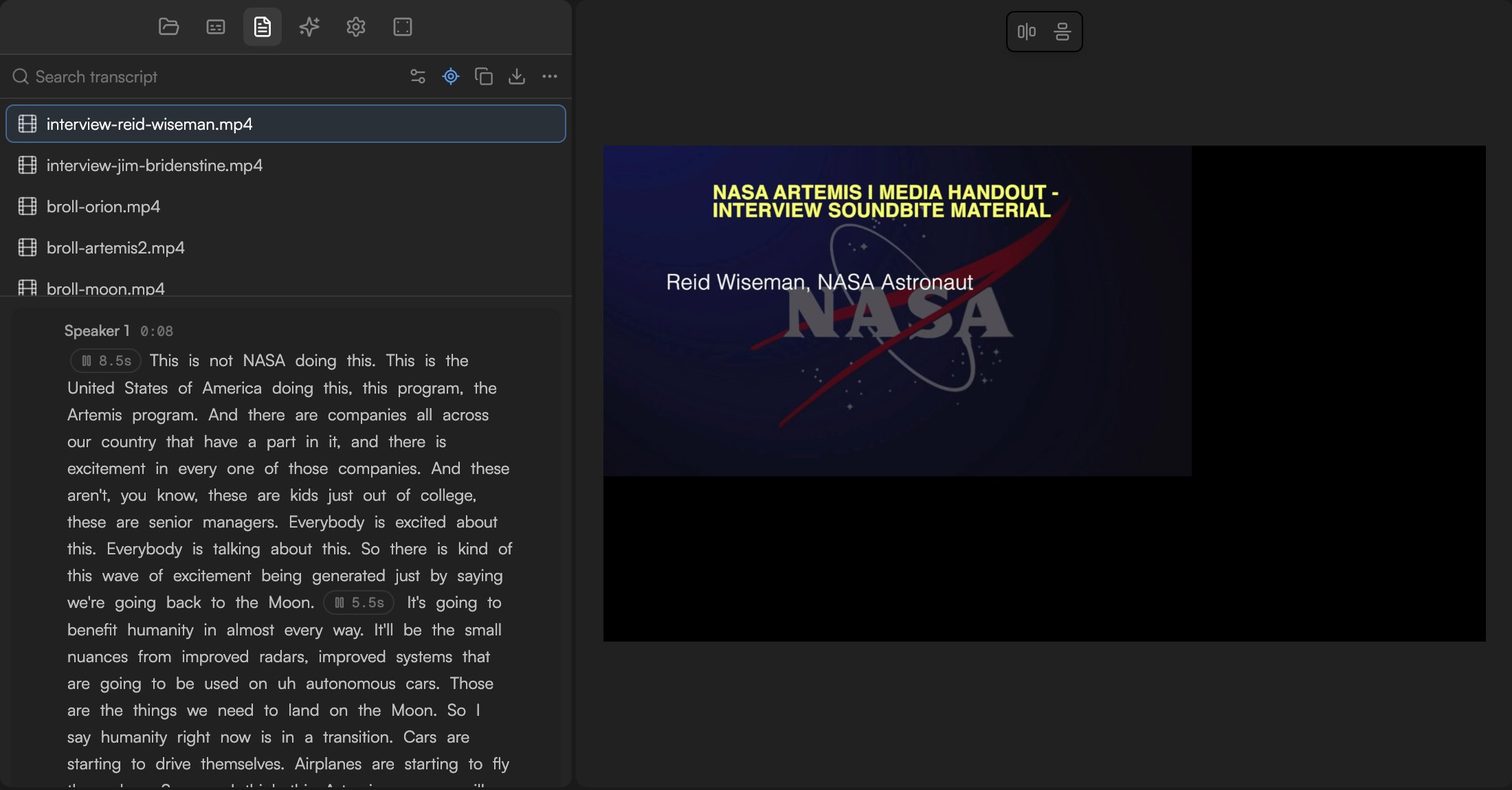
* Each transcribed clip on the Timeline gets its own block, in Timeline order, with a speaker label and timestamp on every paragraph ("Speaker 1 0:08"). A file that is in the Media pool but not on the Timeline shows *Add this file to the timeline to view and edit its transcript.*
* **Search transcript** at the top filters to matching words.
* The header icons are transcription settings, **Follow playhead** (scrolls the panel and highlights the word being spoken during playback), **Copy transcript**, **Download** and a ⋯ menu with **Remove filler words…** and **Add captions**. **Re-transcribe** is available per file.
* Filler words are highlighted when **Keep filler words** was on at transcription time.
Words that have been cut from the Timeline stay visible but struck through and greyed out, so you can see what was removed.
## Select and act
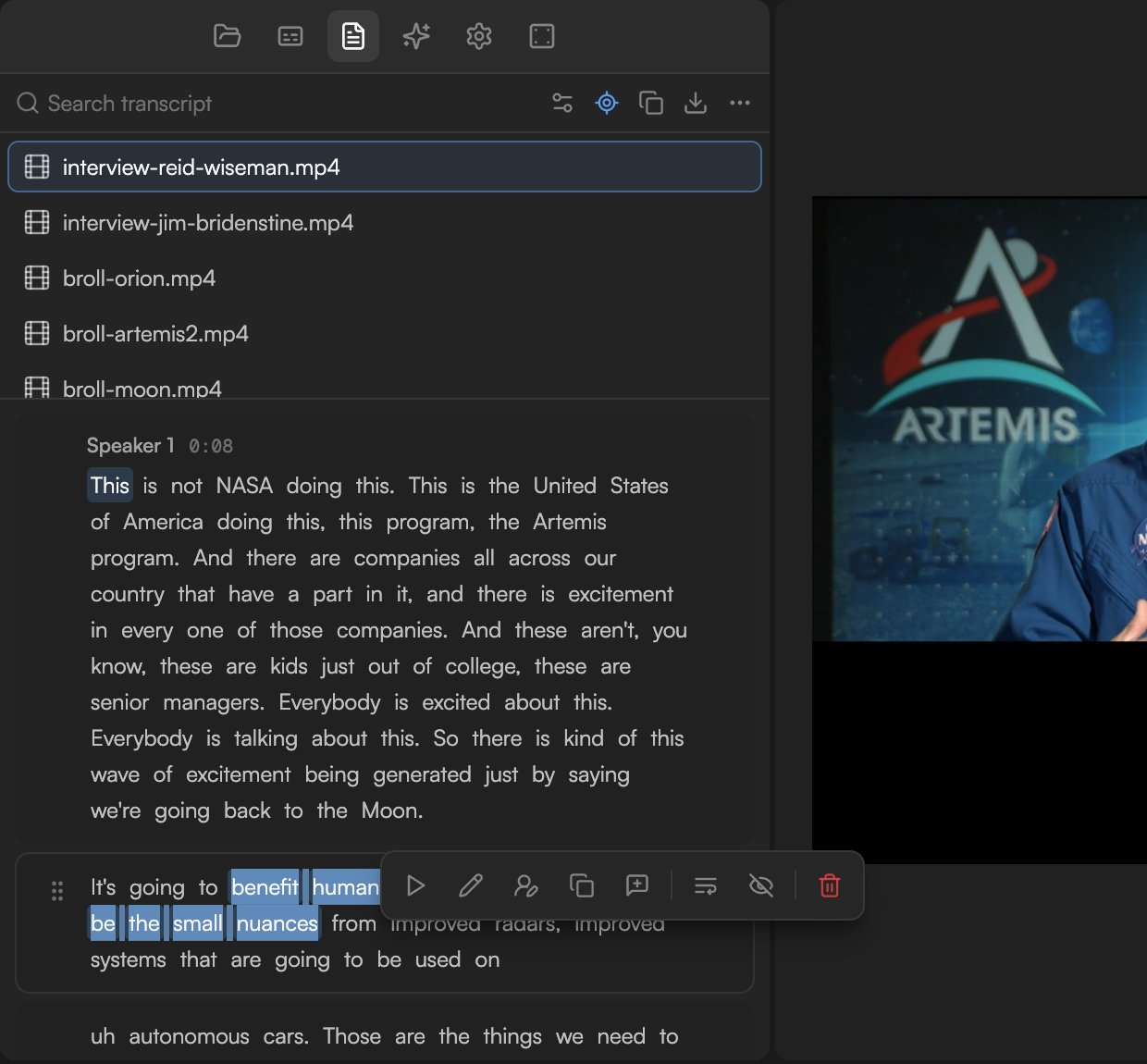
Select one or more words (click and drag, or double-click a word) to show the floating selection toolbar.
| Action | What it does |
| -------------------- | ------------------------------------------------------------------------------------------------------------------------- |
| **Play from here** | Moves the playhead to the first selected word and plays. |
| **Edit** | Corrects the wording. Press `Enter` to confirm or `Esc` to cancel. Text changes update captions too, but never the audio. |
| **Change speaker** | Assigns the selection to another speaker, or a new one. |
| **Copy** | Copies the selected words to the clipboard. |
| **Add to chat** | Drops the selection into the agent composer as a reference, so you can say "make this the opening line". |
| **Remove pause** | Removes the silence around the selection and closes the gap on the Timeline. |
| **Hide** | Keeps the words in the video but leaves them out of the captions. |
| **Delete selection** | Removes the words and the corresponding stretch of video and audio. |
Deleting from the middle of a clip splits it in two on the Timeline; that is expected, and `⌘Z` undoes it.
## Panel tour
* Each transcribed clip on the Timeline gets its own block, in Timeline order, with a speaker label and timestamp on every paragraph ("Speaker 1 0:08"). A file that is in the Media pool but not on the Timeline shows *Add this file to the timeline to view and edit its transcript.*
* **Search transcript** at the top filters to matching words.
* The header icons are transcription settings, **Follow playhead** (scrolls the panel and highlights the word being spoken during playback), **Copy transcript**, **Download** and a ⋯ menu with **Remove filler words…** and **Add captions**. **Re-transcribe** is available per file.
* Filler words are highlighted when **Keep filler words** was on at transcription time.
Words that have been cut from the Timeline stay visible but struck through and greyed out, so you can see what was removed.
## Select and act
Select one or more words (click and drag, or double-click a word) to show the floating selection toolbar.
| Action | What it does |
| -------------------- | ------------------------------------------------------------------------------------------------------------------------- |
| **Play from here** | Moves the playhead to the first selected word and plays. |
| **Edit** | Corrects the wording. Press `Enter` to confirm or `Esc` to cancel. Text changes update captions too, but never the audio. |
| **Change speaker** | Assigns the selection to another speaker, or a new one. |
| **Copy** | Copies the selected words to the clipboard. |
| **Add to chat** | Drops the selection into the agent composer as a reference, so you can say "make this the opening line". |
| **Remove pause** | Removes the silence around the selection and closes the gap on the Timeline. |
| **Hide** | Keeps the words in the video but leaves them out of the captions. |
| **Delete selection** | Removes the words and the corresponding stretch of video and audio. |
Deleting from the middle of a clip splits it in two on the Timeline; that is expected, and `⌘Z` undoes it.
 Cutting from the transcript can leave a visible jump between two takes. Cover it with B-roll on a track above, or add a short dissolve from [Transitions](/editor/transitions).
## Pauses and gaps
Silences between words appear as pills showing their length, such as **8.5s**. Select the words around a pause and click **Remove pause** to trim that silence from the Timeline. For a whole clip at once, select it on the Timeline and choose **Smart actions → Remove Silences** in the Timeline toolbar. The agent also does this on request ("remove all the long pauses").
## Reorder segments
Drag a paragraph by its handle to move that passage earlier or later; the clips on the Timeline move with it.
## Speakers
Speaker detection labels each voice as it was transcribed. Double-click a speaker name to rename it (**Double-click to rename speaker**); the name changes everywhere it appears. To fix a wrong label on a passage, select it and use **Change speaker**.
## Remove filler words
Cutting from the transcript can leave a visible jump between two takes. Cover it with B-roll on a track above, or add a short dissolve from [Transitions](/editor/transitions).
## Pauses and gaps
Silences between words appear as pills showing their length, such as **8.5s**. Select the words around a pause and click **Remove pause** to trim that silence from the Timeline. For a whole clip at once, select it on the Timeline and choose **Smart actions → Remove Silences** in the Timeline toolbar. The agent also does this on request ("remove all the long pauses").
## Reorder segments
Drag a paragraph by its handle to move that passage earlier or later; the clips on the Timeline move with it.
## Speakers
Speaker detection labels each voice as it was transcribed. Double-click a speaker name to rename it (**Double-click to rename speaker**); the name changes everywhere it appears. To fix a wrong label on a passage, select it and use **Change speaker**.
## Remove filler words
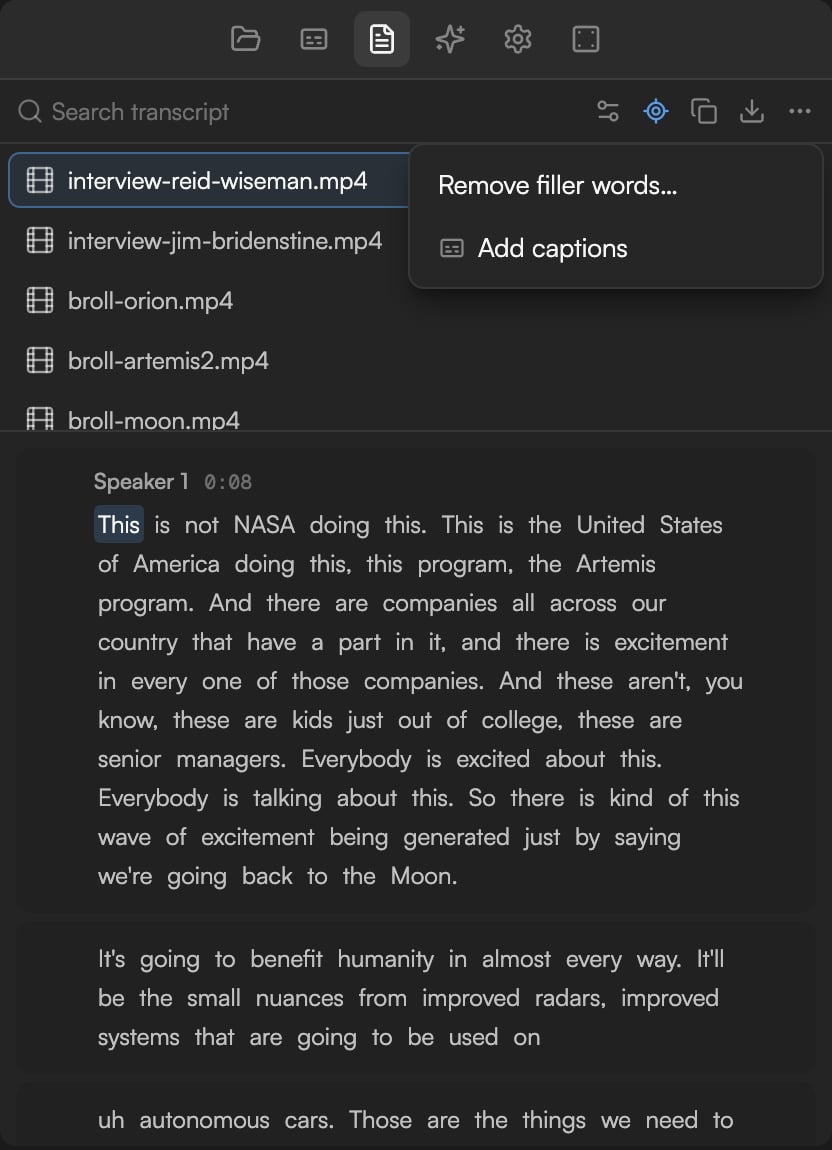 Choose **Remove filler words…** from the ⋯ menu. Every filler is highlighted and the panel reports how many it found.
Scroll through to check the highlights before removing them. To remove a single filler instead, select it and choose **Delete selection**.
Click **Remove all**. Each filler is cut from the Timeline and shown struck through in the transcript.
Filler removal only sees words that were transcribed. If **Keep filler words** was off, re-transcribe with it on. See [Transcribe media](/editor/transcription).
## Copy and export
* **Copy transcript** in the panel header copies the full text of the Timeline's transcript.
* **Download** in the panel header exports the transcript as TXT, SRT or VTT to use it outside GoFrame Editor, for example as a subtitle file for another platform.
* A **Project for editing (NLE)** export can also include a caption `.srt` file; see [Export for Final Cut, Premiere and Resolve](/editor/export-for-nle).
## Ask the agent instead
Everything above is available in plain language, and the agent can go further because it understands the content:
* "Remove filler words and pauses longer than a second."
* "Cut every repeated take and keep the best one."
* "Extract three 30-second highlights about pricing."
* "Delete the part where I talk about the old logo."
Large cuts arrive as an edit proposal you approve before anything changes. See [Review proposals and approve actions](/editor/proposals-and-permissions).
## Continue
* [Transcribe media](/editor/transcription)
* [Captions](/editor/captions)
* [Edit clips](/editor/edit-clips)
* [Skills and workflows](/editor/skills)
Choose **Remove filler words…** from the ⋯ menu. Every filler is highlighted and the panel reports how many it found.
Scroll through to check the highlights before removing them. To remove a single filler instead, select it and choose **Delete selection**.
Click **Remove all**. Each filler is cut from the Timeline and shown struck through in the transcript.
Filler removal only sees words that were transcribed. If **Keep filler words** was off, re-transcribe with it on. See [Transcribe media](/editor/transcription).
## Copy and export
* **Copy transcript** in the panel header copies the full text of the Timeline's transcript.
* **Download** in the panel header exports the transcript as TXT, SRT or VTT to use it outside GoFrame Editor, for example as a subtitle file for another platform.
* A **Project for editing (NLE)** export can also include a caption `.srt` file; see [Export for Final Cut, Premiere and Resolve](/editor/export-for-nle).
## Ask the agent instead
Everything above is available in plain language, and the agent can go further because it understands the content:
* "Remove filler words and pauses longer than a second."
* "Cut every repeated take and keep the best one."
* "Extract three 30-second highlights about pricing."
* "Delete the part where I talk about the old logo."
Large cuts arrive as an edit proposal you approve before anything changes. See [Review proposals and approve actions](/editor/proposals-and-permissions).
## Continue
* [Transcribe media](/editor/transcription)
* [Captions](/editor/captions)
* [Edit clips](/editor/edit-clips)
* [Skills and workflows](/editor/skills)