> ## Documentation Index
> Fetch the complete documentation index at: https://docs.goframe.dev/llms.txt
> Use this file to discover all available pages before exploring further.
# Transcribe media
> Turn speech in video and audio into a word-level transcript with speakers: settings, languages, statuses, cost and what a transcript unlocks
A transcript is the text of what is said in a clip, with a timestamp for every word and a label for every speaker. Transcribe a file once and the same transcript powers text-based editing, captions and the agent's understanding of your footage.
 ## Start a transcription
Any of these starts the same job:
* Open the **Transcript** panel in the **Editor** layout. Each video or audio file in the project is listed with a **Transcribe** button; before the first transcript the panel reads **Edit video by editing text — Transcribe this file to cut, trim and clean it up straight from the transcript.**
* In the **Captions** panel, click **Transcribe N files** to transcribe every clip with speech on the Timeline at once.
* Ask the agent. Prompts such as "Add captions" or "Remove filler words" transcribe the footage first if needed.
A transcript belongs to the asset, not to a clip. Cut, split or duplicate the clip as much as you like; every piece keeps its words.
## Transcription settings
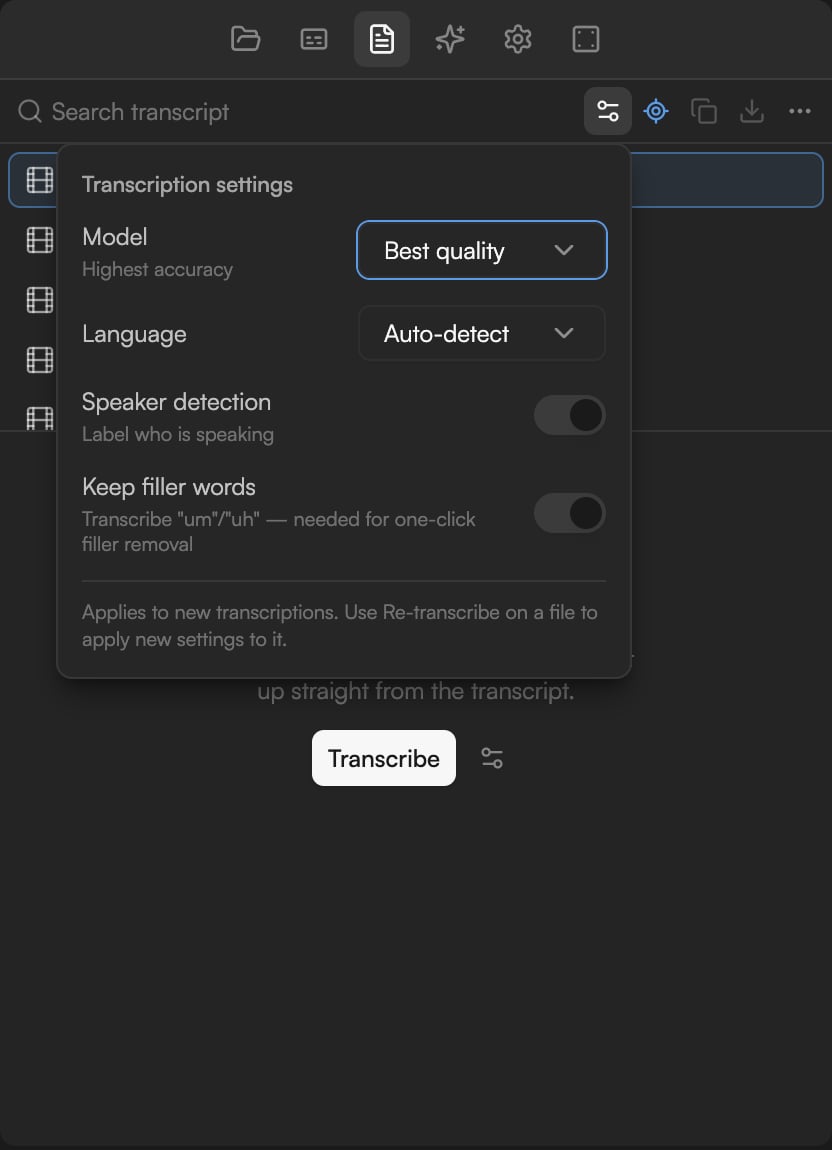
Before the job starts you can adjust **Transcription settings** (the sliders icon in the Transcript panel header). As the popover says, they apply to new transcriptions; use **Re-transcribe** on a file to apply new settings to it.
| Setting | Options | Notes |
| --------------------- | ------------------------------------------------------ | ---------------------------------------------------------------------------------------------------------------------------------------------- |
| **Model** | **Highest accuracy (Best quality)** / **Multilingual** | Highest accuracy is the default and covers the 18 languages below. Multilingual supports 99 languages; pick it for anything outside that list. |
| **Language** | **Auto-detect** or a specific language | Choose the language explicitly when auto-detection picks the wrong one, for example in a bilingual recording. |
| **Speaker detection** | on / off | "Label who is speaking." On by default, so you can rename and reassign speakers later. |
| **Keep filler words** | on / off | "Transcribe "um"/"uh" — needed for one-click filler removal." On by default. |
### Languages
**Highest accuracy** offers: English, Español, Français, Deutsch, Italiano, Português, Nederlands, Dansk, Suomi, Norsk, Svenska, Türkçe, العربية, עברית, हिन्दी, 日本語, 中文, Tiếng Việt.
**Multilingual** adds: Русский, Українська, Polski, Čeština, Română, Ελληνικά, Magyar, 한국어, Bahasa Indonesia, ไทย. Its Auto-detect mode recognizes 99 languages in total.
Leave **Keep filler words** on for talking-head footage. Filler removal in the Transcript panel only works on words that were transcribed; if you switch it off, the fillers are silently dropped from the text but remain in the audio.
## Statuses
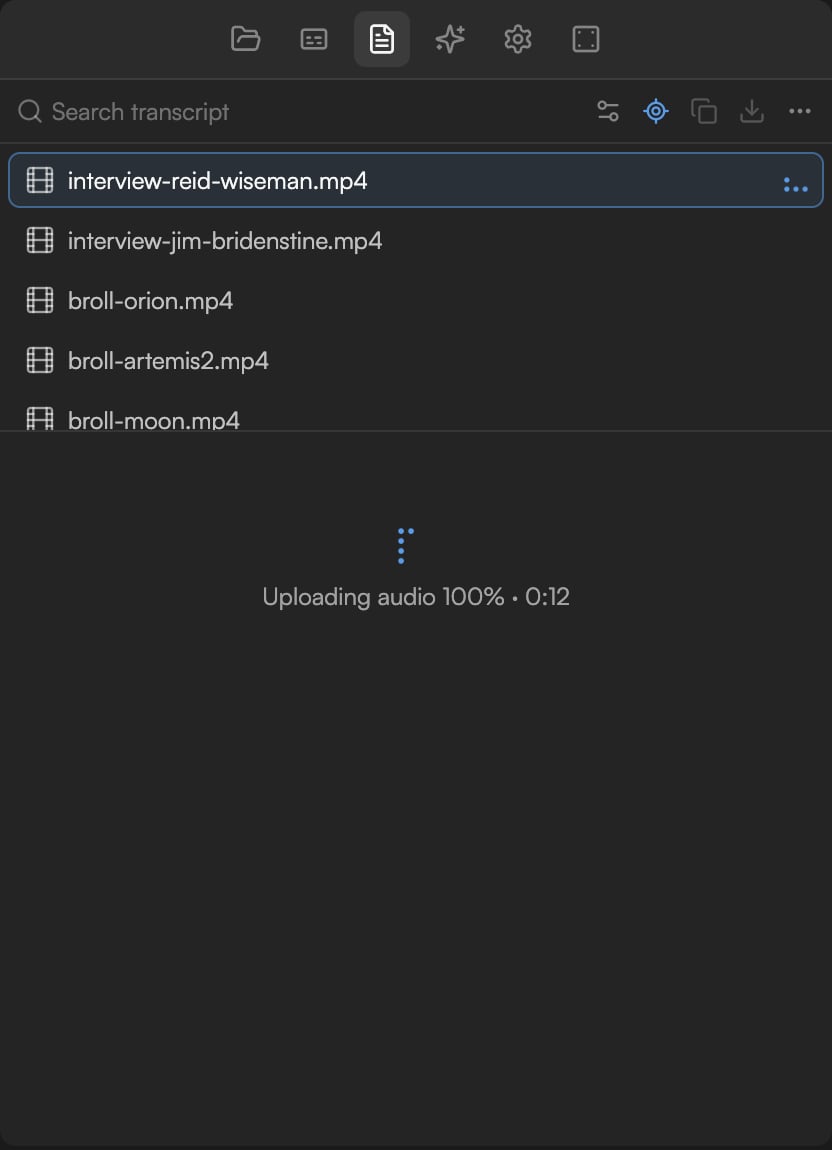
Transcription runs in the background. The clip on the Timeline shows a **Transcribing** badge, and the file's row in the Transcript panel and the **Background tasks** panel show the current stage:
| Status | What is happening |
| ---------------------------- | --------------------------------------------------------------------------------------------------------------------------------------------- |
| **Queued for transcription** | The job is registered. |
| **Extracting audio** | The audio track is separated from the video in your browser, with a percentage and elapsed time (for example **Extracting audio 5% · 0:01**). |
| **Uploading audio** | The audio is sent for transcription. |
| **Transcribing** | Speech recognition is running. |
| **Transcript ready** | Done. The Transcript panel fills in and captions turn on if the Captions panel was waiting (**Transcript ready — captions turned on**). |
| **No speech detected** | Audio was found but no words were recognized. |
| **Transcription failed** | Something went wrong. Use **Re-transcribe** to try again. |
If the file is not on the Timeline yet, the panel then reads **Add this file to the timeline to view and edit its transcript.** Click **Cancel transcription** in the Transcript panel to stop a running job.
## Start a transcription
Any of these starts the same job:
* Open the **Transcript** panel in the **Editor** layout. Each video or audio file in the project is listed with a **Transcribe** button; before the first transcript the panel reads **Edit video by editing text — Transcribe this file to cut, trim and clean it up straight from the transcript.**
* In the **Captions** panel, click **Transcribe N files** to transcribe every clip with speech on the Timeline at once.
* Ask the agent. Prompts such as "Add captions" or "Remove filler words" transcribe the footage first if needed.
A transcript belongs to the asset, not to a clip. Cut, split or duplicate the clip as much as you like; every piece keeps its words.
## Transcription settings
Before the job starts you can adjust **Transcription settings** (the sliders icon in the Transcript panel header). As the popover says, they apply to new transcriptions; use **Re-transcribe** on a file to apply new settings to it.
| Setting | Options | Notes |
| --------------------- | ------------------------------------------------------ | ---------------------------------------------------------------------------------------------------------------------------------------------- |
| **Model** | **Highest accuracy (Best quality)** / **Multilingual** | Highest accuracy is the default and covers the 18 languages below. Multilingual supports 99 languages; pick it for anything outside that list. |
| **Language** | **Auto-detect** or a specific language | Choose the language explicitly when auto-detection picks the wrong one, for example in a bilingual recording. |
| **Speaker detection** | on / off | "Label who is speaking." On by default, so you can rename and reassign speakers later. |
| **Keep filler words** | on / off | "Transcribe "um"/"uh" — needed for one-click filler removal." On by default. |
### Languages
**Highest accuracy** offers: English, Español, Français, Deutsch, Italiano, Português, Nederlands, Dansk, Suomi, Norsk, Svenska, Türkçe, العربية, עברית, हिन्दी, 日本語, 中文, Tiếng Việt.
**Multilingual** adds: Русский, Українська, Polski, Čeština, Română, Ελληνικά, Magyar, 한국어, Bahasa Indonesia, ไทย. Its Auto-detect mode recognizes 99 languages in total.
Leave **Keep filler words** on for talking-head footage. Filler removal in the Transcript panel only works on words that were transcribed; if you switch it off, the fillers are silently dropped from the text but remain in the audio.
## Statuses
Transcription runs in the background. The clip on the Timeline shows a **Transcribing** badge, and the file's row in the Transcript panel and the **Background tasks** panel show the current stage:
| Status | What is happening |
| ---------------------------- | --------------------------------------------------------------------------------------------------------------------------------------------- |
| **Queued for transcription** | The job is registered. |
| **Extracting audio** | The audio track is separated from the video in your browser, with a percentage and elapsed time (for example **Extracting audio 5% · 0:01**). |
| **Uploading audio** | The audio is sent for transcription. |
| **Transcribing** | Speech recognition is running. |
| **Transcript ready** | Done. The Transcript panel fills in and captions turn on if the Captions panel was waiting (**Transcript ready — captions turned on**). |
| **No speech detected** | Audio was found but no words were recognized. |
| **Transcription failed** | Something went wrong. Use **Re-transcribe** to try again. |
If the file is not on the Timeline yet, the panel then reads **Add this file to the timeline to view and edit its transcript.** Click **Cancel transcription** in the Transcript panel to stop a running job.
 ## Cost and limits
* Transcription costs about 1 credit per minute of audio. Credits are charged once per asset; editing the transcript and building captions from it cost nothing extra.
* A source file can be up to 24 hours long.
* Up to three transcriptions run at the same time; beyond that, extra jobs wait for a free slot.
See [Plans and credits](/editor/plans-and-credits) for how credits work.
## Re-transcribe
Use **Re-transcribe** on the file in the Transcript panel to run the job again, for example after changing the language or model, or when a partial transcript needs fixing. Re-transcribing replaces the transcript and is charged again.
Re-transcribing replaces the previous transcript. Check speaker names, text corrections and caption word-timing adjustments afterwards, as they were made on the old one.
## What a transcript unlocks
* **Text-based editing**: delete a sentence in the Transcript panel and the clip is cut on the Timeline. See [Edit video by editing text](/editor/transcript-editing).
* **Captions**: the Captions panel builds every caption page from the transcript's words and timings. See [Captions](/editor/captions).
* **Search**: find any spoken phrase with **Search transcript**.
* **Agent context**: the agent reads transcripts to find highlights, remove repeated takes, cut by topic, or reference a passage you `@`-mention in chat.
## Troubleshooting
* **No speech detected**: check the audio in Preview. Music-only or very quiet tracks will not transcribe. Try again with the language set explicitly.
* **Transcription failed**: re-transcribe from the panel. If it keeps failing, check the file's status in the **Background tasks** panel and that you have credits left.
## Continue
* [Edit video by editing text](/editor/transcript-editing)
* [Captions](/editor/captions)
* [Organize the Media pool](/editor/media-pool)
* [Troubleshooting](/editor/troubleshooting)
## Cost and limits
* Transcription costs about 1 credit per minute of audio. Credits are charged once per asset; editing the transcript and building captions from it cost nothing extra.
* A source file can be up to 24 hours long.
* Up to three transcriptions run at the same time; beyond that, extra jobs wait for a free slot.
See [Plans and credits](/editor/plans-and-credits) for how credits work.
## Re-transcribe
Use **Re-transcribe** on the file in the Transcript panel to run the job again, for example after changing the language or model, or when a partial transcript needs fixing. Re-transcribing replaces the transcript and is charged again.
Re-transcribing replaces the previous transcript. Check speaker names, text corrections and caption word-timing adjustments afterwards, as they were made on the old one.
## What a transcript unlocks
* **Text-based editing**: delete a sentence in the Transcript panel and the clip is cut on the Timeline. See [Edit video by editing text](/editor/transcript-editing).
* **Captions**: the Captions panel builds every caption page from the transcript's words and timings. See [Captions](/editor/captions).
* **Search**: find any spoken phrase with **Search transcript**.
* **Agent context**: the agent reads transcripts to find highlights, remove repeated takes, cut by topic, or reference a passage you `@`-mention in chat.
## Troubleshooting
* **No speech detected**: check the audio in Preview. Music-only or very quiet tracks will not transcribe. Try again with the language set explicitly.
* **Transcription failed**: re-transcribe from the panel. If it keeps failing, check the file's status in the **Background tasks** panel and that you have credits left.
## Continue
* [Edit video by editing text](/editor/transcript-editing)
* [Captions](/editor/captions)
* [Organize the Media pool](/editor/media-pool)
* [Troubleshooting](/editor/troubleshooting)