> ## Documentation Index
> Fetch the complete documentation index at: https://docs.goframe.dev/llms.txt
> Use this file to discover all available pages before exploring further.
# Version history and autosave
> How autosave works, what the save status means, and how to save snapshots, review changes and restore any earlier version without losing work
GoFrame Editor saves as you work and keeps every state of the project in **Version history**. Use it to go back before an agent edit, recover a cut you liked, or see what changed and who changed it.
## Autosave
Changes save to the cloud a few seconds after you make them. The save status in the top bar tells you where things stand:
| Status | Meaning |
| --------------------------------------------------- | -------------------------------------------------------------------------------- |
| **Saved** | Everything is in the cloud. |
| **Saving…** | Unsaved changes are being written; hold off on refreshing the page. |
| **Offline — changes stored locally** | No connection. Edits are kept in this browser and sync when you are back online. |
| **Couldn't save — click to retry** | The last save failed. Click the status to try again. |
| **Paused — project updated in another tab, reload** | The project was changed in another tab. Reload this tab to continue. |
If the browser closes before a save finishes, the next time you open the project you see "Recovered unsaved changes from your last session" and your edits are back.
 Files you imported as local-only are read from your disk, not the cloud. On another device, or if a file has moved, the Media pool shows a banner such as "6 local files are unavailable — Relink…" and the **Relink local files** dialog helps you find them again. See [Import media](/editor/import-media).
## Open Version history
Click **Version history** (the clock icon) in the top bar. The dialog explains its rule up front: "Every change is a commit: manual snapshots, editing sessions, AI checkpoints. Restoring never deletes anything."
Files you imported as local-only are read from your disk, not the cloud. On another device, or if a file has moved, the Media pool shows a banner such as "6 local files are unavailable — Relink…" and the **Relink local files** dialog helps you find them again. See [Import media](/editor/import-media).
## Open Version history
Click **Version history** (the clock icon) in the top bar. The dialog explains its rule up front: "Every change is a commit: manual snapshots, editing sessions, AI checkpoints. Restoring never deletes anything."
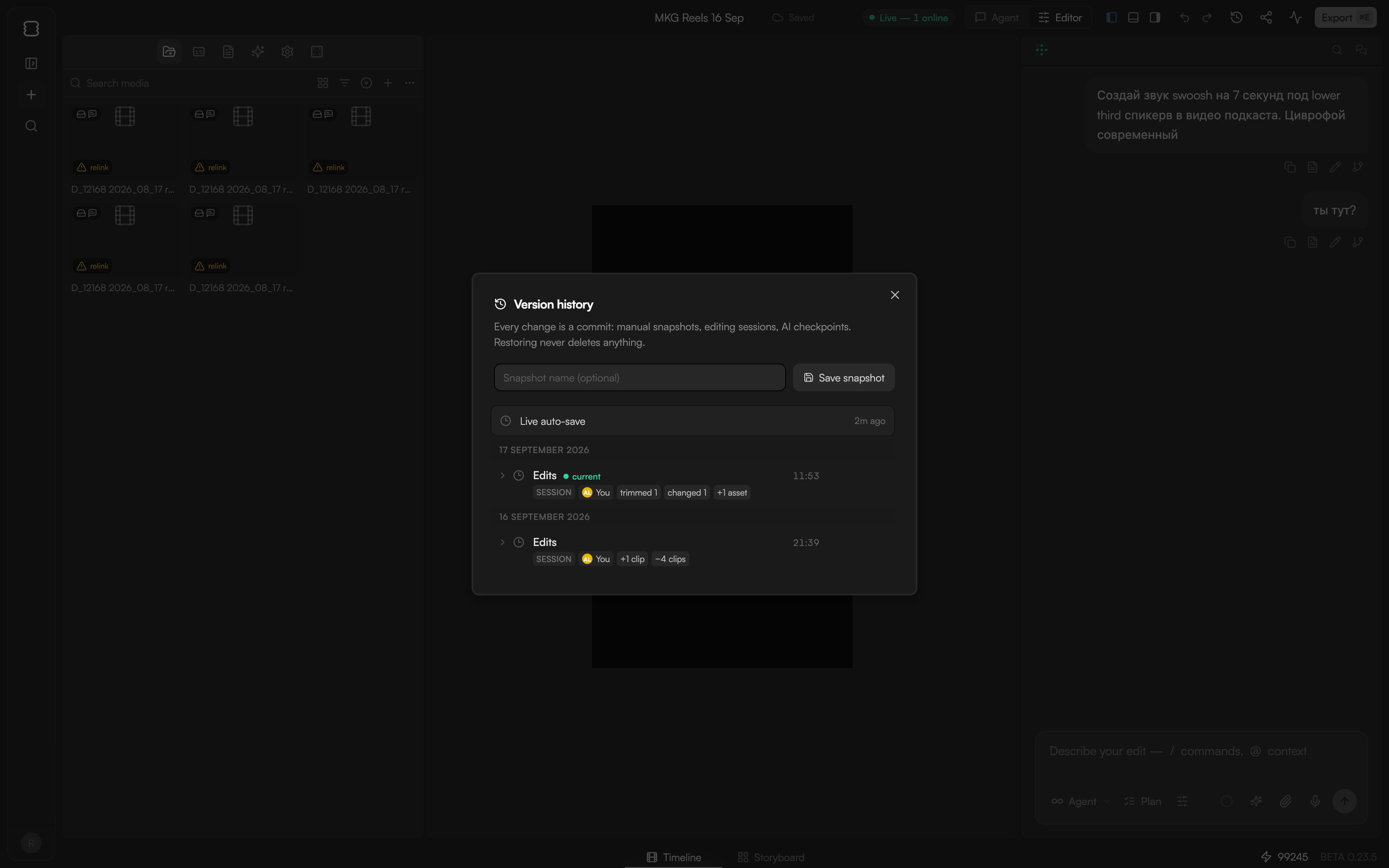 Each entry shows who made it (**You** or a collaborator), when, and what kind it is:
| Kind | When it appears |
| ------------- | ------------------------------------------------------------------------------ |
| **Session** | Created automatically as you edit. The top entry is marked **Live auto-save**. |
| **Snapshot** | A version you saved by hand. |
| **AI edit** | The state after the agent changed the timeline. |
| **Before AI** | The state just before an agent edit, so you can step back with one click. |
| **Restore** | Created when someone restores an earlier version. |
A new project has no versions until you start editing.
## Save a snapshot
Save a snapshot before a risky change or when a cut is worth keeping.
Type a name for the snapshot. Something like "Client v2" is easier to find later than a timestamp.
Click **Save snapshot**. The entry appears at the top of the list.
To rename any version later, choose **Rename** on the entry.
## See what changed
Each version carries change chips that summarise what happened: clips added or removed, moved, trimmed or changed, assets added, transitions, settings or tracks. Expand an entry for the details of which clips were affected.
Chips make it quick to spot an unexpected edit. If a collaborator or the agent removed something you needed, find the version whose chips show the removal and restore the one before it.
## Restore a version
Find the entry you want. Restoring is non-destructive: as the dialog says, "Restoring never deletes anything."
Click **Restore**. The timeline switches to that state.
The state you just left is saved as a new **Restore** entry. Restore it to go forward again.
Collaborators who have the project open switch to the restored state too, and the restore shows up in their history. Viewers cannot restore versions. See [Share and collaborate](/editor/share-and-collaborate).
## Undo, redo and /undo
For small mistakes, undo is faster than history:
* `⌘Z` undoes and `⌘⇧Z` redoes, up to 50 steps. The undo and redo buttons in the top bar do the same.
* In chat, `/undo` reverts the agent's last timeline change. The **Timeline changes** card under an agent reply also has a **Revert** button.
* Undo works on your own edits. If a collaborator has already deleted the clip you are undoing, undo cannot bring it back; use Version history instead.
## Deleted projects
Version history lives inside the project. A project moved to the trash keeps its versions for 7 days and can be restored from **Trash** in the sidebar; after that it is deleted for good. See [Home and projects](/editor/home-and-projects).
## Continue
* [Review proposals and approve actions](/editor/proposals-and-permissions)
* [Share and collaborate](/editor/share-and-collaborate)
* [Edit clips](/editor/edit-clips)
* [Troubleshooting](/editor/troubleshooting)
Each entry shows who made it (**You** or a collaborator), when, and what kind it is:
| Kind | When it appears |
| ------------- | ------------------------------------------------------------------------------ |
| **Session** | Created automatically as you edit. The top entry is marked **Live auto-save**. |
| **Snapshot** | A version you saved by hand. |
| **AI edit** | The state after the agent changed the timeline. |
| **Before AI** | The state just before an agent edit, so you can step back with one click. |
| **Restore** | Created when someone restores an earlier version. |
A new project has no versions until you start editing.
## Save a snapshot
Save a snapshot before a risky change or when a cut is worth keeping.
Type a name for the snapshot. Something like "Client v2" is easier to find later than a timestamp.
Click **Save snapshot**. The entry appears at the top of the list.
To rename any version later, choose **Rename** on the entry.
## See what changed
Each version carries change chips that summarise what happened: clips added or removed, moved, trimmed or changed, assets added, transitions, settings or tracks. Expand an entry for the details of which clips were affected.
Chips make it quick to spot an unexpected edit. If a collaborator or the agent removed something you needed, find the version whose chips show the removal and restore the one before it.
## Restore a version
Find the entry you want. Restoring is non-destructive: as the dialog says, "Restoring never deletes anything."
Click **Restore**. The timeline switches to that state.
The state you just left is saved as a new **Restore** entry. Restore it to go forward again.
Collaborators who have the project open switch to the restored state too, and the restore shows up in their history. Viewers cannot restore versions. See [Share and collaborate](/editor/share-and-collaborate).
## Undo, redo and /undo
For small mistakes, undo is faster than history:
* `⌘Z` undoes and `⌘⇧Z` redoes, up to 50 steps. The undo and redo buttons in the top bar do the same.
* In chat, `/undo` reverts the agent's last timeline change. The **Timeline changes** card under an agent reply also has a **Revert** button.
* Undo works on your own edits. If a collaborator has already deleted the clip you are undoing, undo cannot bring it back; use Version history instead.
## Deleted projects
Version history lives inside the project. A project moved to the trash keeps its versions for 7 days and can be restored from **Trash** in the sidebar; after that it is deleted for good. See [Home and projects](/editor/home-and-projects).
## Continue
* [Review proposals and approve actions](/editor/proposals-and-permissions)
* [Share and collaborate](/editor/share-and-collaborate)
* [Edit clips](/editor/edit-clips)
* [Troubleshooting](/editor/troubleshooting)