

What the agent can do
- Edit the timeline: cut, trim, reorder and split clips, add text and shapes, transitions, animations and keyframes.
- Edit by transcript: remove filler words, pauses and repeated takes, pull highlights, tighten a talking-head recording.
- Add captions: build captions from the transcript and apply a preset.
- Generate media: images, video clips, voiceover, music, sound effects, motion graphics and avatar videos land in the Media pool and, when you ask, on the timeline.
- Export: render the current timeline and hand you the file.
Where it lives
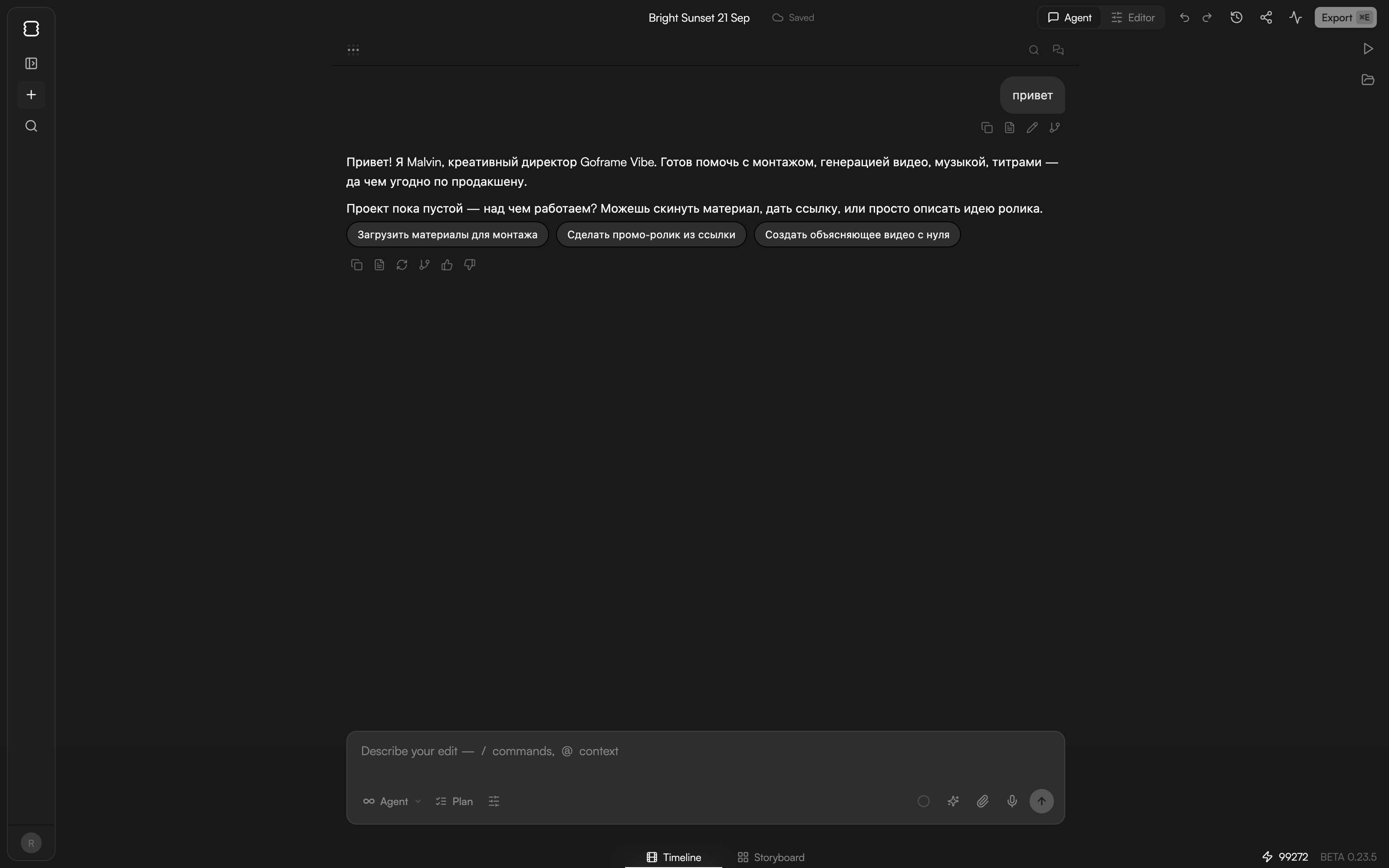
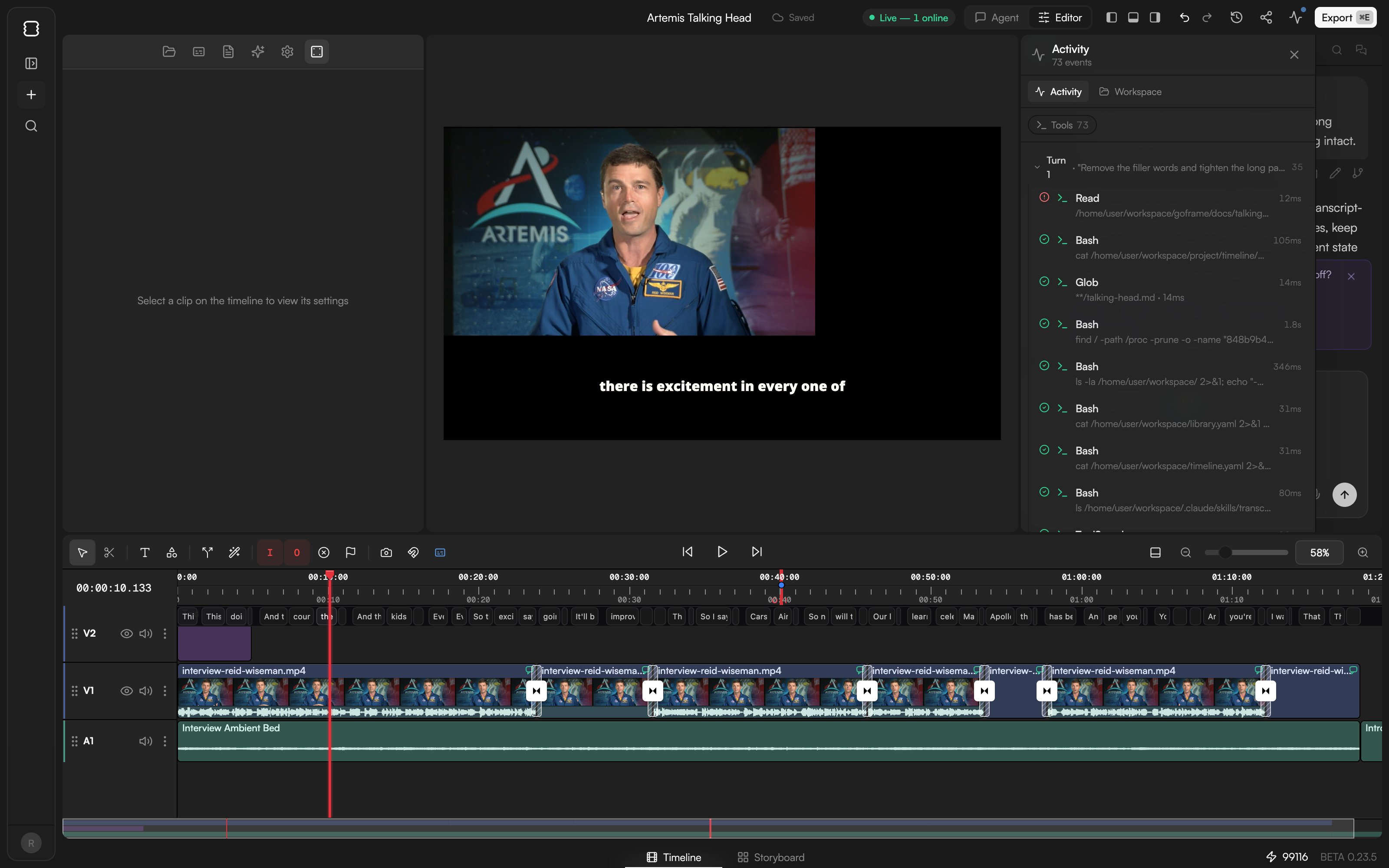
A new project opens in the Agent layout: a narrow rail on the left (panel toggle, +, search, your avatar), the chat in the center, and a right dock with Preview and Media tabs that appears as the agent produces results. Press⌘. (Ctrl on Windows) or use the Agent / Editor switcher in the top bar to open the Editor layout, where the chat moves to the right of the timeline. ⌘L shows or hides the chat panel in either layout. See Editor layout.
Your first message
The first chat starts with a welcome message (“Hi! I’m goframe, your AI video editor…”) and a row of suggestion chips. On an empty project they read Create promo from URL, Generate motion graphics and Create explainer video; once the project has media they change to Auto-edit this video, Remove filler words, Extract highlights and Add captions. Click a chip to send it as a prompt, or type your own in the composer (“Describe your edit — / commands, @ context”). PressEnter to send and ⇧Enter for a new line. For prompt-writing tips, references and commands, see Write prompts, references and commands.
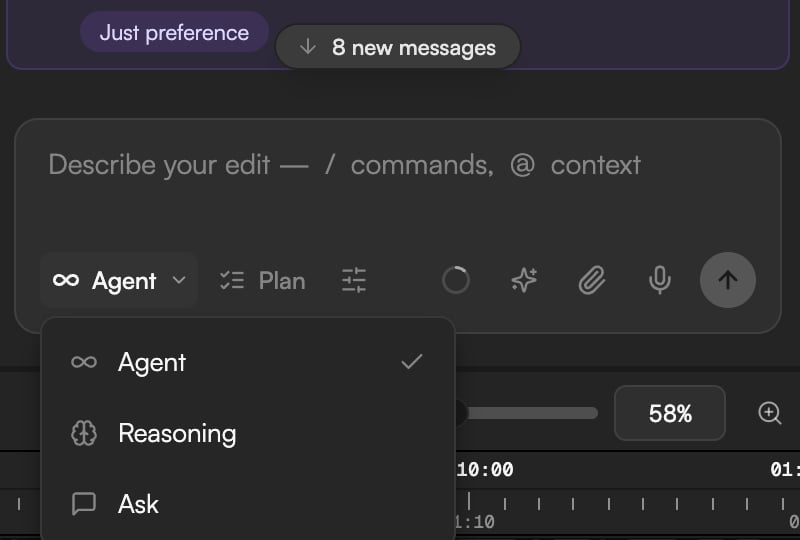
Chat modes
The mode dropdown (Agent by default) sits at the bottom-left of the composer, next to Plan.
Type
/reasoning to toggle between Agent and Reasoning.
Plan first
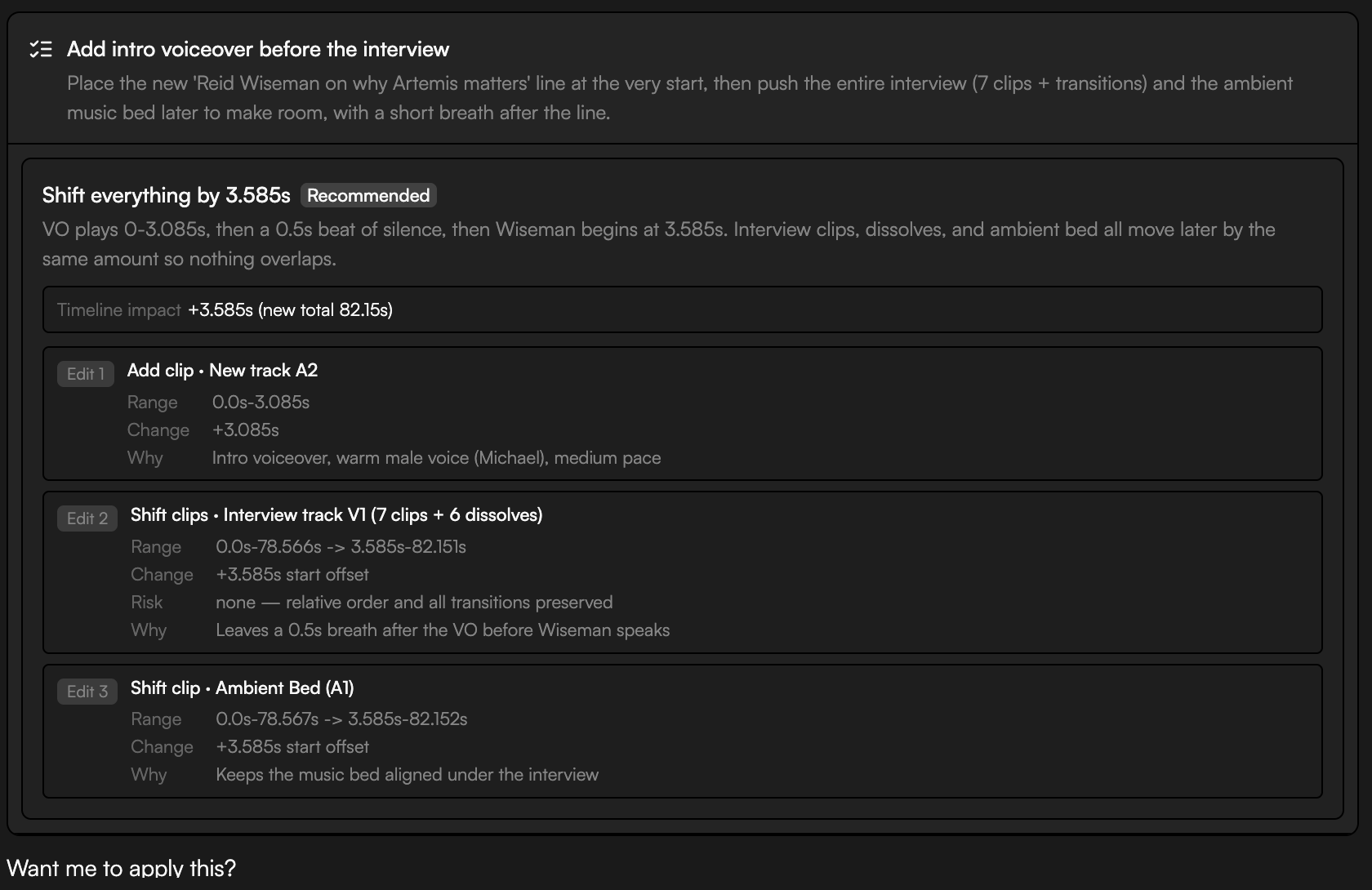
Click Plan next to the mode dropdown (its tooltip begins “Plan first: the next message produces a…”) or type/plan to arm plan mode for the next message. The agent then produces a Proposed plan card instead of editing directly. Review it and click Approve & run to execute, or Request changes to send it back with notes.
For prompts that look like multi-step tasks, the chat may suggest planning on its own (“This looks like a multi-step task — planning first usually gives a better result.”) with a Plan next message action.
Status and progress
While a turn runs, the chat shows Agent is working with a changing status line (“Connecting the dots…”, “Warming up…”) and esc to cancel. Finished steps collapse into rows such as N operations completed, with each tool call and how long it took; longer tasks add a task list (“4 tasks completed”) and a Plan N/M chip above the composer. The run ends with Agent run finished, often followed by follow-up chips such as Add captions to this cleaned-up cut. If you scroll up during a run, an N new messages pill brings you back down. Director runs show a stepper instead; see Skills and workflows. If you send a message while the agent is busy, it is queued and sent when the turn ends. PressEsc to cancel a running turn. If the session drops, a Disconnected — Reconnect banner appears on the chat; click Reconnect to resume.
Chats, search and context
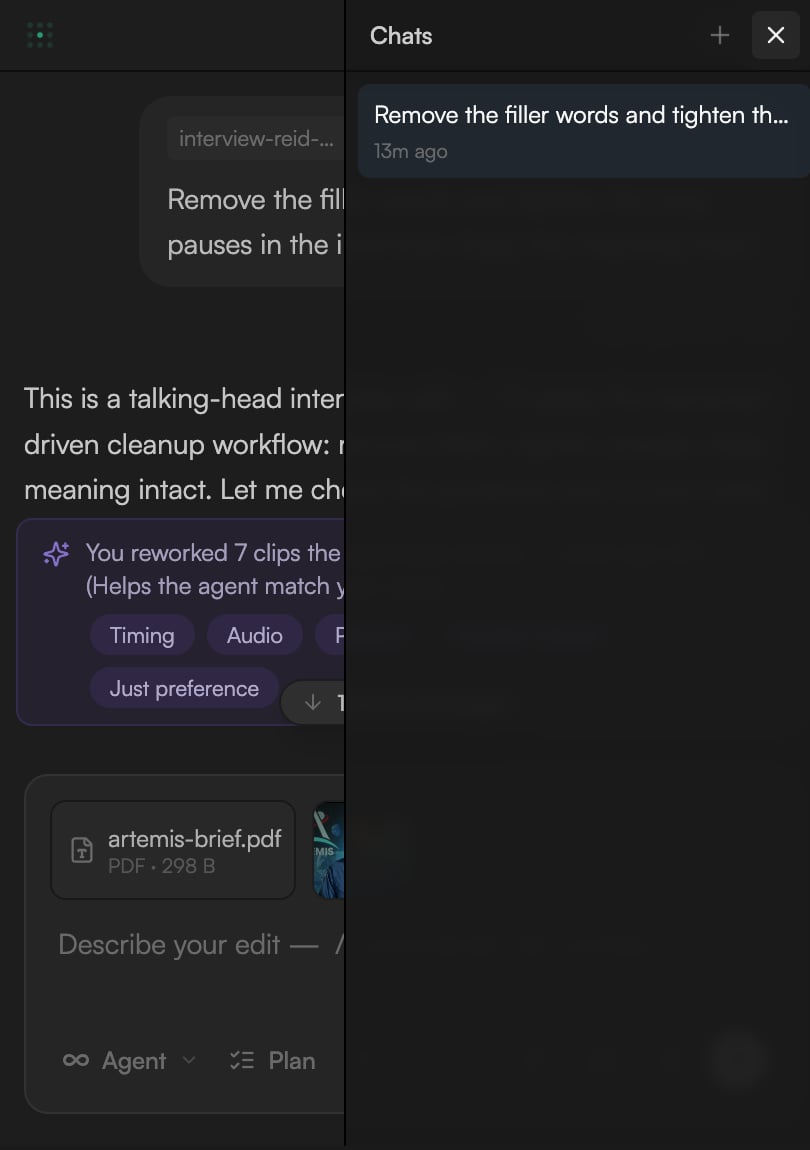
- Chats: open the Chats list in the chat header to switch between conversations or start a New Chat. Each chat keeps its own history; the project state is shared. Finish the current run before switching.
- Search: press
⌘F(or click the search icon in the chat header) to find text in the current chat, including earlier messages that are not loaded yet. - Compact context: long conversations fill the agent’s working memory. Type
/compactto summarize the session and free up space while keeping project state, memory and session notes. If a message is refused as too long, compact first. - Clear:
/clearstarts a new chat and keeps the project as is.
Message actions
Hover a message to reveal its actions. On your own messages:- Copy plain text / Copy as markdown.
- Edit & resend puts your message back in the composer; Edit & branch does the same and moves later messages to the archived branch.
C on the last reply), retry (R on the last reply, re-sends the prompt that produced this answer), branch (archives everything after this message and starts fresh from that point), and thumbs up / down to send feedback.
⌥↑ and ⌥↓ move through your previous messages in the composer.
Credits and limits
Every prompt consumes credits based on the editing model and how much work the turn does; paid generations add their own cost, which the agent states before running. The project footer shows your balance next to a ⚡ icon; click it to open Top up credits. When you run out, the chat shows Insufficient Credits with a Top Up Credits button. See Plans and credits.- Free plan: 20 agent prompts per day and the Claude Haiku 4.5 editing model only. When the limit is hit you see Daily Limit Reached with the reset time; picking a paid model shows “available on paid plans”. See AI models.
- One run per project: collaborators share the same chat, and only one turn can run at a time. A second prompt waits with “Agent busy” until the current one finishes.
- Idle agent sessions close after 30 minutes; the next prompt reconnects automatically.