

Ways to import
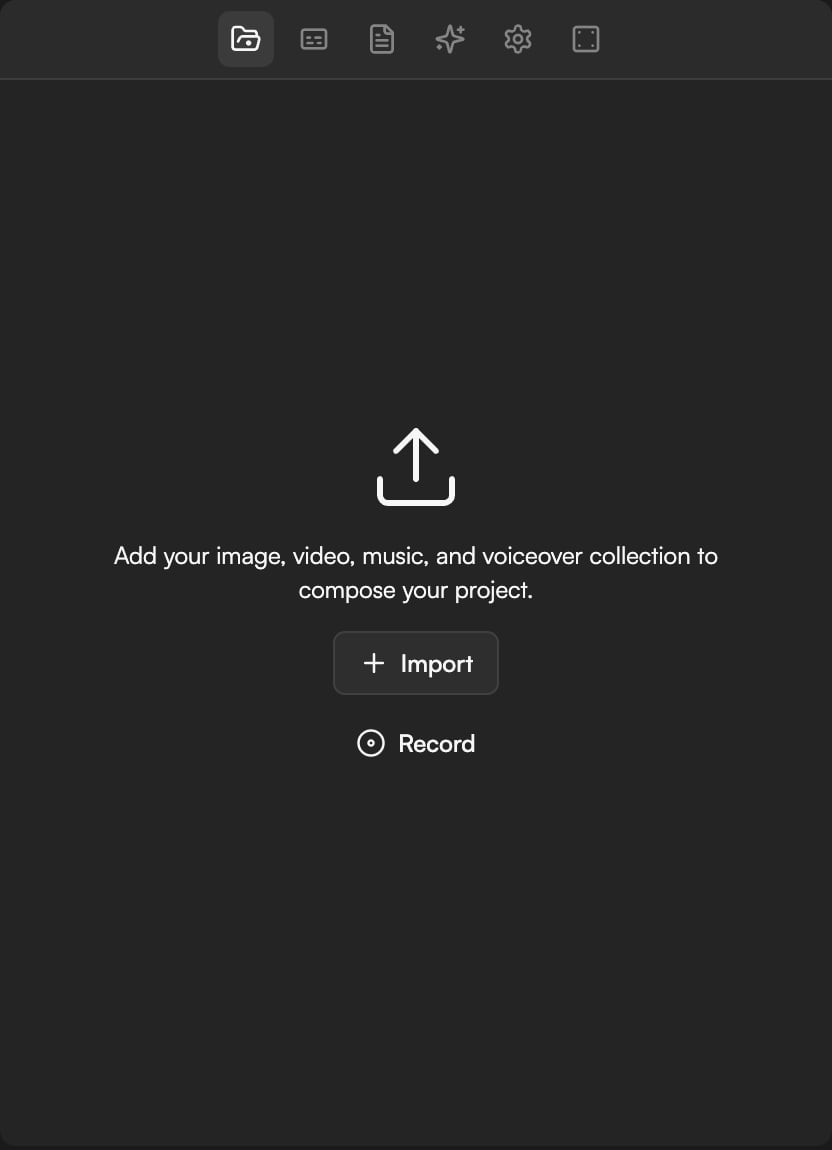
- Click Import files in the Media pool header and pick files from your computer. An empty pool reads “Add your image, video, music, and voiceover collection to compose your project.” with Import and Record buttons.
- Drag files from your desktop onto the Media pool.
- Drag files straight onto the Timeline. They are added to the Media pool and placed on a track in one move.
- Attach files when you create a project from Home with Attach starter files (script, brief, media).
Supported formats and limits
- Maximum file size is 50 GB. Larger files are refused with File too large (max 50 GB).
- Unsupported files are skipped, and a toast reports how many.
- If GoFrame Editor cannot read a file’s metadata, it imports the file with default values and tells you.
- Media is not transcoded on a server. Playback, thumbnails and waveforms are built in your browser, so very large or unusual files may take longer to become scrubbable.
Duplicates are detected by content, not by name. If you import a file that already exists in the project, GoFrame Editor reports N files are already in the library and reuses the existing asset instead of adding a copy.
Local files and Cloud Sync
Every imported asset has a Cloud Sync setting. Until a file is synced it lives only in this browser on this computer.- Cloud Sync (in the asset’s right-click menu): upload this file so it is available on any device, to collaborators, and to the agent’s cloud tools.
- Auto cloud sync — Upload new files automatically (in Library settings, the ⋯ button in the Media pool header): turn it on to sync every new import without touching each asset.
Upload statuses and badges
Each asset reports its upload state as one of:
Asset cards also carry badges: Available locally, In cloud, Pending upload and Created by AI agent.
Relink local files
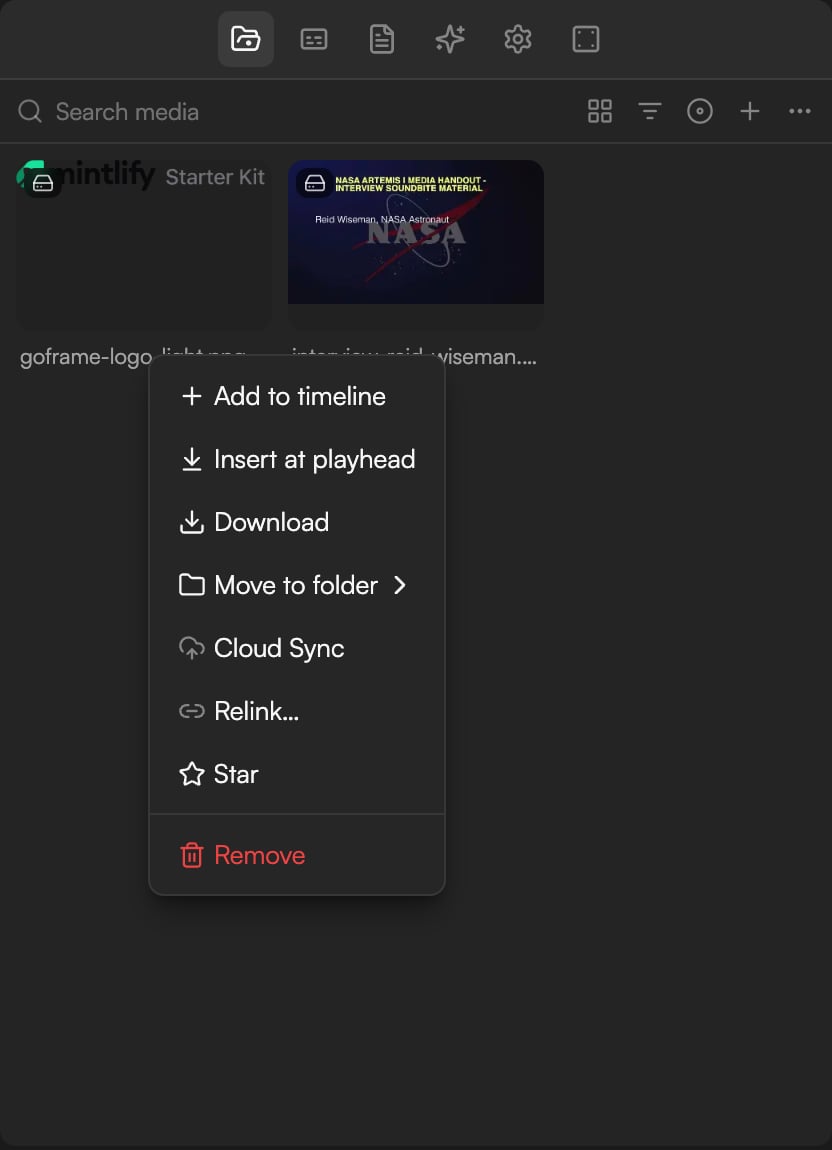
When a project references local files this device cannot read (a different computer, cleared browser data, or a file that moved), the Media pool shows a banner such as 6 local files are unavailable with a Relink… button, and each affected tile carries a relink badge (“File missing — relink”). The same Relink… action is in the asset’s right-click menu. Clips that use those files stay on the Timeline but cannot play until you relink.1
Open the dialog
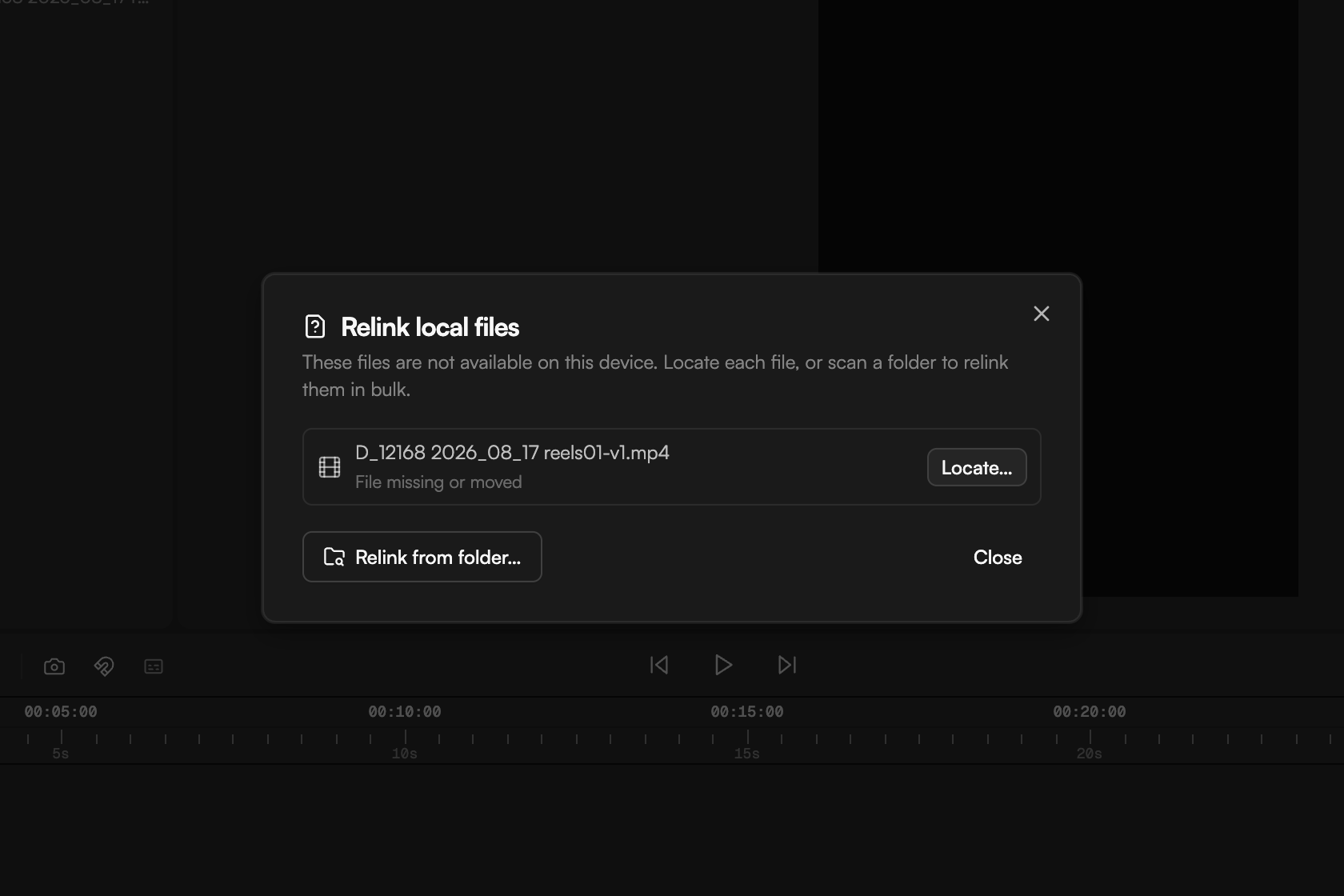
Click Relink…. The Relink local files dialog (“These files are not available on this device. Locate each file, or scan a folder to relink them in bulk.”) lists each file with its status, such as File missing or moved.
2
Locate a file
Click Locate… next to a file and pick it. A file that only lost its browser permission offers Reconnect instead; grant access in the browser prompt.
3
Relink in bulk
Click Relink from folder… and choose a folder. GoFrame Editor scans it and matches files by content. Folder scanning requires Chrome or Edge; in other browsers use per-file Locate….
4
Resolve mismatches
If the file you picked has different content from the original, the dialog says so. Pick another file, or choose Use anyway to accept it.
5
Finish
Click Close when every file is relinked.
GoFrame Editor works best in a Chromium browser such as Chrome or Edge. Saving exports directly to disk and folder-based relinking rely on browser features that other browsers do not provide.