

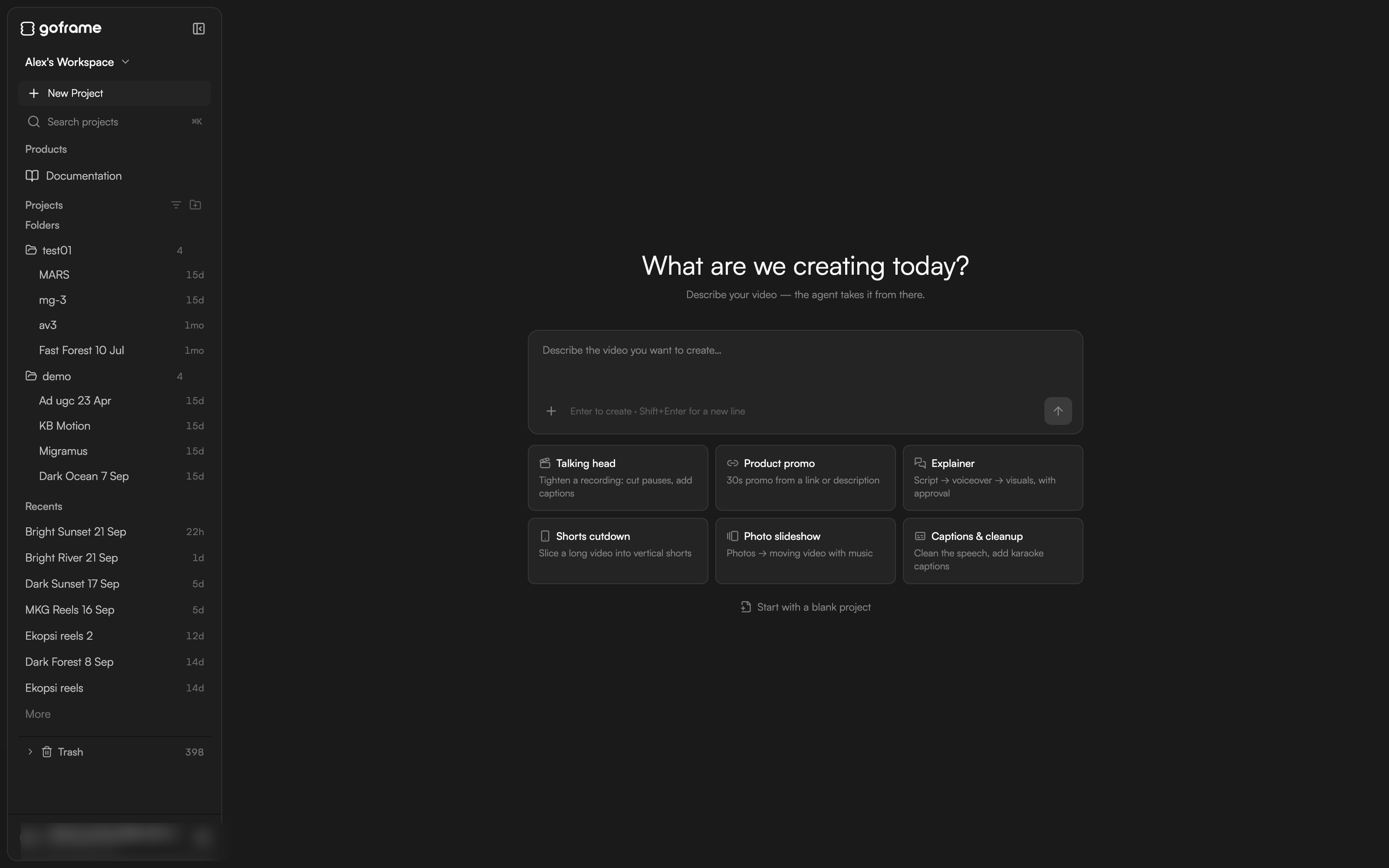
The Home page
Home greets you by name (“Good morning”, “Good afternoon”, “Good evening” or, if you’re working late, “Up late?”) with the line “Describe your video — the agent takes it from there.”Prompt composer
The box in the middle, Describe the video you want to create…, is the fastest way to start. Write what you want in plain language and pressEnter (or click Create project); a new project opens with the agent already working on your request. Shift+Enter adds a new line.
Two links sit under the composer:
- Attach starter files (script, brief, media) lets you add a script, a brief or footage before the project is created, so the agent starts with context.
- Start with a blank project creates an empty project without a prompt, for hands-on editing.
Template cards
Six cards below the composer start a project with a ready-made scenario:
Pick a card, then answer the agent’s questions in the project that opens. See Skills and workflows for what runs behind each scenario.
Create a project
Click New Project in the sidebar (or use the composer) to open the New project dialog. “Every project lives inside a workspace. Persistent memory can be inherited from the workspace or isolated to this project alone.”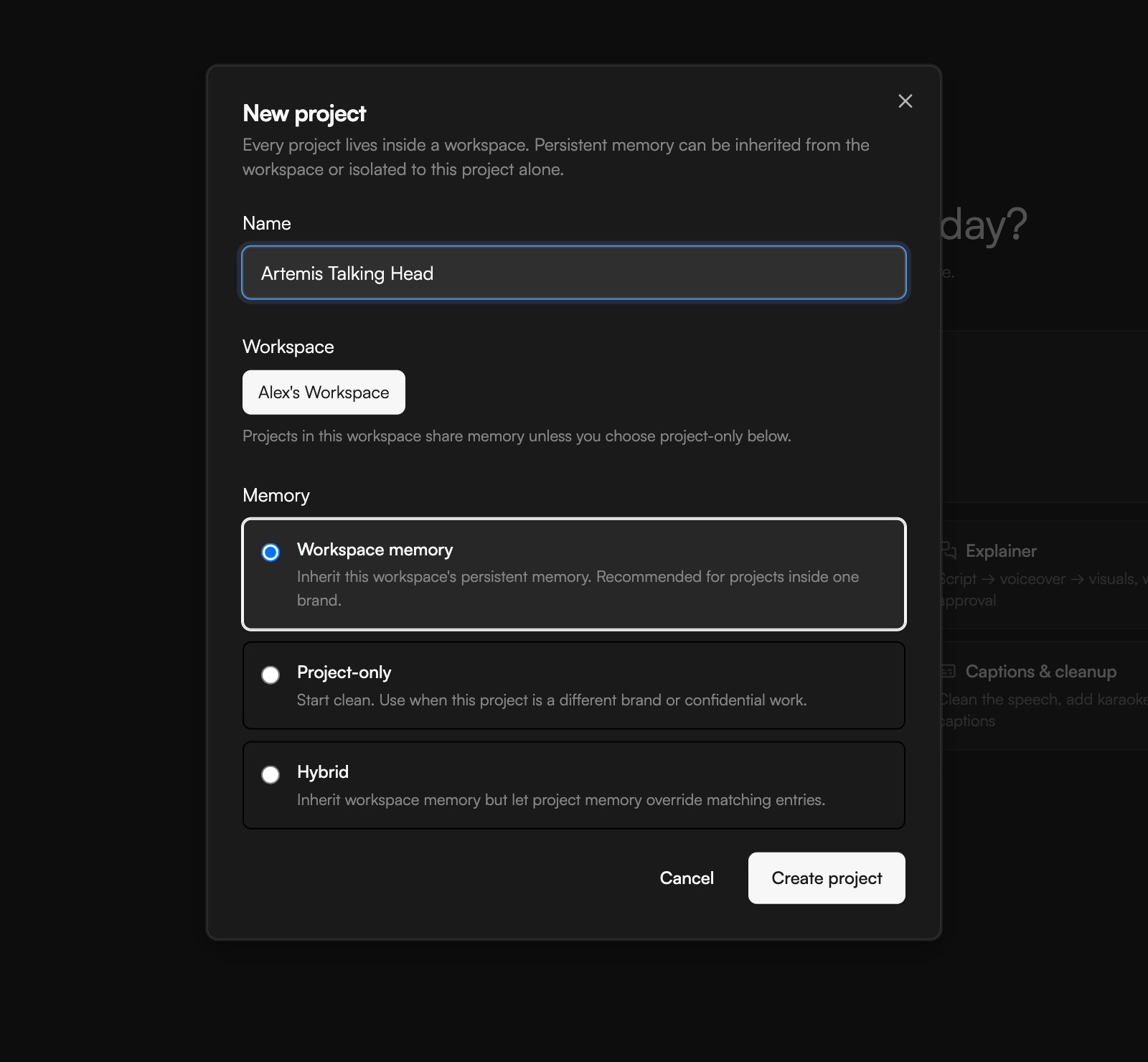
- Name: the project title. You can rename it later.
- Workspace: which workspace the project belongs to. “Projects in this workspace share memory unless you choose project-only below.”
- Memory: how much the agent remembers from the workspace.
- Workspace memory: inherit the workspace’s persistent memory. Recommended for projects inside one brand.
- Project-only: start clean. Use when this project is a different brand or confidential work.
- Hybrid: inherit workspace memory but let project memory override matching entries.
The Free plan allows 3 projects; Creator and Pro have no project limit. Prices and plan limits are shown in the app and may change.
The sidebar
The sidebar on the left of Home holds:- The workspace switcher at the top (your workspace name with a chevron).
- New Project.
- Search projects (
⌘K, or⌘O). A Search dialog lists your projects with their folder names; type part of a name and pick one. - Products and Documentation links.
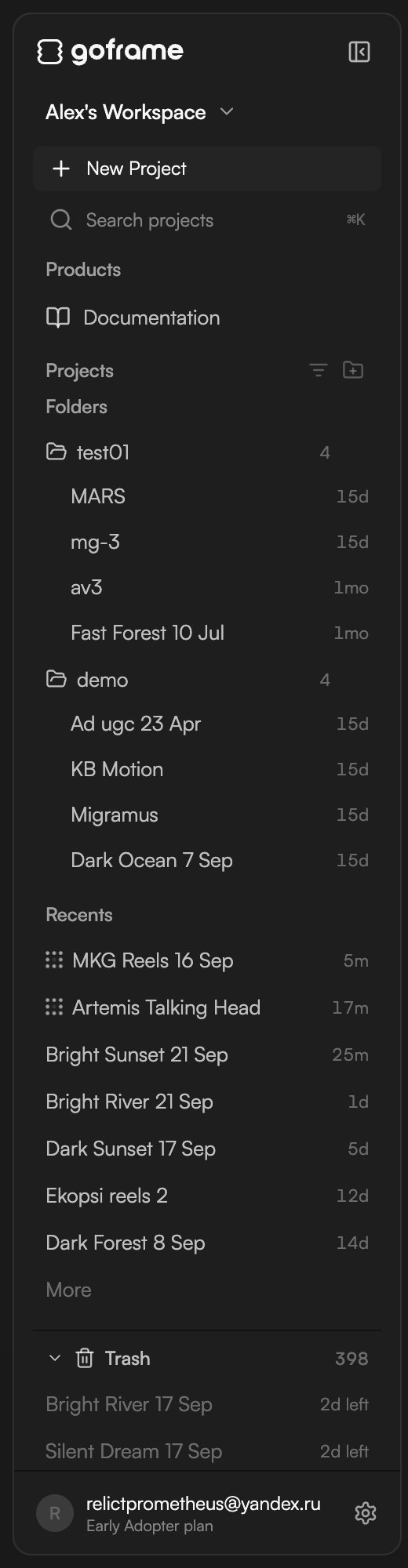
- Projects, with a List options button and a new-folder button in its header, followed by Folders, Recents, More and Trash.
- Your account footer at the bottom, with your avatar, email and plan; click it for the account menu.
Project menu
Hover a project row to reveal Delete (a trash icon) and Project menu (⋯). The menu lets you:- Pin / Unpin: keep it handy in the sidebar.
- Rename.
- Duplicate: makes a full copy (“Project duplicated”).
- Move to folder: choose a folder, or No folder to take it out of one.
- Archive: hides it from Recents without deleting anything.
- Move to trash.
Folders
Click the new-folder button next to Projects, type a name and pressEnter. Add projects with Move to folder from the project menu. Hover a folder and open Folder menu to Rename it or Delete folder.
Archive
Archived projects leave Recents. Opening one shows the banner “This project is archived — restore it to edit”; choose Unarchive from its menu to bring it back.Trash
Move to trash (or the Delete icon on the row) opens Move project to trash?: the project “will be moved to the trash and permanently deleted after 7 days. You can restore it until then.” Confirm with Move to trash. The Trash section shows how many projects it holds; each one shows how many days remain (for example “6d left”) and can be restored, or removed for good with Delete forever.Ordering and filters
Click List options next to Projects to change Ordering (Recent activity, Name or Created) and Show (All projects, Active or With errors).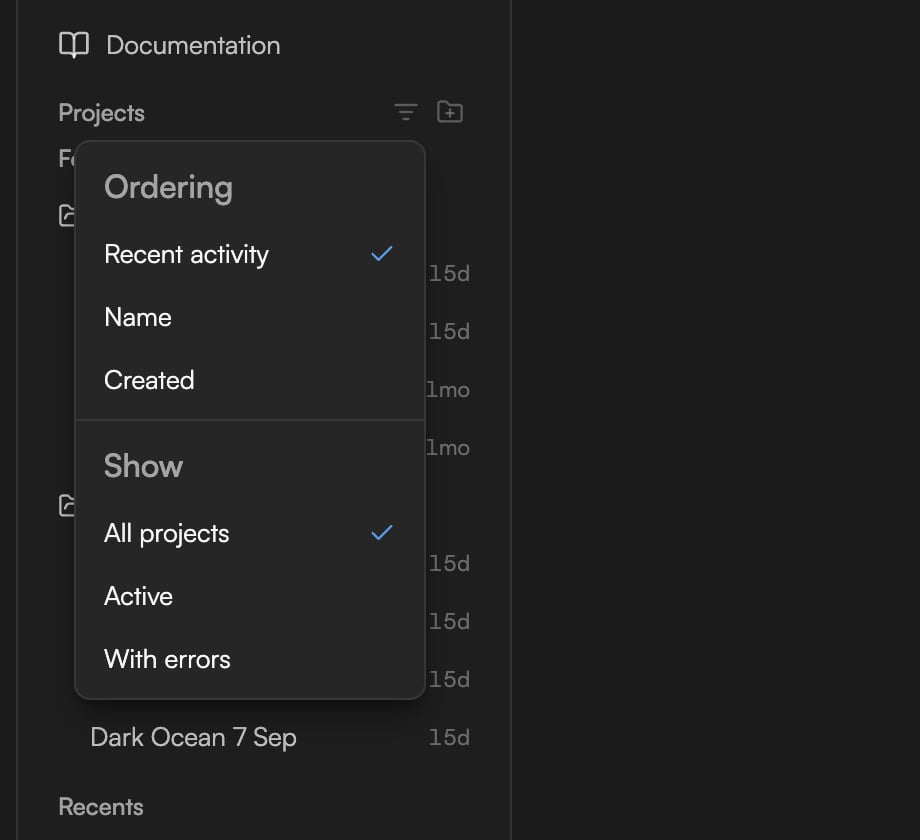
Workspaces
“Workspaces isolate projects, brand memory, and team settings. You can switch between them from the sidebar.” Every account starts with a personal workspace.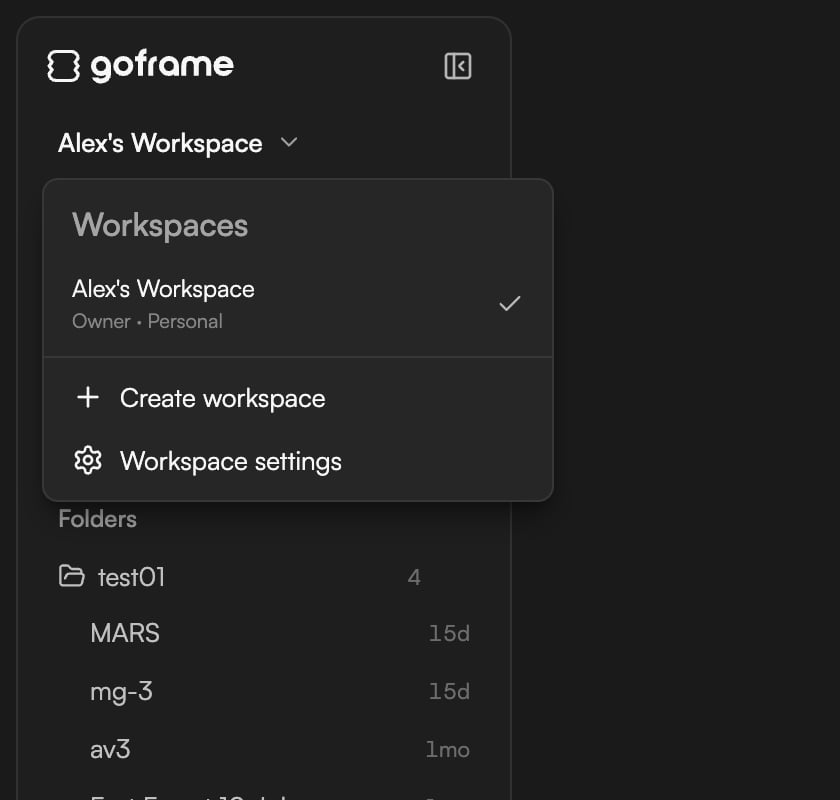
- Switch with the workspace switcher at the top of the sidebar.
- Choose Create workspace from the switcher, enter a Name (for example “Acme Studio” or “Personal brand”) and confirm.
- Settings → Workspace is where you rename the workspace and see its ID, your role (Owner, Admin, Member or Viewer) and whether it is your personal workspace. See Settings.
New Version Available
GoFrame Editor updates often. When a new build is out, a banner reads New Version Available: “A new version of the application is available. Please refresh to get the latest features.” Click Refresh page when you’re at a good stopping point; your project is autosaved.Continue
- Get started in GoFrame Editor for the full first-project walkthrough.
- Editor layout for what a project looks like once it opens.
- Settings for workspace details, language and theme.
- Version history and autosave for how projects are saved.