GoFrame Editor uses a different model for each kind of task: one to run the agent, others to generate images, video, voices, music and more. The Models picker lets you change any of them per project. This page lists every model with what it is good at and, where known, what it costs in credits.

Open the picker

Click the ✦ button in the composer (tooltip Select AI models), or type /model. The Models dialog groups models by task (Editing, Image generation and so on); pick one per group and close. Click Reset defaults to return every group to its default.
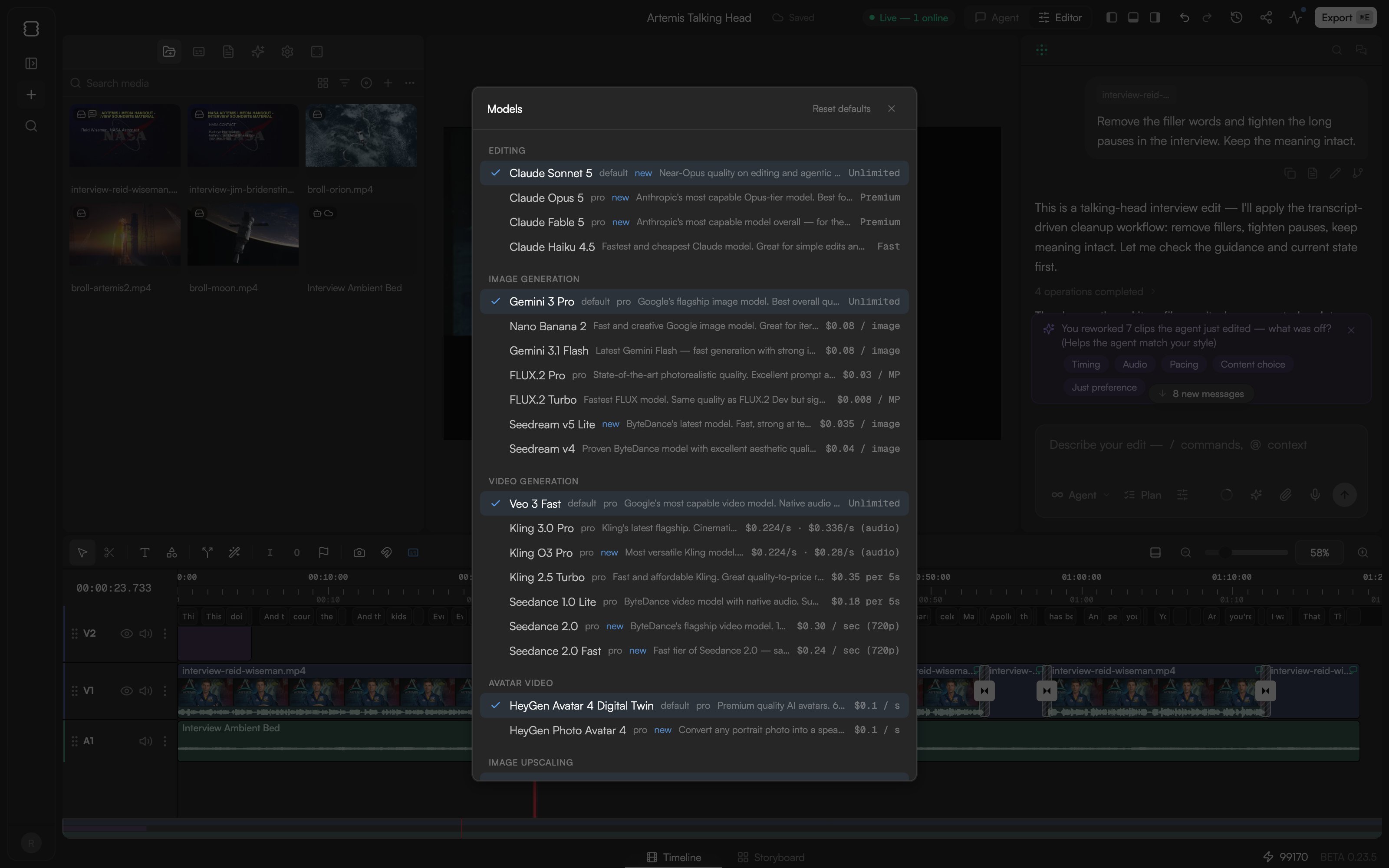
Models dialog with task groups and a selected model in each
Badges next to a model:
  • default: the model used when you have not chosen another.
  • pro: available on paid plans. On the Free plan, choosing one shows “available on paid plans” and asks you to switch to the base model or upgrade.
  • new: recently added.
Each entry also shows a short description and either a tier word such as Unlimited, Premium or Fast, or a price. Credits are the currency (1 credit = $0.01); prices and plan limits are shown in the app and may change. Generation costs are announced in the chat before a paid step runs, and when you ask for a model that is not your default the agent may check first with choice buttons (for example Go ahead with Nano Banana 2 or Use Gemini 3 Pro instead (my default)); see Review proposals and approve actions.

Editing

The editing model is the agent itself: it reads your project, plans and performs the edits. The Free plan includes Claude Haiku 4.5 only.

Image generation

See Generate images.

Video generation

Costs are per second of generated video. See Generate video.

Avatar video

See Avatar videos.

Image upscaling

Video upscaling

See Upscale images and video.

Text to speech

Indicatively about 4 credits per generation. Voice cloning needs a sample of at least 10 seconds and the speaker’s consent. See Voiceover and text-to-speech.

Sound effects

Video to SFX

See Music and sound effects.

Text to music

About 20 credits per generation.

Generation settings

Aspect ratio (Auto, 16:9, 9:16, 1:1, 4:3, 3:4, 4:5, 21:9), Duration and Audio (Auto, On, Off) for image and video prompts are set from the Generation settings button (sliders) in the composer. The duration choices follow the selected video model (4 / 6 / 8 s for Veo 3 Fast, 5 / 10 s for most others, 4–15 s for Seedance 2.0). See Write prompts, references and commands.

Continue