

Before you start
- The text and the job. What the graphic says, what it’s for and where it sits in the edit. Colors, fonts and timing come from the project’s visual identity, so you don’t need to spell them out.
- A visual identity (recommended). Run
/visual-identityonce with a few style words. The agent writes a design brief (DESIGN.md, visible in the chat’s Workspace files) with palette, typography, motion personality and a list of things to avoid. Every motion graphic, image and video after that follows it. Without one, the agent uses a built-in clean look. - Assets (optional). A logo or photo in the Media pool that the graphic should use. Reference it with
@. - Credits. Motion graphics are written by the agent rather than a media model, so there is no per-clip media price; the credits used for the prompt count as agent usage, which you can review in Settings → Advanced → Usage.
Ask the agent
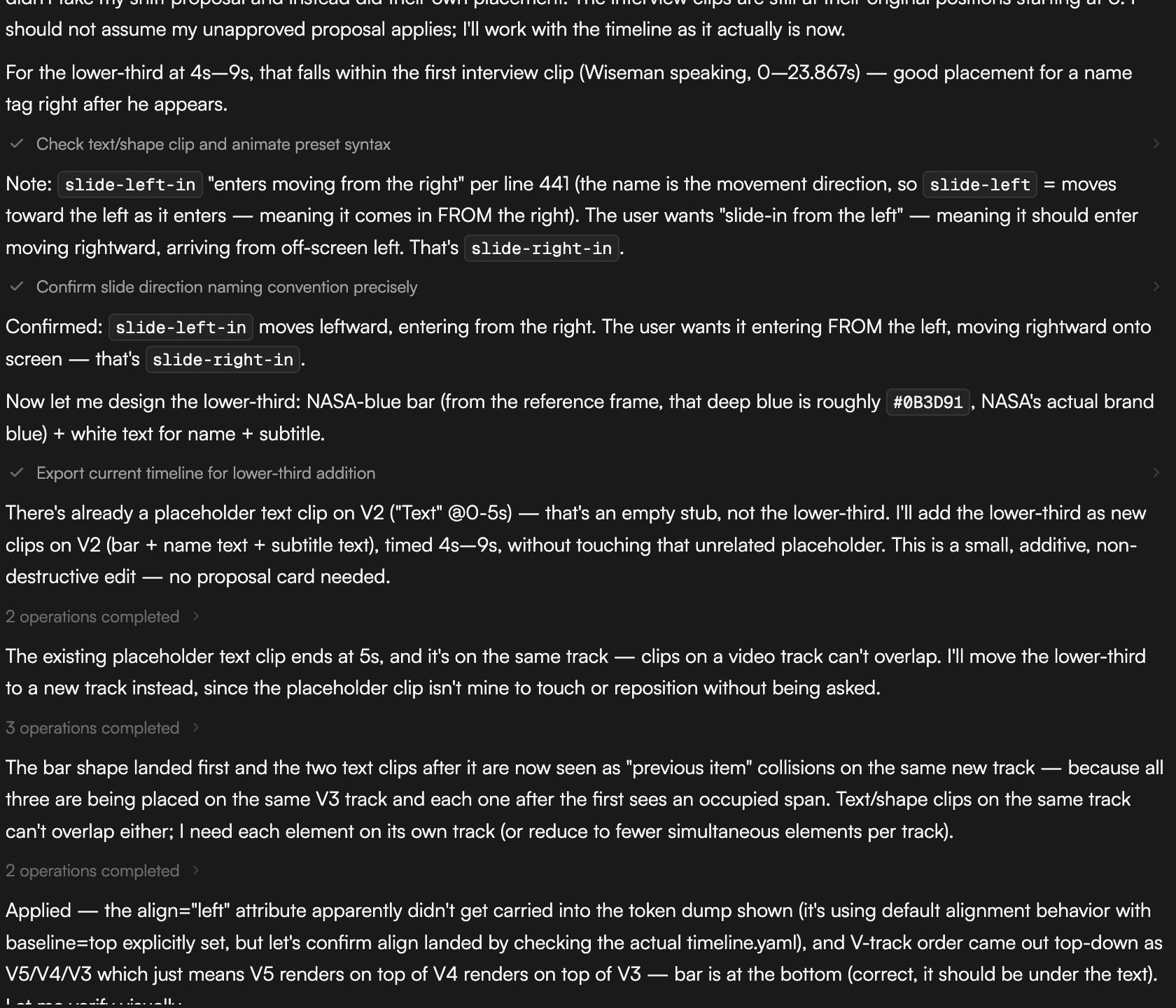
Describe the graphic’s purpose, not its pixels. Start with/motion-graph-gen or plain language.
Options
The graphic is written by the agent’s editing model (Claude Sonnet 5 by default). The agent renders frames of the graphic and looks at them before reporting back; if something is off (a color, spacing, timing), it fixes the graphic and re-renders, then tells you what’s left to adjust.
Where the result lands and what to do next
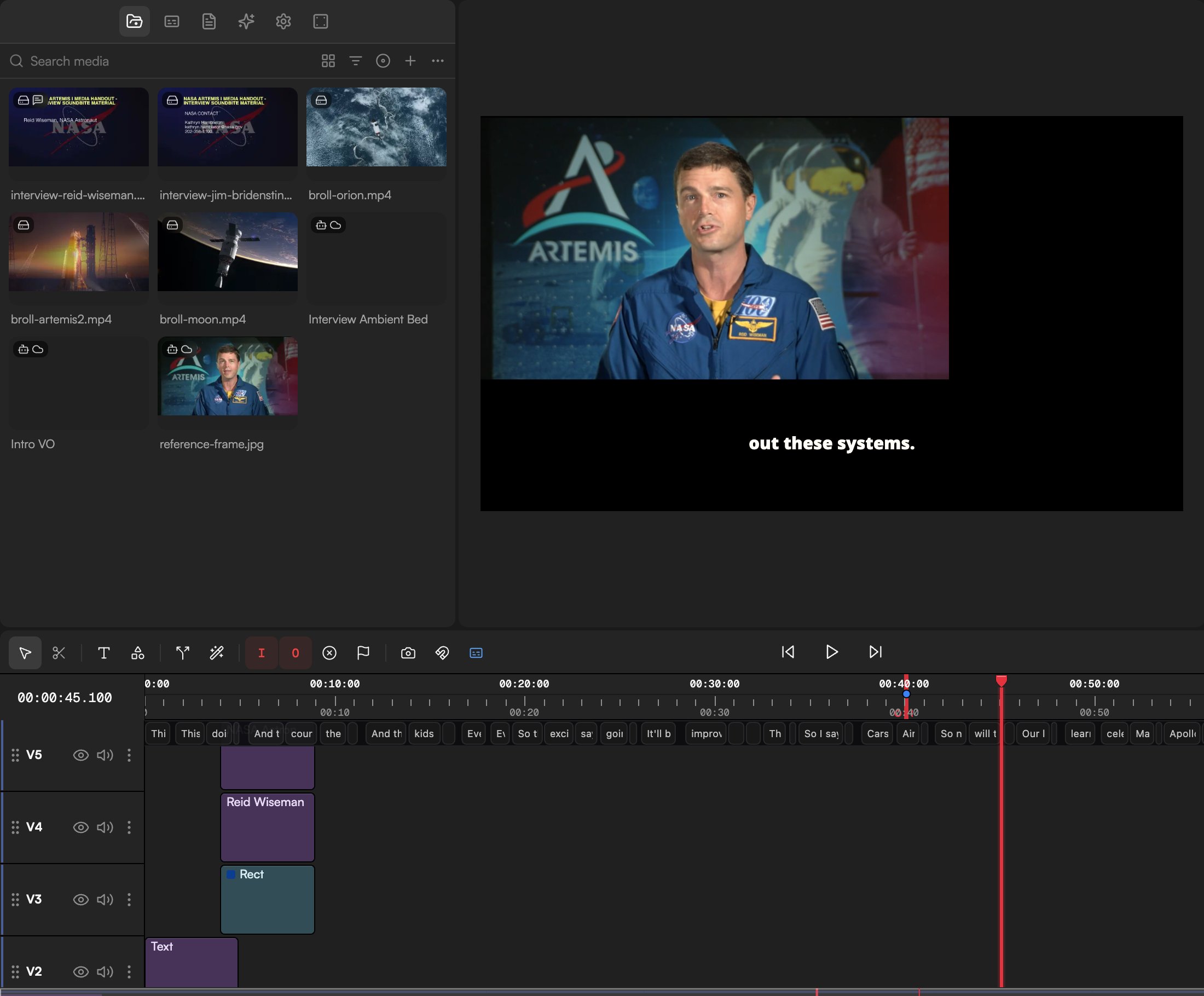
- The graphic is registered in the Media pool (filter chip Motion) and placed on a video track above your footage at the time you asked for.
- A Motion graphics job card shows progress in the chat.
- Select the clip and adjust it like any other: Position, Layout, Opacity, Animate presets and keyframes in the Inspector. It re-renders at whatever size you give it.
- Change it by asking: “make the lower third smaller and move it left”, “slow the count-up down”, “swap the logo”. Reuse it: “duplicate this for every speaker”.
Get it ready for export
Motion graphics are rendered frame by frame when you export, like burned-in captions, which makes the export slower than usual. Two ways to handle it:- Turn on MG optimization in the Media pool. It bakes motion graphics to video in the background, and the Background tasks popover in the top bar shows the job while it runs, so the export itself is quicker.
- Or just export. The Export Settings dialog notes that the export will be slower, prepares the graphics and then renders.
A quicker alternative: Text FX
For a simple animated text reveal you don’t need a generated graphic. Add a text clip (T), open Text FX in the Inspector, choose By word, By letter or Scramble, set the Reveal length in seconds and the Easing, then click Convert to text reveal. The conversion is reversible from the new clip; existing keyframes aren’t carried over. See Text and shapes and Animate clips.
Tips
- Say what it’s for. “A lower third for the CEO in a serious investor update” gets a better result than “a blue lower third”.
- Batch related graphics in one message (“a lower third for each of these three speakers”) and the agent makes them in one go, in one style.
- If you don’t like the look, change the identity, not the single graphic: “make the visual identity warmer and more playful”, then regenerate.
- Check the graphic paused, not just in motion. A title must read as a still frame.