

Invite someone
1
Open Share
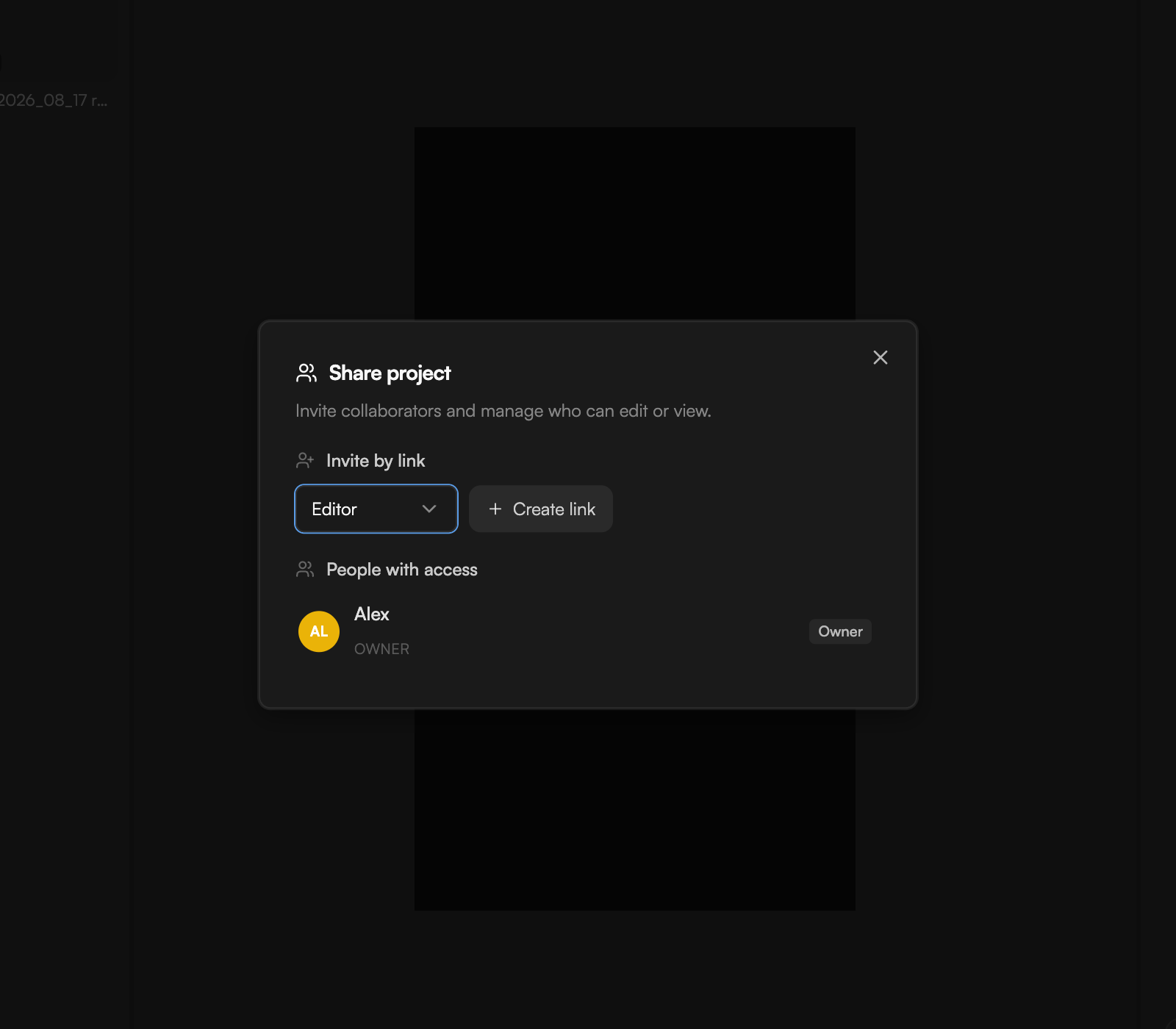
Click Share in the top bar. The Share project dialog opens: “Invite collaborators and manage who can edit or view.”
2
Choose a role for the link
Under Invite by link, pick Editor (can change the timeline and prompt the agent) or Viewer (can watch and play, nothing more).
3
Create the link
Click Create link and copy the link that appears.
4
Send it
Paste the link into a message. The recipient signs in with their GoFrame account and lands in the project with the role you chose.
Invite links are for people with a GoFrame account. If a link no longer works, ask the project owner for a fresh one.
Manage access
The People with access list shows everyone on the project with their role: Owner, Editor or Viewer. Remove a member here to take them off the project; they lose access immediately. Collaborator seats depend on your plan: none on Free, 3 on Creator, unlimited on Pro. See Plans and credits.Work together live
When more than one person has the project open, the top bar shows a Live — N online pill with their avatars. Edits appear for everyone within moments, and autosave handles the merging.
- Every version created by you or a collaborator appears in Version history with its author, so you can always see who changed what and go back. If someone restores a version, everyone’s timeline switches to it. See Version history and autosave.
- Undo covers your own edits. If a collaborator has already deleted the clip you are undoing, undo cannot bring it back; use Version history.
- During an export, changes from the agent and your collaborators are held back until the export finishes; your own edits still apply.
- If the connection drops, the save status switches to Offline — changes stored locally; the editor keeps your changes and syncs them when it is back.