

⌘ is Ctrl on Windows and ⌥ is Alt. Press ? over the timeline for the shortcuts sheet, and ? in the chat for the chat help overlay.
Playback
Editing
The right-click menu on a clip lists the current keys next to Split at Playhead, Duplicate, Copy, Paste, Delete and Ripple Delete, so it doubles as a cheat sheet for whichever preset you use.
Tools
Markers & zone
View
App
Chat
Composer and messages:
Edit proposals and palettes:
See Write prompts, references and commands and Review proposals and approve actions.
Presets
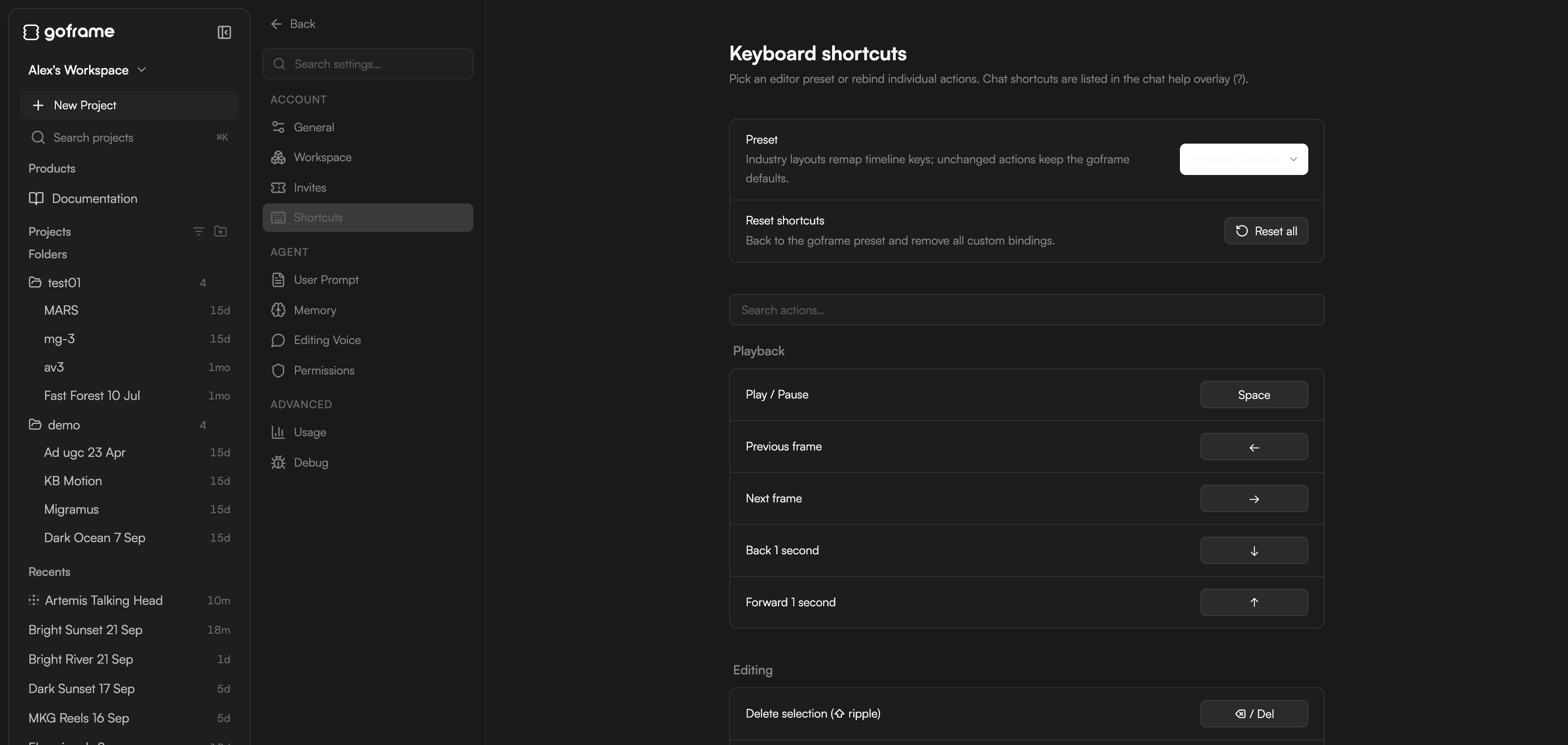
Presets change only the timeline keys that differ from the default; everything else keeps the goframe binding (“Industry layouts remap timeline keys; unchanged actions keep the goframe defaults.”). Duplicate, copy and paste are the same in every preset.Customize shortcuts
1
Open Settings → Shortcuts
The page reads “Pick an editor preset or rebind individual actions. Chat shortcuts are listed in the chat help overlay (?).”
2
Pick a preset
Choose one under Preset: goframe (Default), Premiere Pro, DaVinci Resolve or Final Cut Pro. Actions are grouped into Playback, Editing, Tools, Markers & zone and App.
3
Rebind an action
Find the action in its group, click its binding and press the new keys. A single action can be put back to the preset later.
4
Watch for conflicts
If two actions end up sharing keys, change one of them so both keep working.
If a shortcut does not work
- Click the timeline first. Letter keys go to the text field when you are typing in the chat, a text clip or a rename box.
- Timeline keys need the timeline to be visible: switch to the Editor layout with
⌘.. - Switch to a Latin keyboard layout and try again.
- Check the preset in Settings → Shortcuts:
⌘KandCmean different things in the Premiere Pro preset.