

Two layouts
Switch with the layout switcher in the top bar (Agent / Editor) or press
⌘. (Ctrl on Windows). New projects open in Agent layout; each project then remembers the layout you used last. To change the default for projects you haven’t opened yet, go to Settings → General → Default layout for new projects. See Settings.
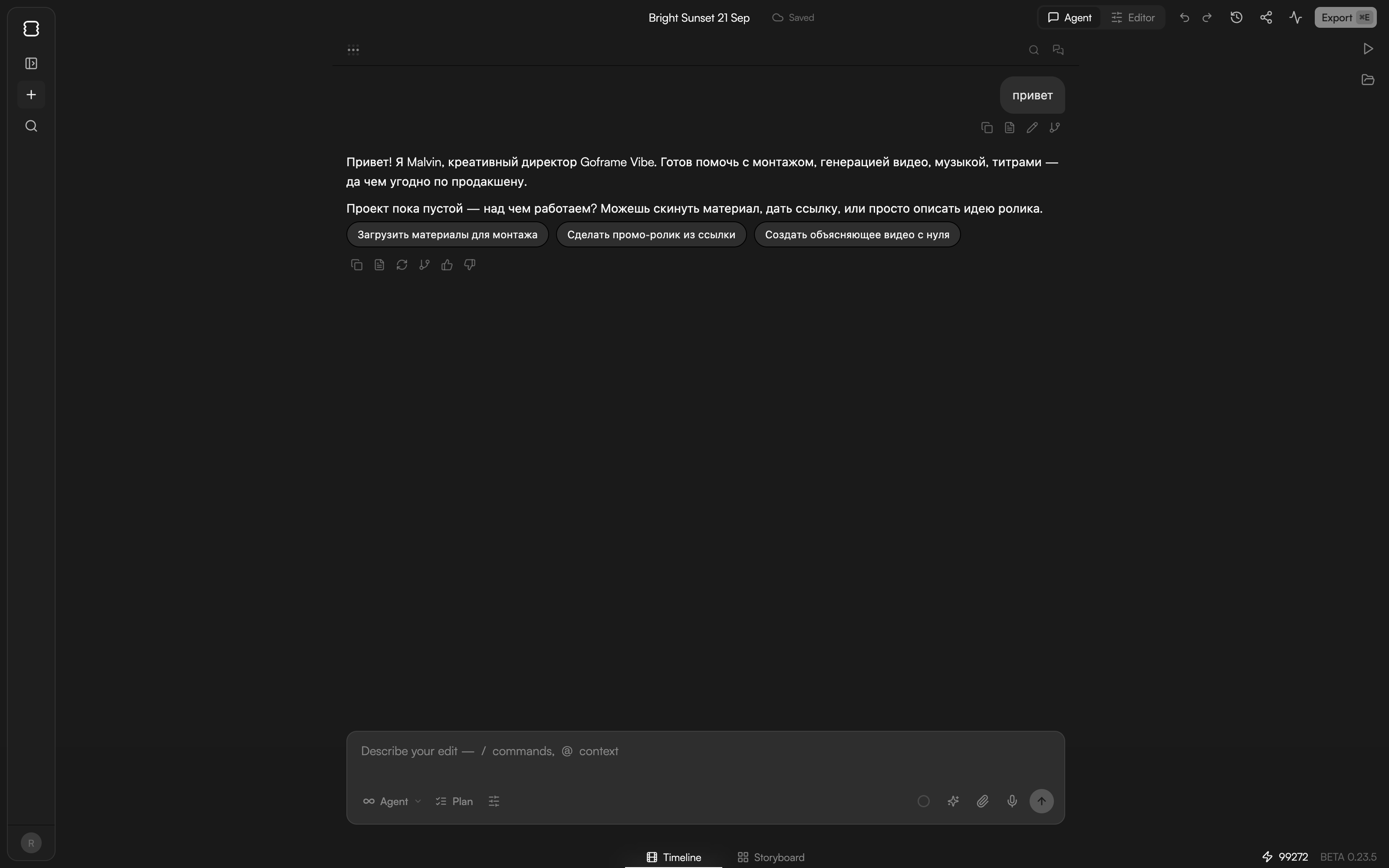
Agent layout
The chat fills the centre, with a search icon and the Chats list in its header. A narrow rail on the left holds the logo, a panel toggle, +, search and your avatar. The dock on the right appears when the agent produces results and has two tabs:- Preview: the player. It shows the current state of the timeline as the agent works.
- Media: the Media pool, for importing and browsing files.
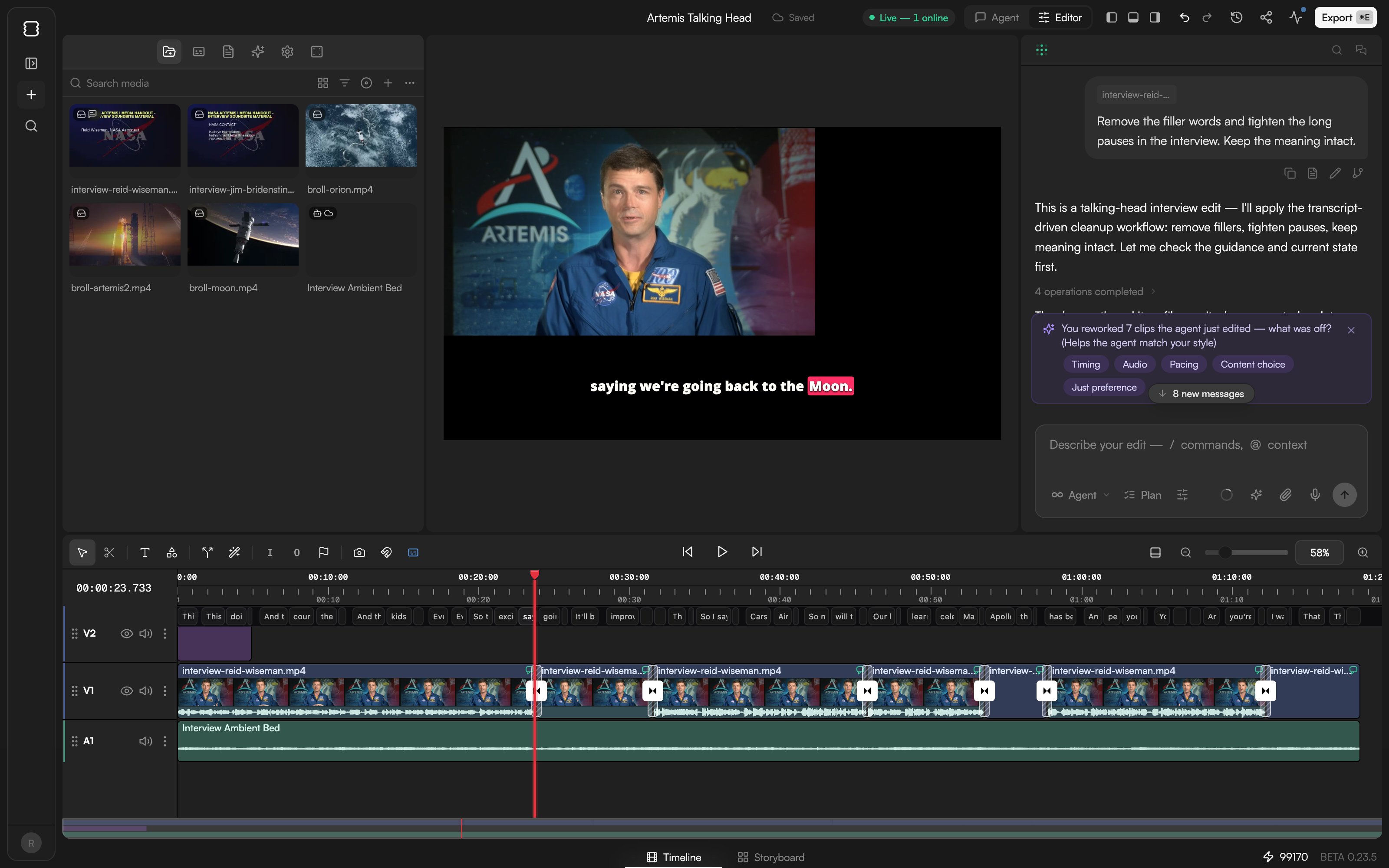
Editor layout
Left panels
Icons down the left edge, without labels, open one panel at a time:
Press
⌘J to cycle the left panel between hidden, normal and full height.
Preview
The player in the centre shows the composition at the playhead.Space plays and pauses; go to start, play/pause and go to end also sit in the Timeline toolbar. Text and shape clips can be moved and resized directly on the Preview canvas, with alignment tools and an eyedropper. See Text and shapes.
Chat
The agent chat sits on the right. Press⌘L to cycle it between hidden, normal and full height.
Timeline
The Timeline runs along the bottom, with video tracks (V1, V2, …) above audio tracks (A1, A2, …). Three panel toggles in the top bar show or hide the panels around it. When it is empty it reads “Drag media here — or ask the agent to build your edit”. See Timeline basics. The toolbar above the tracks holds, from left to right: the Select and Blade tools, Add text, Add shape (Rectangle, Ellipse, Pen, Polygon, Star, Line), split at playhead, Smart actions (a wand, with Remove Silences), delete (shown when something is selected), the In and Out point buttons, a marker flag, export frame (a camera), snapping (a magnet) and the caption lane (CC); then the transport controls; and on the right the minimap toggle and the zoom controls (−, slider, percentage, +). Undo, redo and Version history live in the top bar.
Top bar
From left to right:- Project title: click it to rename the project inline.
- Save status. Projects autosave every few seconds. The label reads Saved, Saving…, Offline — changes stored locally, Couldn’t save — click to retry or Paused — project updated in another tab, reload. See Version history and autosave.
- Live — N online pill with avatars when others are in the project. See Share and collaborate.
- Agent / Editor switcher (tooltips Agent (⌘.) and Editor (⌘.)).
- Three panel toggles (in Editor layout) that show or hide the panels.
- Undo and Redo.
- Version history (a clock icon): opens the version panel.
- Share: opens Share project to invite collaborators.
- Background tasks (a pulse icon, with a dot while something runs) for transcription, cloud sync and MG optimization jobs. Click it to open the panel.
- Export (
⌘E). See Export video.

Footer
- Timeline / Storyboard tabs switch between the editing timeline and the Storyboard board for generation. See Storyboard.
- The credits counter (⚡ and your balance). Click it to open Top up credits. See Plans and credits.
- BETA with the build version.
Shortcuts for the layout
Use Ctrl in place of ⌘ on Windows.
Command palette
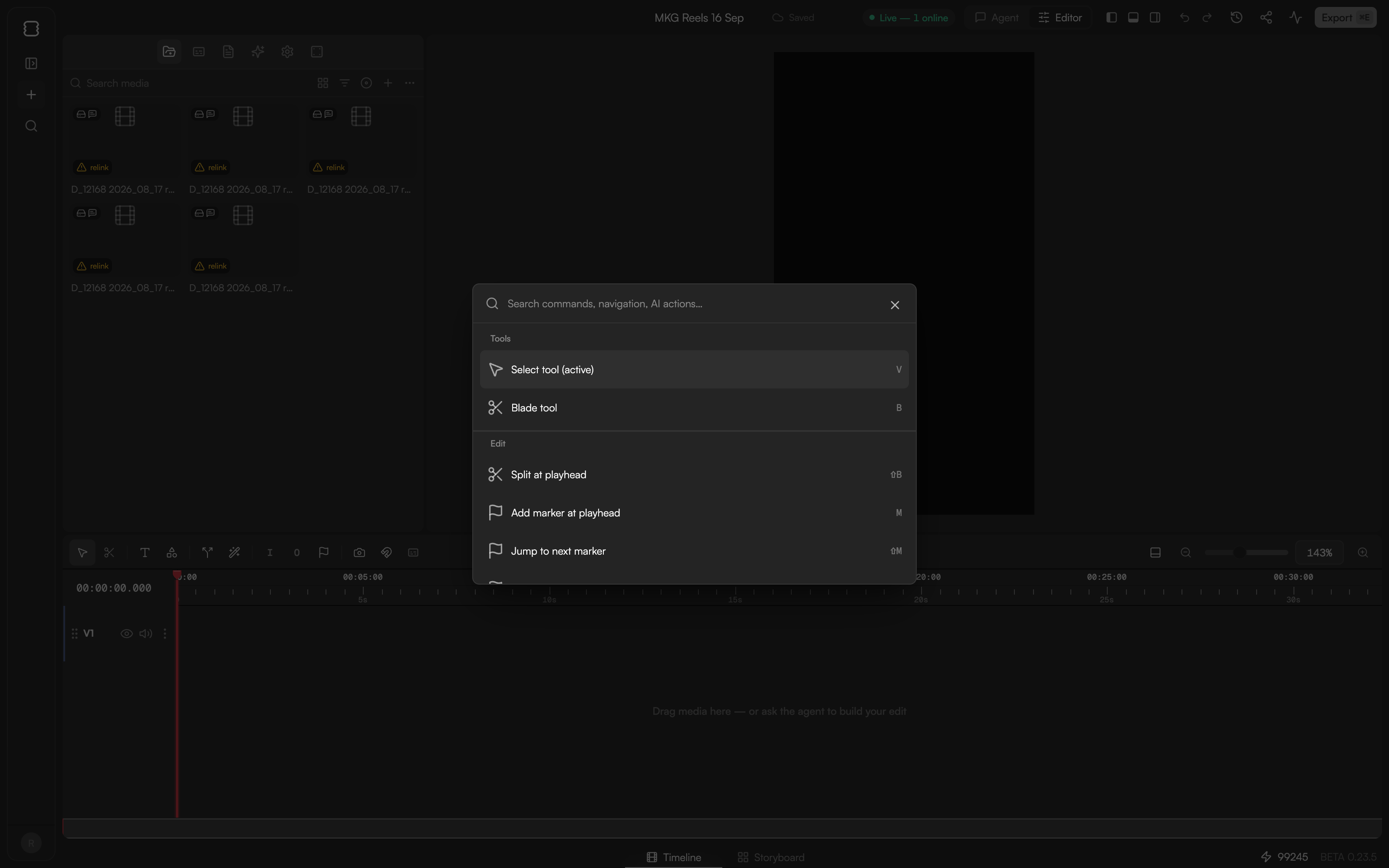
Press⌘P (or ⌘⇧P) to open the command palette: a Search field with results grouped into Tools, Edit, Navigation, View, Timeline, Tracks and AI, so almost anything on the toolbar or in a menu is a few keystrokes away. Press ? for the shortcuts overlay. See Keyboard shortcuts.
GoFrame Editor is designed for wide screens. In a narrow window you see the note “goframe is a widescreen experience”; widen the window or use a larger display.
Continue
- Timeline basics for tracks, the playhead, markers and zoom.
- Meet GoFrame Editor Agent for the chat side of the screen.
- Keyboard shortcuts for the full reference and presets.
- Settings to change the default layout and theme.