

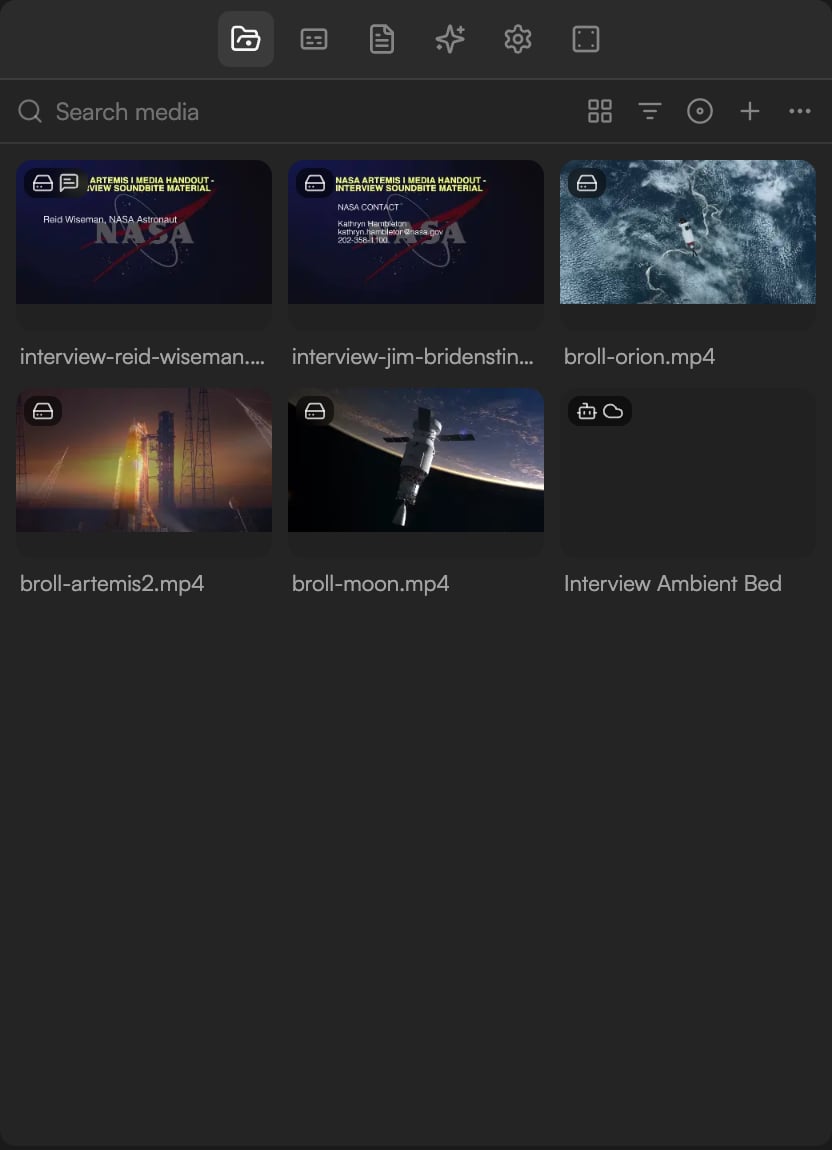
Browse and filter
The panel header holds Search media and a row of buttons: Switch view, Filter by type or favorites, Record screen, camera, or voice, Import files and Library settings (⋯).- Search media: type to filter by name.
- Switch view (its tooltip names the current view, for example View: Grid) changes how assets are laid out.
- Filter by type or favorites narrows the list to video, audio, images or motion graphics, or to starred assets. Star an asset with Star in its right-click menu.
Folders
Create folders to group assets: choose New folder…, name it, and move assets into it with Move to folder from the asset’s right-click menu. The top level is called Library.Add media to the Timeline
- Drag an asset onto a track. Drop between tracks on the + New video track target to create a track for it.
- Add to timeline: from the asset’s right-click menu, append the clip to the Timeline.
- Insert at playhead: from the same menu, place the clip at the current playhead position.
Asset details
Select an asset to see its details: dimensions, frame rate, duration, file size, format, when it was imported and its upload status (Uploaded, Uploading…, Pending upload, Local only or Upload error).AI-generated assets
Assets created by the agent carry a Created by AI agent badge and record the Model, the Variant number and the prompt used. Copy the prompt from here to iterate on a generation, or click Reveal in library on the job card in the chat to jump to the asset.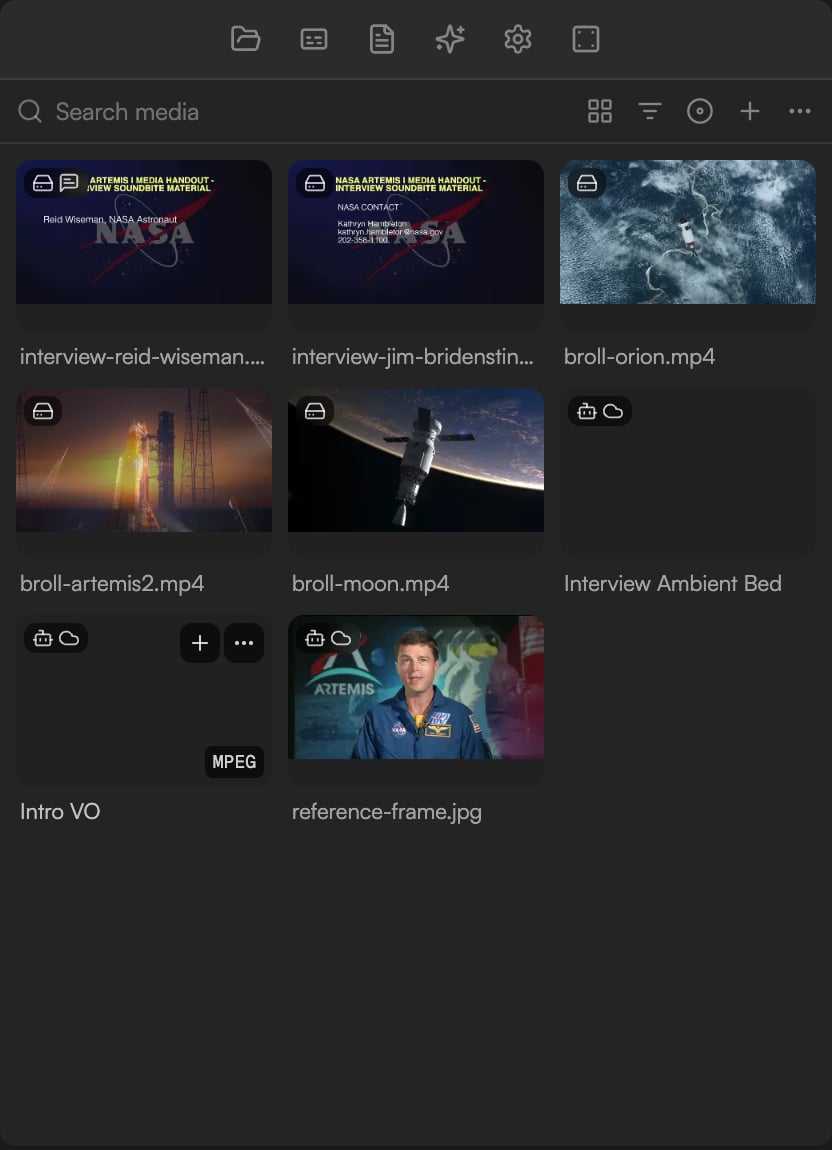
Actions
Right-click an asset for Add to timeline, Insert at playhead, Download, Move to folder, Cloud Sync, Relink…, Star and Remove.- Cloud Sync: upload the file or keep it local. See Import media.
- Download: save the original file.
- Relink…: point a missing local file at its new location.
- Remove: remove the asset from the project.
Library settings
Two switches live under Library settings (the ⋯ button in the panel header):- Auto cloud sync — Upload new files automatically. Every new import is synced without a per-asset toggle.
- MG optimization — Bake motion graphics to video in background. Motion graphics are pre-rendered so exports start faster. When it is off, GoFrame Editor turns it on for you at export time and waits for the bake to finish. See Motion graphics.
Background tasks
Transcription, cloud sync and MG optimization run without blocking you. The Background tasks button in the top bar (a pulse icon; a dot appears while something is running) opens the Background tasks panel.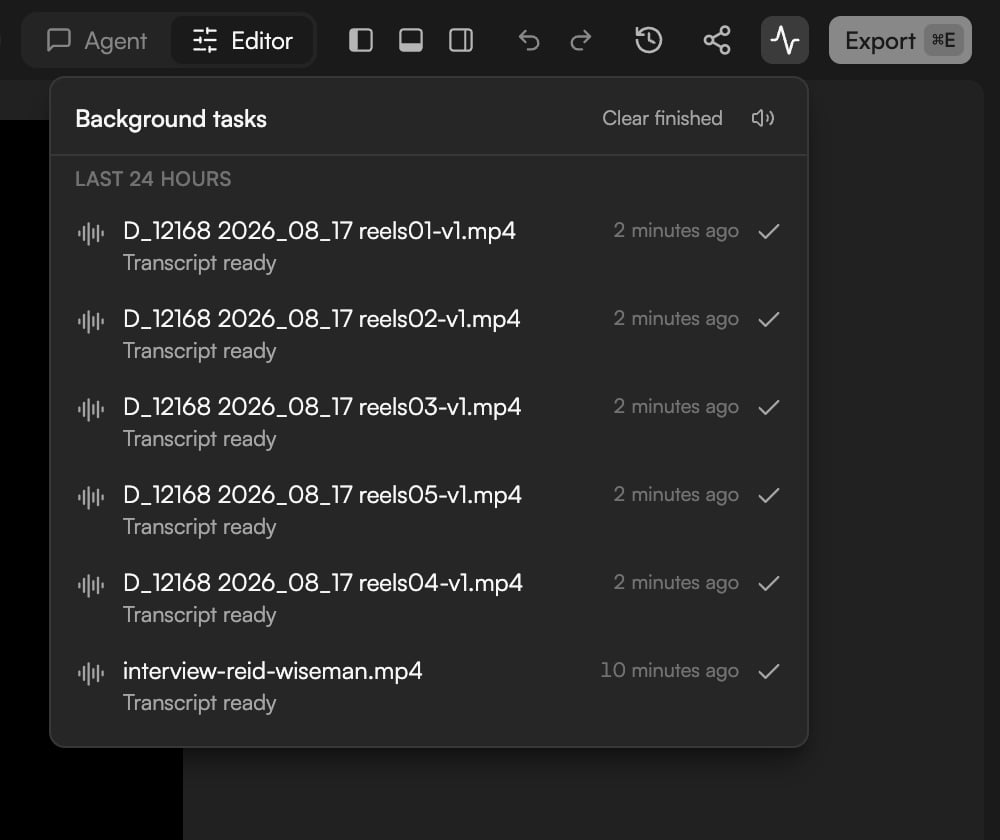
- Running tasks are listed with their current stage, for example the transcription stages described in Transcribe media.
- Last 24 hours keeps finished tasks for a day, one row per file (“interview.mp4 · 5 minutes ago · Transcript ready”). Click Clear finished to tidy up.
- Failed tasks stay listed with their error so you can start them again from the asset.
A page reload interrupts tasks that run in the browser, such as uploads. Start them again from the asset.