

I did not receive a sign-in code
Check the spam folder, then click Resend. If you asked too often, wait a minute before trying again; if the code expired, request a new one. If your Google or Yandex account uses the same email, Continue with Google or Continue with Yandex skips the code entirely. See Sign in and beta access.I signed in but see “goframe is in closed beta”
Access is invite-only for now. Enter a code in Have an invite code? (format GF-XXXX-XXXX) and click Activate, or Join the waitlist to get a position. If a code is rejected as already used or expired, ask the person who invited you for a new one from their Settings → Invites.A project is missing from Home
Check Trash in the sidebar, and the archived projects list. Trashed projects show how many days are left (“Nd left”) and can be restored for 7 days. Also check the workspace switcher: a project created in another workspace does not appear in this one. See Home and projects.My clips say “File unavailable” or ask me to relink
Local-only files live on your computer, so they are unavailable on another device or after they move. The Media pool shows a banner (“6 local files are unavailable — Relink…”) and a relink badge on each affected tile. Click Relink… to open Relink local files: each row reads “File missing or moved” with a Locate… button, and Relink from folder… scans a folder to relink them in bulk (Chrome and Edge). To avoid this, right-click the asset and turn on Cloud Sync, or enable Auto cloud sync in the Media pool. See Import media.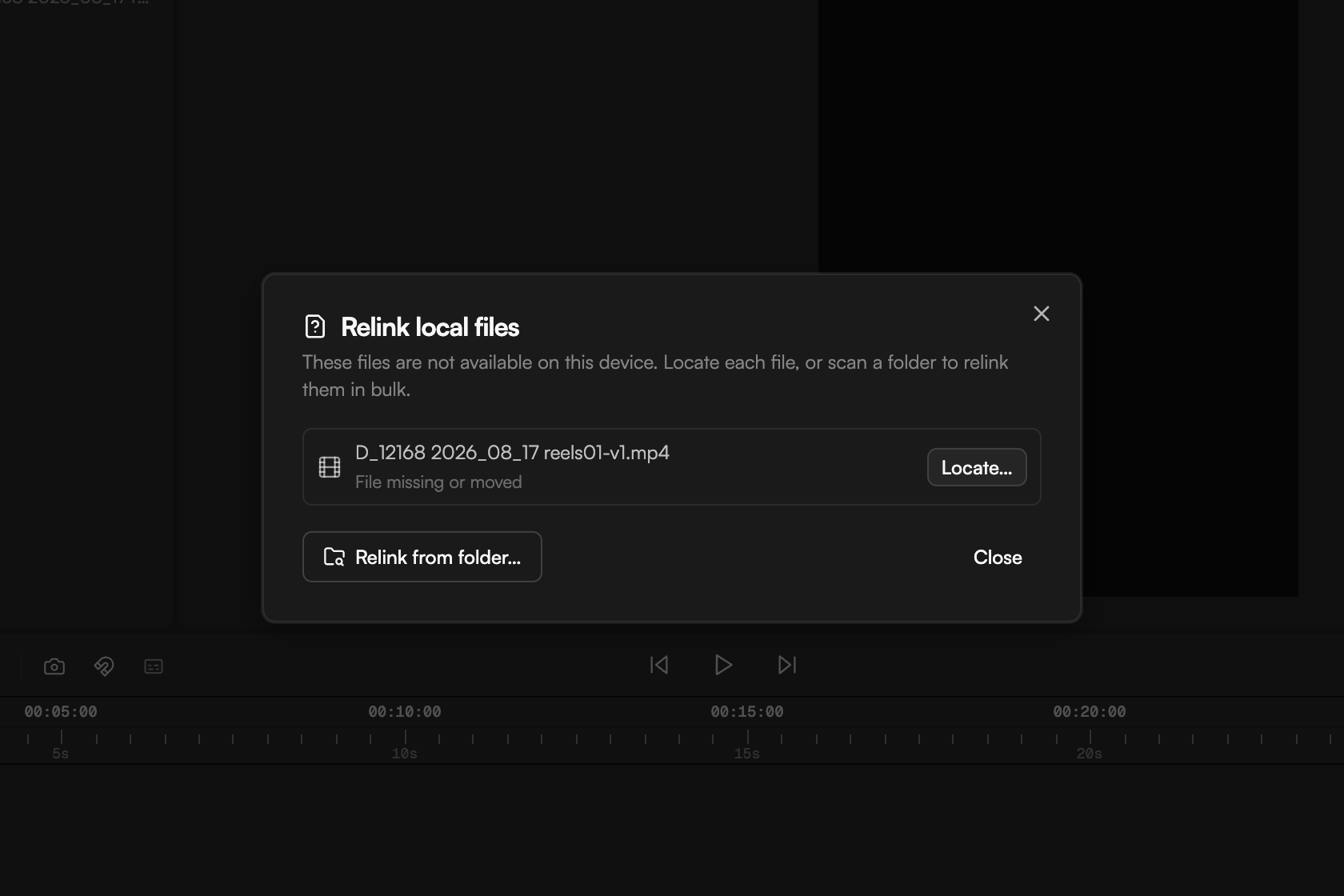
An upload fails or shows “Upload error”
Confirm the file is under 50 GB and in a supported format (see Supported formats and limits). For a stubborn file, re-export it from its source and import again. Uploads run in the Background tasks popover in the top bar; keep the tab open until the status reads Uploaded.Transcription failed or says “No speech detected”
“No speech detected” and “No audio track” mean the transcriber found nothing to transcribe; check that the clip has audible speech and that the right language is set in the transcription settings (or use Auto-detect). “Transcription failed” is worth one retry with Re-transcribe. Media longer than 24 hours cannot be transcribed, and only 3 files transcribe at once; the rest wait for a free slot. See Transcribe media.The agent says it is busy
Only one agent run can be active per project. A busy message means a run is in progress, possibly started by a collaborator. Wait for Agent run finished, or pressEsc to cancel your own run (the status line reads “esc to cancel” while it works). Switching chats is also blocked mid-run.
The agent shows “Waiting for your approval” and nothing happens
The agent is paused on a card that needs your answer: an edit plan (Apply plan / Revise), a permission request (Approve once, Always, Deny) or a plan awaiting Approve & run. Scroll up in the chat to find it. To auto-approve routine actions, adjust Settings → Agent → Permissions. See Review proposals and approve actions.The agent lost the connection
After about 30 minutes of inactivity the agent session expires and reconnects on its own the next time you send a prompt. If the chat says the connection was interrupted and the response could not be recovered, the last answer was lost: send the prompt again. If it stays stuck, reload the page.”Insufficient Credits” or “Out of credits”
The next action costs more than the workspace balance. Click Top Up Credits, or click the credits counter (⚡) in the project footer. Packs are unavailable on Free, so upgrade or wait for the monthly refresh. See Plans and credits.”Daily AI prompt limit reached”
Free workspaces get 20 agent prompts a day, Creator 200. The message shows today’s count and when it resets. Upgrade to continue now, or come back tomorrow. Timeline editing, captions and exports keep working.The export is slow or stuck
Rendering happens in your browser tab, and hidden tabs are throttled, so bring the tab to the front. Captions and motion graphics are burned in frame by frame; the dialog warns “Captions will be burned in frame by frame — this export is slower than usual.” Turn on MG optimization in the Media pool so motion graphics are prepared ahead of time. For long projects, try Medium quality or a lower resolution.A transparent (ProRes) export will not start
ProRes 4444 encodes in memory; when the range does not fit, the dialog tells you and Export stays disabled. Export in parts using markers in the Duration dropdown, lower the resolution or frame rate, or switch to WebM. Transparent export also needs a paid plan and WebM or MOV; MP4 cannot carry an alpha channel. See Export video.My export has no sound or has a watermark
A silent export usually means a source file was unavailable during the render: relink it and export again. A “Made with Goframe” mark is expected on the Free plan; upgrade to remove it.The save status says Offline, Couldn’t save or Paused
- Offline — changes stored locally: keep the tab open; changes sync when the connection returns.
- Couldn’t save — click to retry: click the status. If it keeps failing, copy any important text out, then reload.
- Paused — project updated in another tab, reload: the same project is open elsewhere. Close the other tab and reload this one.